
Knowledge, WordPress Tutorials
WordPress White Screen of Death: How to Fix It Fast
Jun
The WordPress White Screen of Death is a frustrating issue that can suddenly make a website inaccessible. Instead of displaying content, WordPress shows a completely blank white page with no visible error message. This problem can affect both the frontend and the admin dashboard, making it difficult for site owners to identify the root cause. Fortunately, several troubleshooting methods can help restore your website quickly and safely. 🛠️
What Causes the WordPress White Screen of Death?
The White Screen of Death (WSOD) is typically caused by a fatal PHP error that prevents WordPress from rendering pages correctly. Common causes include:
- Plugin conflicts
- Theme compatibility issues
- PHP memory exhaustion
- Corrupted WordPress core files
- Server configuration errors
- Incompatible PHP versions
- Faulty custom code snippets
Because WordPress may suppress error messages in production environments, the result is often a completely blank page with little indication of what went wrong.
How to Fix the WordPress White Screen of Death
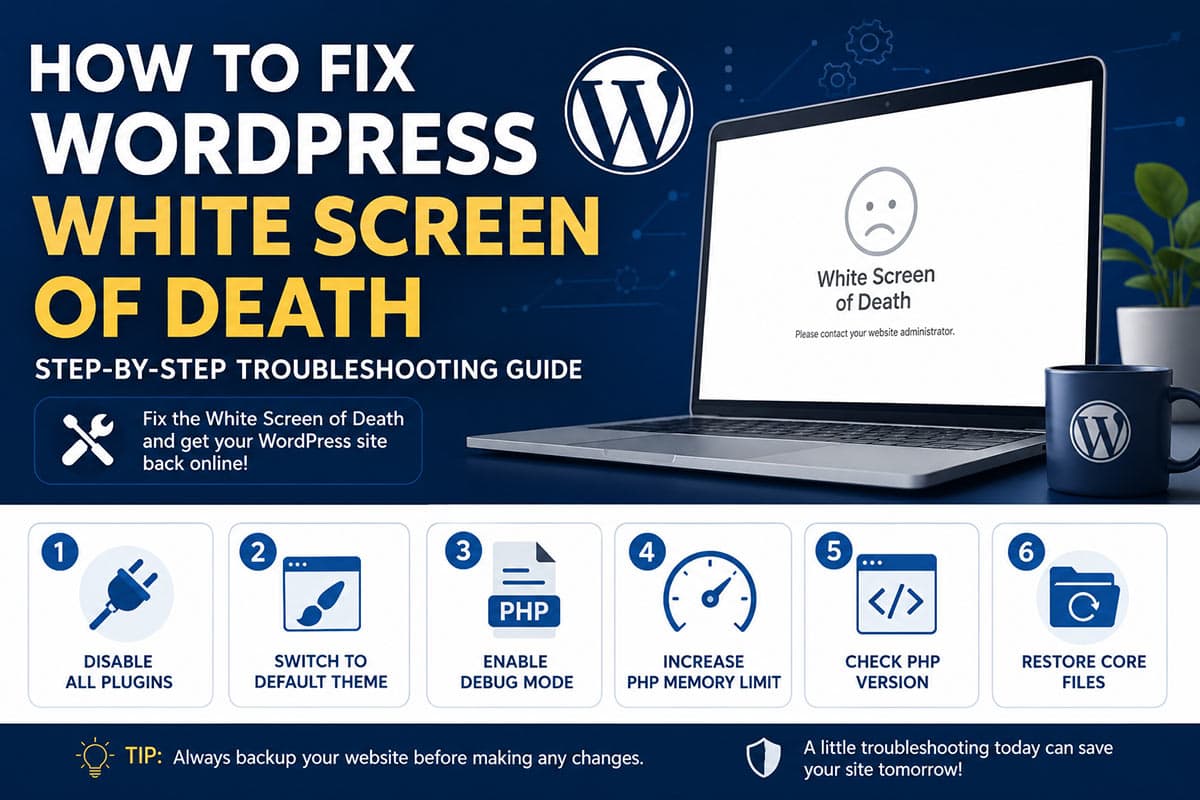
If your website only shows a blank white screen and does not display any error message, you can enable WordPress debug mode to check the debug log and identify whether the issue comes from a plugin, theme, or PHP error.
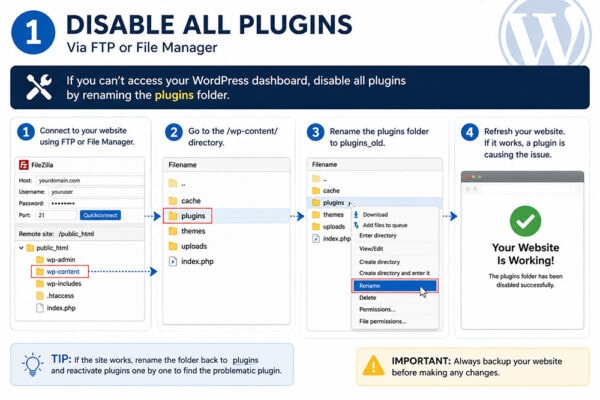
1. Disable All Plugins
Plugin conflicts are one of the most common causes of WSOD.
If you cannot access the WordPress dashboard:
- Connect via FTP or File Manager.
- Navigate to the
/wp-content/directory. - Rename the
pluginsfolder toplugins_old. - Refresh your website.
If the site starts working again, one of the plugins is causing the issue. Rename the folder back and reactivate plugins one by one until the problematic plugin is identified.
2. Switch to a Default WordPress Theme
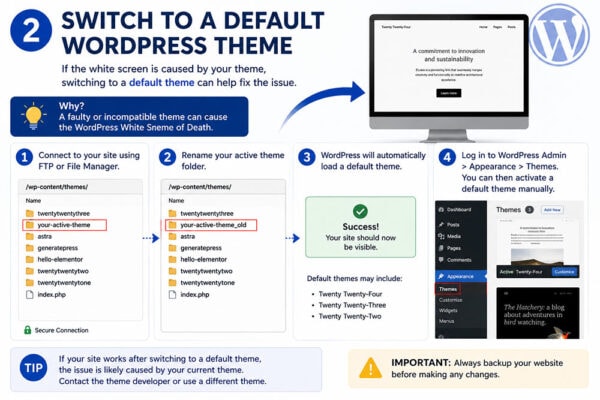
A broken or incompatible theme can also trigger a white screen.
To test your theme:
- Navigate to
/wp-content/themes/. - Rename your active theme folder.
- WordPress will automatically attempt to load a default theme such as:
- Twenty Twenty-Four
- Twenty Twenty-Five
- Twenty Twenty-Six
If the website loads successfully, the issue likely originates from the active theme.
3. Enable WordPress Debug Mode
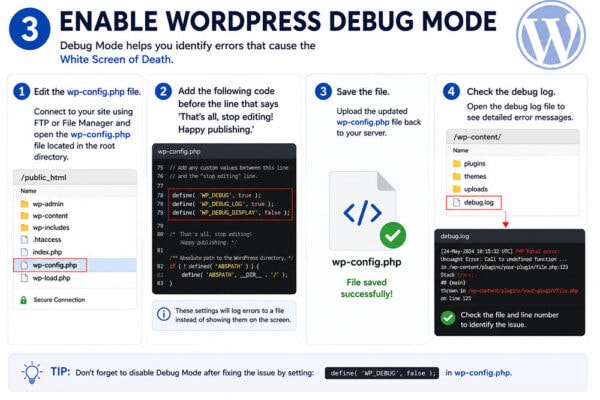
Debug Mode can reveal hidden PHP errors.
Edit your wp-config.php file and add:
define('WP_DEBUG', true);
define('WP_DEBUG_LOG', true);
define('WP_DEBUG_DISPLAY', false);
WordPress will create a log file at:
/wp-content/debug.logReviewing this log can help identify the exact file, plugin, or function causing the problem.
Additional Troubleshooting Steps
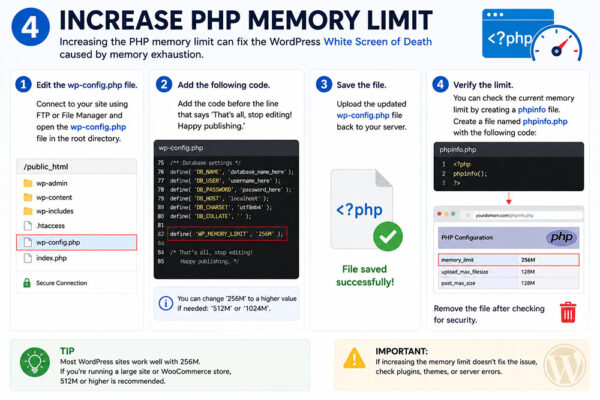
Increase PHP Memory Limit
Insufficient memory allocation can cause WordPress to fail unexpectedly.
Add the following line to your wp-config.php file:
define('WP_MEMORY_LIMIT', '256M');Many hosting providers also allow memory adjustments through the control panel.
Verify Your PHP Version
Outdated PHP versions can create compatibility issues with modern themes and plugins.
It is recommended to:
- Use a supported PHP version.
- Keep WordPress updated.
- Ensure plugins and themes are compatible with your server environment.
Restore WordPress Core Files
Corrupted WordPress files may also trigger WSOD.
Download a fresh copy of WordPress and replace the core files while preserving:
wp-contentwp-config.php
This process can repair damaged system files without affecting website content.
Frequently Asked Questions (FAQs)
Is data lost when the White Screen of Death occurs?
In most cases, no. The issue usually affects website rendering rather than the database itself.
Can WooCommerce cause a White Screen of Death?
Yes. WooCommerce extensions, payment gateways, or custom integrations may sometimes conflict with other plugins or themes.
What should I do if I cannot access wp-admin?
Use FTP or your hosting File Manager to disable plugins, switch themes, and review debug logs.
Should I back up my website before troubleshooting?
Absolutely. A complete backup is strongly recommended before making any modifications to WordPress files or server settings.
Conclusion
The WordPress White Screen of Death can seem alarming, but it is often caused by issues that can be resolved through systematic troubleshooting. By disabling plugins, testing themes, enabling debug mode, checking memory limits, and reviewing server configurations, website owners can quickly identify the source of the problem and restore normal operation. Maintaining regular backups and keeping WordPress components updated remains the best long-term strategy for preventing similar issues in the future. 🚀
Call To Action
Need help fixing your WordPress website? Contact WPStore+ for professional WordPress troubleshooting and malware removal services.

