
Knowledge, WordPress Tips & Tutorials
How to Use FileZilla: A Comprehensive Guide to Managing Your FTP Server Like a Pro
Jul
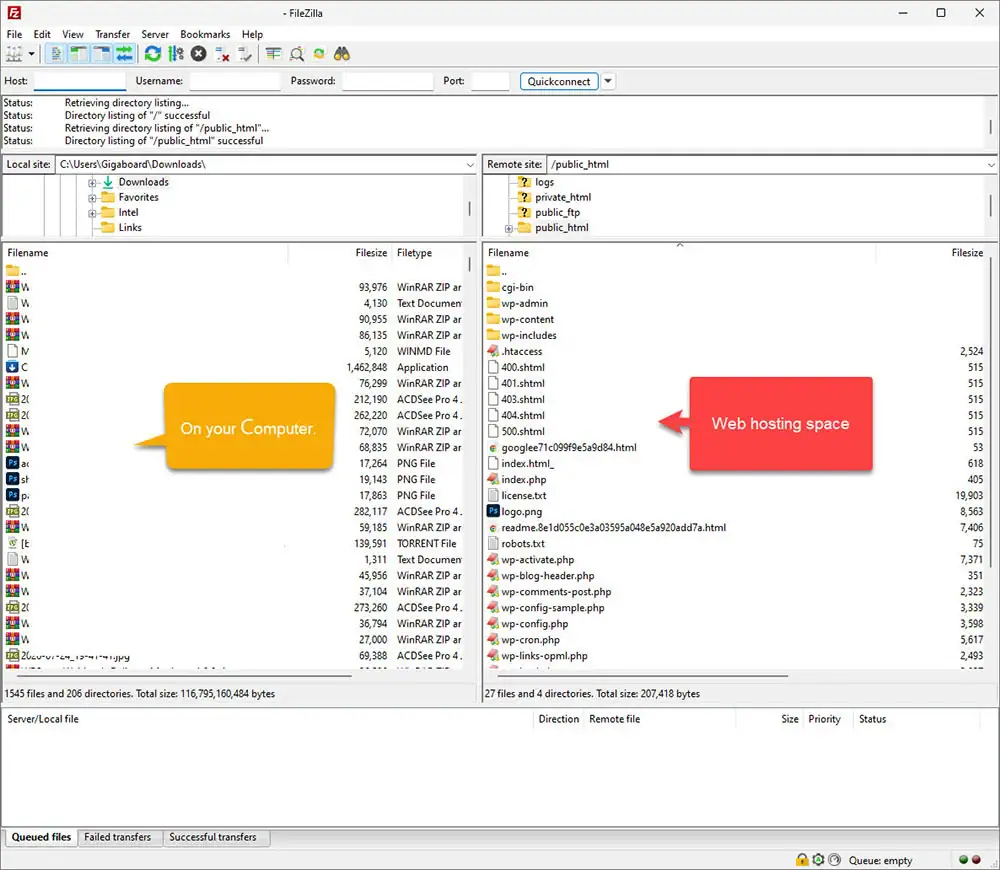
Learning how to use FileZilla is an essential first step for anyone diving into web development or managing a website in today’s digital landscape. As the most popular open-source FTP (File Transfer Protocol) client globally, FileZilla provides a reliable, completely free, and cross-platform solution (compatible with Windows, macOS, and Linux) for transferring files between your local computer and a remote web server. The core purpose of this software is to empower webmasters and developers to seamlessly upload, download, rename, and configure file permissions on their hosting accounts in a highly secure environment. Its user-friendly interface is intuitively divided into two main panels: your local machine’s directory is displayed on the left, and the remote server’s directory on the right. This dual-pane layout allows for a straightforward drag-and-drop experience when moving crucial website files. Furthermore, the program natively supports advanced security protocols such as SFTP (SSH File Transfer Protocol) and FTPS (FTP over SSL/TLS). These protocols ensure that your sensitive data—including login credentials and core system files—remains strictly encrypted and safe from potential interception during data transit. Whether you are launching a brand-new WordPress site with WPStore+ or maintaining a complex enterprise infrastructure, mastering this tool is a fundamental technical skill that will undoubtedly streamline your workflow and boost your productivity.
💻 Getting Started: Preparation and Recommended Steps Before Using the Software
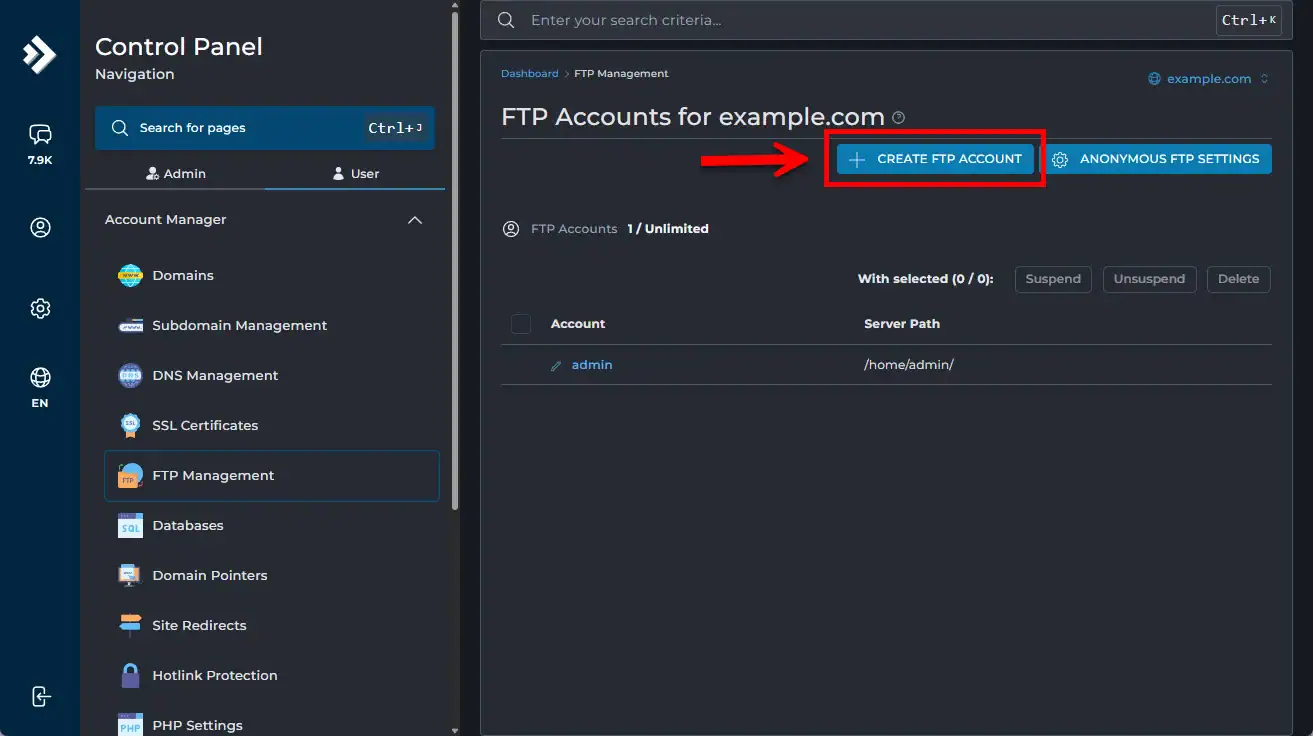
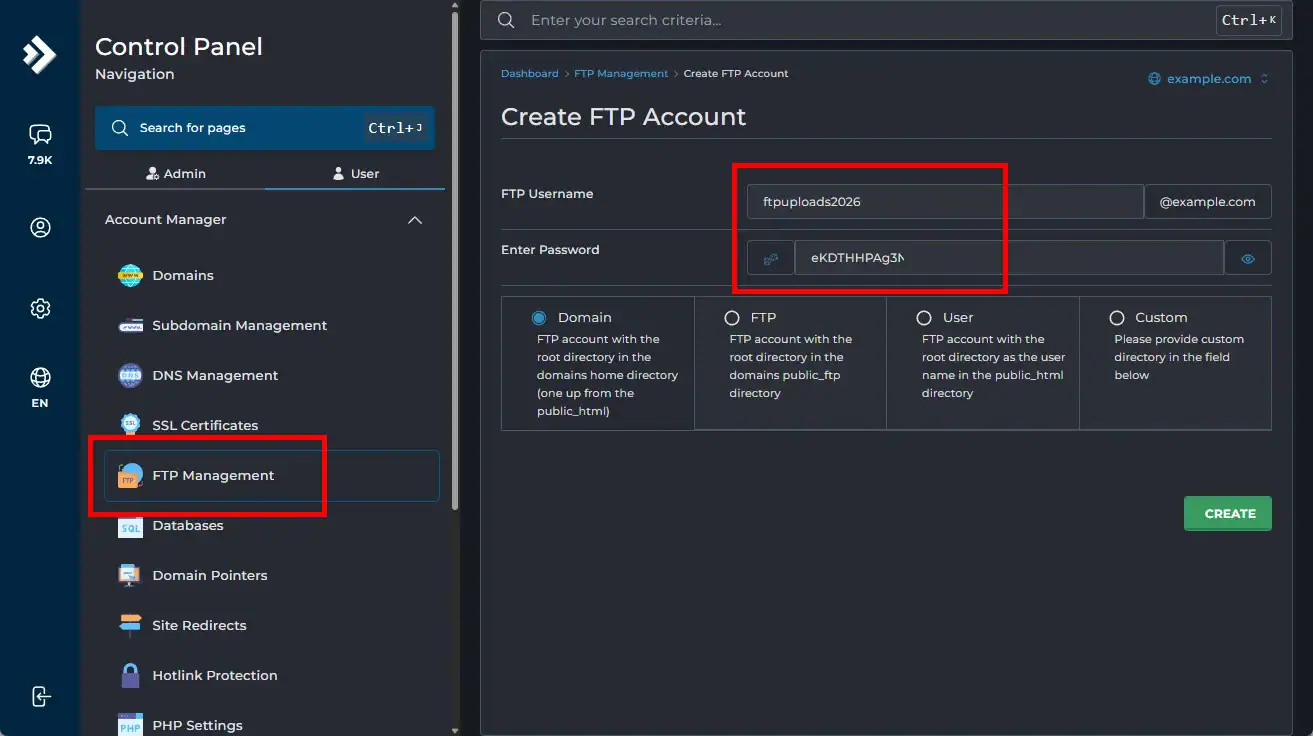
Before diving into the practical steps of how to use FileZilla, you must gather the necessary login credentials to establish a successful and secure connection. Think of FTP as making a secure, direct phone call to your web hosting server; you need the correct “phone number” and “passcode” to reach the destination successfully. You can typically find these details within your web hosting control panel (such as cPanel, DirectAdmin, or Plesk) or via the welcome email provided by your hosting company. Here are the four critical pieces of information you need to prepare before opening the software:
-
Host (Server Address): This is usually a numeric IP Address (e.g., 192.168.1.1) or a specific domain name designated for FTP (e.g., ftp.yourdomain.com).
-
Username: The specific account name that has been granted permission to access the server’s file system.
-
Password: The secure password associated with your FTP username.
-
Port: The designated communication channel. Standard FTP uses Port 21, while the more secure SFTP uses Port 22. (If left blank, the program will assign the default port automatically).
Once you have these credentials ready, navigate to the official website ( filezilla-project.org ) to download and install the FileZilla Client. The installation process is exceptionally fast and requires minimal system resources.
⚙️ Step-by-Step Guide: Connecting and Uploading Your Files
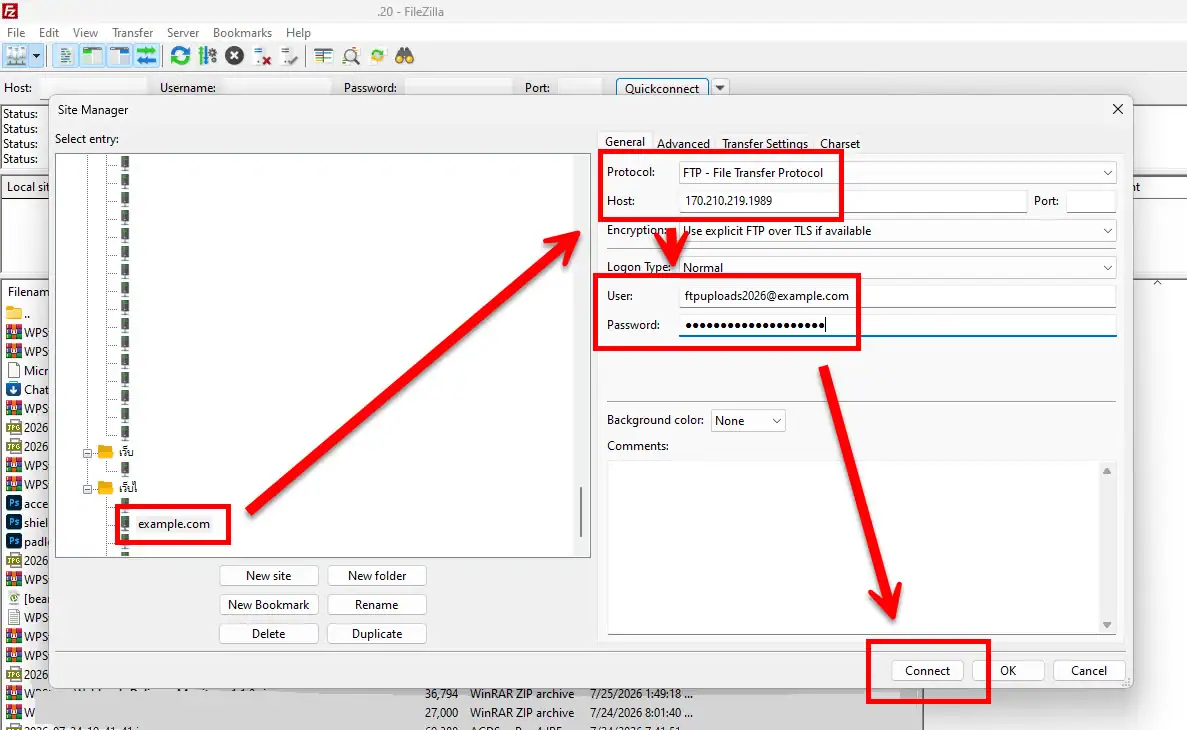
Applying how to use FileZilla in a real-world scenario involves a few straightforward steps once you have successfully installed the program. When you launch the application, you can establish a connection using two primary methods. The “Quickconnect” bar located at the very top of the window is perfect for fast, temporary sessions—simply input your Host, Username, Password, and Port, then click the “Quickconnect” button. However, for a more permanent and secure setup, especially for WPStore+ users managing long-term projects, using the “Site Manager” (accessible via File > Site Manager) is highly recommended. Here, you can add a “New Site,” select your preferred protocol (SFTP is strongly advised for maximum security), input your login details, and click “Connect.” This method saves your credentials for future use.
Transferring Your Files (Upload/Download): After a successful connection is established, your local files will populate on the left panel (Local site), and your server’s files will appear on the right panel (Remote site). To upload files to your website, navigate to the desired files on the left, select them, and simply “drag and drop” them into the target folder on the right (for live websites, this is typically the public_html or www directory). You can monitor the real-time progress of your transfers by looking at the queue pane at the bottom of the screen, which details successful transfers, failed attempts, and queued items.
💬 Frequently Asked Questions (FAQs) About FileZilla
When figuring out how to use FileZilla, beginners often encounter a few common technical roadblocks. Here are the answers to the most frequently asked questions:
Q: Is the FileZilla Client completely free to use? A: Yes, absolutely. FileZilla Client is an Open Source software distributed under the GNU General Public License, making it 100% free for both personal and commercial use.
Q: I am getting an “Error 530 Login incorrect” message. How do I fix this? A: This error indicates that the server rejected your login credentials. Double-check your Username and Password for typos or case sensitivity. If the issue persists, reset your FTP password directly through your web hosting’s Control Panel.
Q: What is the main difference between FTP and SFTP? A: Standard FTP transmits data in plain text, making it vulnerable to interception by malicious actors. SFTP (SSH File Transfer Protocol), on the other hand, encrypts both your login credentials and the files being transferred, offering a significantly higher level of security. We always recommend using SFTP when available.
Q: Why does the program display a “Connection timed out” error? A: This usually stems from network connectivity issues or a strict Firewall/Antivirus program blocking the specific port. Try temporarily disabling your firewall or contact your hosting provider to ensure your IP address hasn’t been inadvertently blocked by the server’s security system.
📌 Conclusion: Mastering Website File Management
Understanding how to use FileZilla effectively transforms the way you handle website maintenance, theme installations, and server management on platforms like WPStore+. By leveraging this powerful FTP client, web developers and site owners can ensure swift, secure, and highly organized file transfers. Always prioritize secure protocols like SFTP, safeguard your connection credentials, and utilize the Site Manager feature for an optimized and professional workflow.
Call to Action: If you found this WPStore+ guide on How to Use FileZilla helpful, don’t forget to bookmark this page and share it with your fellow developers! If you have any questions or get stuck during the connection process, leave a comment below. Our technical support team is always here to help you navigate your web development journey! 🕊️✨

