
Knowledge, WordPress Troubleshooting
How to Fix “The server cannot process the image” Error in WordPress
Jul
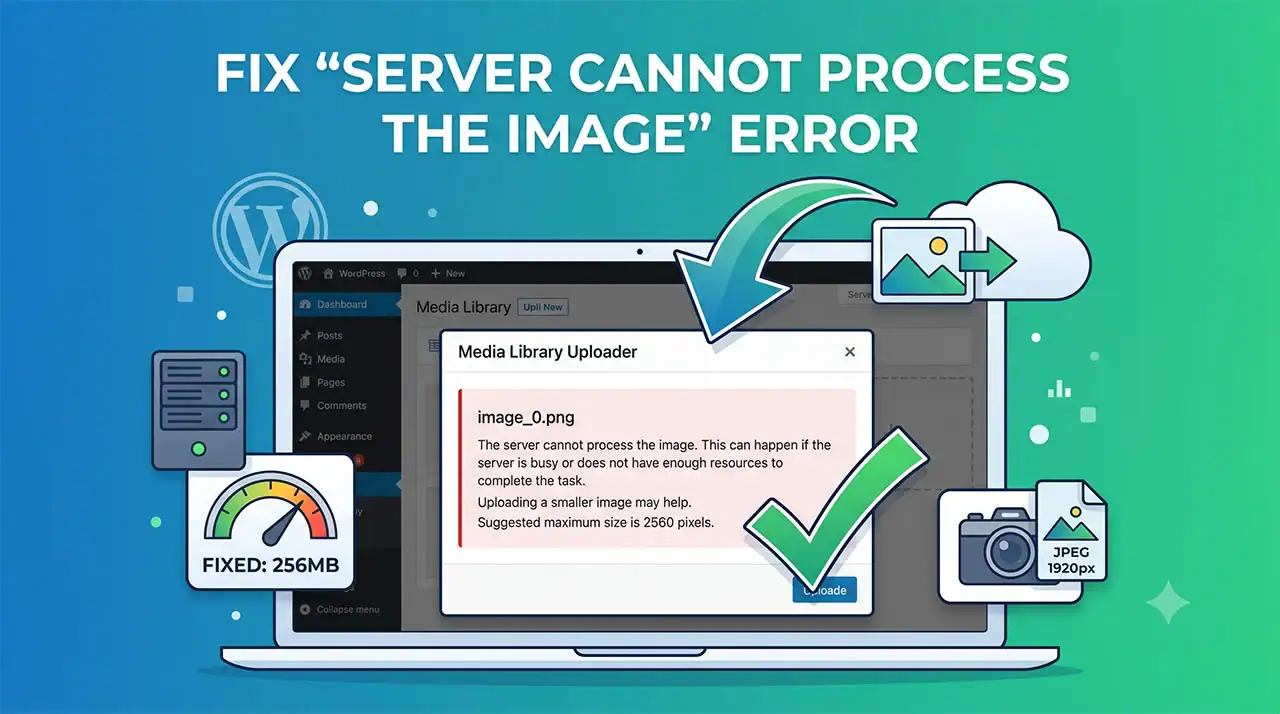
The server cannot process the image WordPress error is a common media library issue that occurs when uploading large or high-resolution images to your website. This error typically displays the following message: “The server cannot process the image. This can happen if the server is busy or does not have enough resources to complete the task. Uploading a smaller image may help. Suggested maximum size is 2560 pixels.”This problem is primarily triggered by server resource constraints, particularly insufficient PHP memory allocations or temporary server load spikes. When WordPress uploads an image, it does not merely save the file; it processes the image using server background libraries like GD Library or ImageMagick to create multiple intermediate thumbnail sizes required by your theme. If your web host restricts memory limits or execution times, the server drops the processing task and returns this fatal warning.
Understanding how to resolve this error is essential for maintaining an efficient media workflow on your website. In this comprehensive guide, we will walk you through the precise root causes of image processing failures and provide step-by-step troubleshooting solutions. Whether you are running a high-traffic WooCommerce store or a personal blog, these standard technical procedures will help you restore full media library functionality safely and prevent future file upload bottlenecks.
Step-by-Step Guide to Resolving the Image Processing Error
Fixing this issue involves systematically identifying whether the bottleneck originates from image dimensions, server memory limits, or conflicting background image processing engines.
Step 1: Resize and Compress the Image File
Before modifying any server configurations, verify if the specific image exceeds practical web standards.
-
Check File Dimensions: Ensure the image width and height do not dramatically exceed $2560\text{ pixels}$.
-
Reduce File Size: Use desktop image editors or web compression tools to keep the file size under $2\text{ MB}$.
-
Verify File Format: Convert unusual image formats to standard
.jpgor.pngbefore re-attempting the upload.
Step 2: Increase PHP Memory Limit via wp-config.php
Insufficient memory allocated to WordPress script execution is the leading technical cause of this issue.
-
Access Site Files: Connect to your website server using an FTP client (such as FileZilla) or through your web hosting cPanel File Manager. ( For basic instructions on how to use Filezilla, you can read them at this link. )
-
Locate the Configuration File: Navigate to the root directory of your WordPress installation and edit the
wp-config.phpfile. -
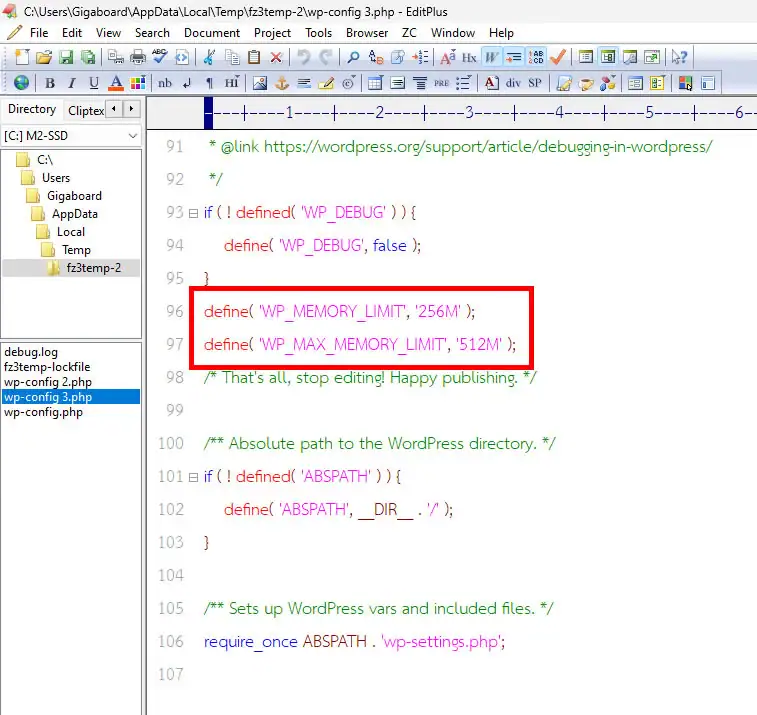
Add Memory Rule: Insert the following code line directly above the line that reads
/* That's all, stop editing! Happy publishing. */:PHP
define( 'WP_MEMORY_LIMIT', '256M' ); -
Save and Test: Save the modified file and retry uploading the image via the WordPress Media Library.
Step 3: Switch the Default Image Editor Engine
WordPress uses two primary PHP extensions to process images: Imagick and GD Library. Imagick frequently exhausts server memory on shared hosting environments. Forcing WordPress to use GD Library often resolves the error immediately.
-
Access Theme Functions: Open your active child theme’s
functions.phpfile or use a code snippets plugin. -
Implement GD Engine Snippet: Add the following standard function to force GD Library as the default image handler:
PHP
function wpstore_use_gd_editor( $editors ) { $gd_editor = 'WP_Image_Editor_GD'; $editors = array_diff( $editors, array( $gd_editor ) ); array_unshift( $editors, $gd_editor ); return $editors; } add_filter( 'wp_image_editors', 'wpstore_use_gd_editor' ); -
Verify Operation: Save the changes and test your media upload process again.
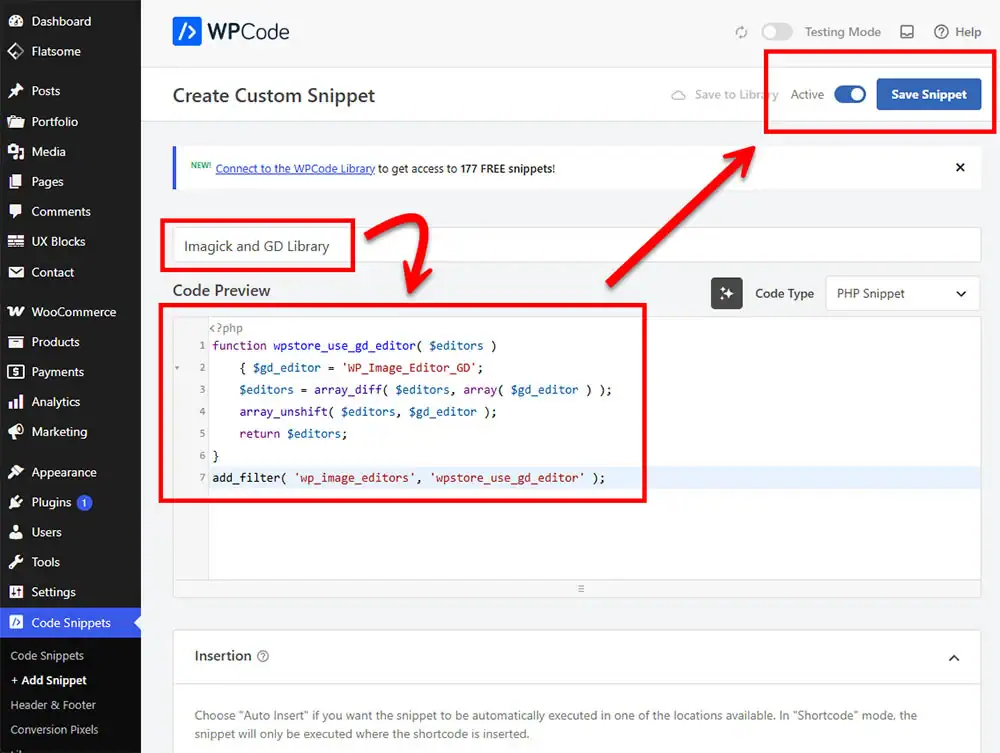
Note. In this example, I’m using a PHP snippet within the WPCode tool to address this issue instead of modifying the wpconfig.php file as described in step 2.
Testing the Plugin and Server Configuration
Once you have implemented the configuration adjustments, it is important to systematically test your site to confirm that image processing is operating normally.
-
Clear Server and Browser Cache: Ensure any active caching plugins or CDN services (such as Cloudflare) are cleared so that server settings update immediately.
-
Upload Test Images in Batches: Navigate to Media > Add New in your WordPress dashboard. Attempt uploading a batch of standard high-resolution images ($1920 \times 1080\text{ pixels}$).
-
Inspect Generated Thumbnails: Go to your media library, click on an uploaded image, and verify that sub-sizes (thumbnails, medium, large) generated correctly without visual distortion.
-
Monitor PHP Error Logs: Check your server error log or enable WordPress debugging in
wp-config.php(define( 'WP_DEBUG', true );) to ensure no hidden fatal PHP memory warnings are occurring in the background.
Frequently Asked Questions (FAQs)
Why does this error happen even when my image file size is small?
Even if an image file size is small (e.g., $500\text{ KB}$), its pixel resolution (e.g., $6000 \times 4000\text{ pixels}$) can be extremely high. When WordPress processes the image, it decompresses the image into uncompressed raw pixels in the server memory, consuming large amounts of RAM regardless of the initial compressed file size.
What is the recommended maximum image resolution for WordPress?
The recommended maximum dimension for web images is $2560\text{ pixels}$ on the longest edge. WordPress automatically applies a big image threshold filter for images exceeding $2560\text{ pixels}$, which can trigger server timeout errors if resources are strictly limited.
What if increasing the memory limit in wp-config.php does not work?
If defining WP_MEMORY_LIMIT in wp-config.php does not take effect, your web hosting provider likely enforces a strict hard limit at the server level in the php.ini file. In this case, you will need to contact your hosting support team to request a higher PHP memory allocation (at least $256\text{ MB}$).
Summary
The “server cannot process the image” error in WordPress is primarily a resource allocation issue triggered when image dimensions exceed available server memory or processing limits. By downsizing overly large images, increasing the PHP memory limit in wp-config.php, and switching the image processing engine from Imagick to GD Library, web administrators can resolve this issue permanently. Maintaining optimized media files and ensuring your hosting plan meets standard WordPress performance requirements guarantees a seamless content management experience.
Need further assistance or high-performance WordPress solutions? Explore our curated tools and resources at WPStore+ or contact our support team today!

