
Knowledge, WordPress Security
How to Protect WordPress from Brute Force Attacks: Step-by-Step Security Guide
Oct
Protect WordPress from brute force attacks should be a top operational priority for every website administrator, developer, and business owner managing a web presence. A brute force attack is an automated exploit in which malicious actors deploy botnets to systematically submit thousands of username and password combinations into your authentication forms until a valid match is discovered. Because default WordPress installations feature standardized administrative paths such as /wp-login.php and /wp-admin/, automated attack scripts target these entry points universally across the internet.
The consequences of an unmitigated attack extend far beyond unauthorized account access. Even if attackers fail to guess your credentials, a high-volume attack consumes substantial server resources. Every failed authentication attempt triggers full PHP execution, database queries, and session checks. When thousands of automated requests hit your web server simultaneously, your CPU utilization spikes, database connections become saturated, and your website performance degrades significantly. For WooCommerce stores and mission-critical corporate platforms, this artificial load often leads to 504 Gateway Timeout errors, lost revenue, and tarnished customer trust.
Fortunately, establishing layered defensive mechanisms mitigates this attack surface reliably. Rather than relying solely on a complex password, a resilient security posture combines perimeter blocking, login rate limiting, secondary authentication challenges, and structural hardening of underlying endpoints. This guide delivers a technical, straightforward walkthrough to help you deploy, configure, and maintain robust defenses against automated authentication exploits. Whether you run a single informational blog or manage high-traffic eCommerce infrastructure, following these procedures will safeguard your administrative environment and preserve server stability.
Deploying Core Security and Rate-Limiting Defenses
To defend against automated login abuse, you must introduce software controls that monitor, evaluate, and restrict repetitive failed login attempts. The most direct and accessible approach involves deploying a dedicated security and rate-limiting plugin within the WordPress ecosystem.
Step 1: Downloading and Installing the Security Solution
Before modifying access rules or installing security plugins, ensure you have taken a full snapshot backup of your website database and application files.
Navigate to your WordPress administration dashboard.
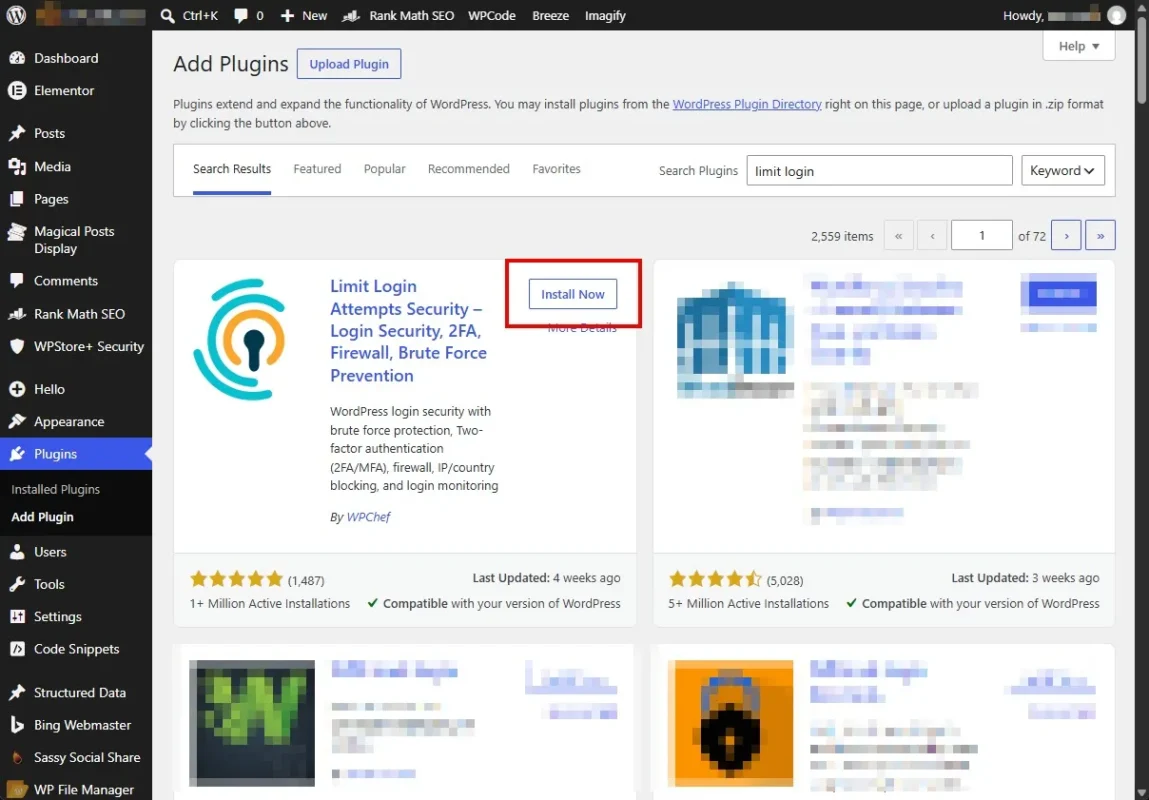
Go to Plugins > Add New Plugin.
In the search repository field, search for a reputable login security plugin such as Limit Login Attempts Reloaded, Wordfence Security, or iThemes Security (Solid Security).
Locate the official plugin card, review the compatibility indicator to verify compatibility with your current WordPress core version, and click Install Now.
Once the file download and unzipping complete, click Activate.
Note: Avoid installing multiple full-suite security plugins simultaneously. Running overlapping firewall and rate-limiting engines can create PHP race conditions, duplicate database queries, and false-positive administrator lockouts.
Step 2: Activating Your License and Baseline Verification
If you are using a commercial extension or an enterprise license from WPStore+, register the plugin license immediately after activation to enable continuous threat intelligence feeds and automated rule updates.
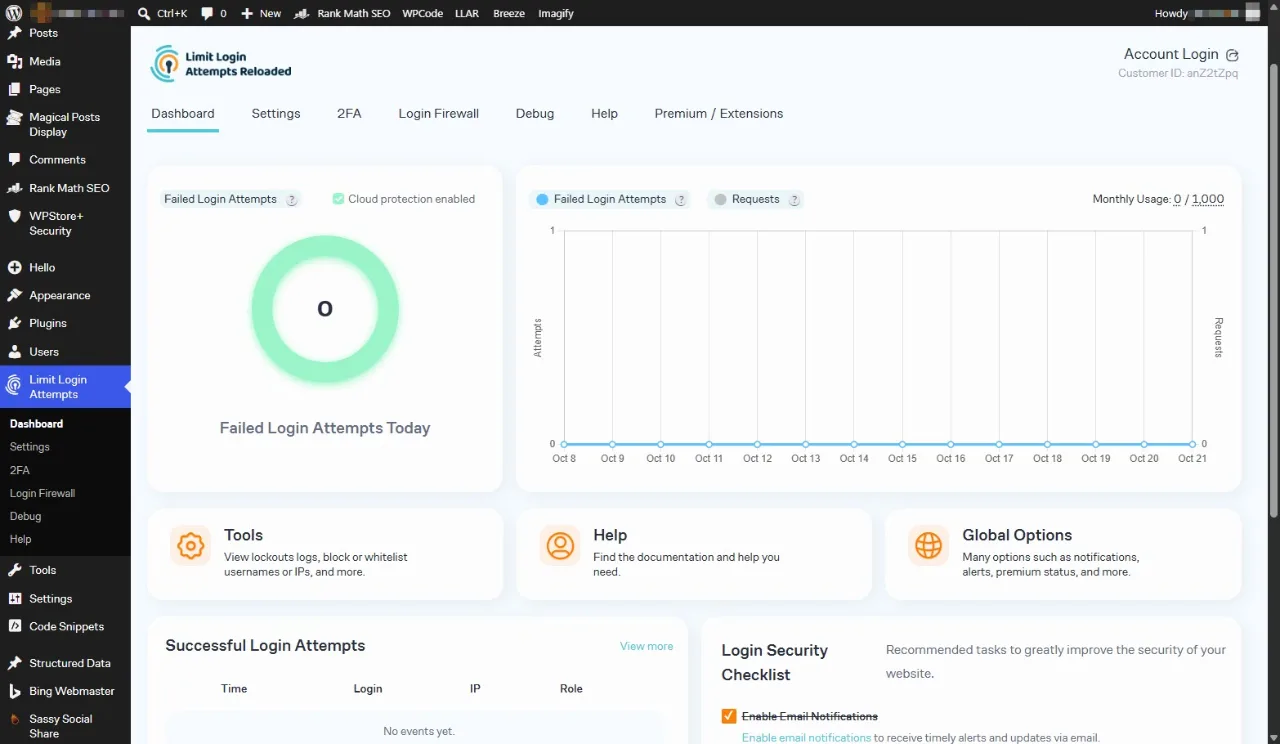
In the left-hand navigation sidebar, locate the newly generated menu item corresponding to your security solution (e.g., Settings > Limit Login Attempts or Security > Dashboard).
Navigate to the License or Account tab.
Paste your alphanumeric license key into the designated input field and click Activate License.
Confirm that the status indicator reflects an Active state with automated cloud synchronization enabled.
Check the system status screen to verify that your web server’s PHP execution environment satisfies all technical requirements, including
cURLlibrary support and standard memory limits.
Step 3: Configuring Login Attempt Thresholds and Lockout Rules
The fundamental mechanism of brute force prevention is rate limiting: terminating an IP address’s permission to submit authentication attempts after a defined threshold of failures.
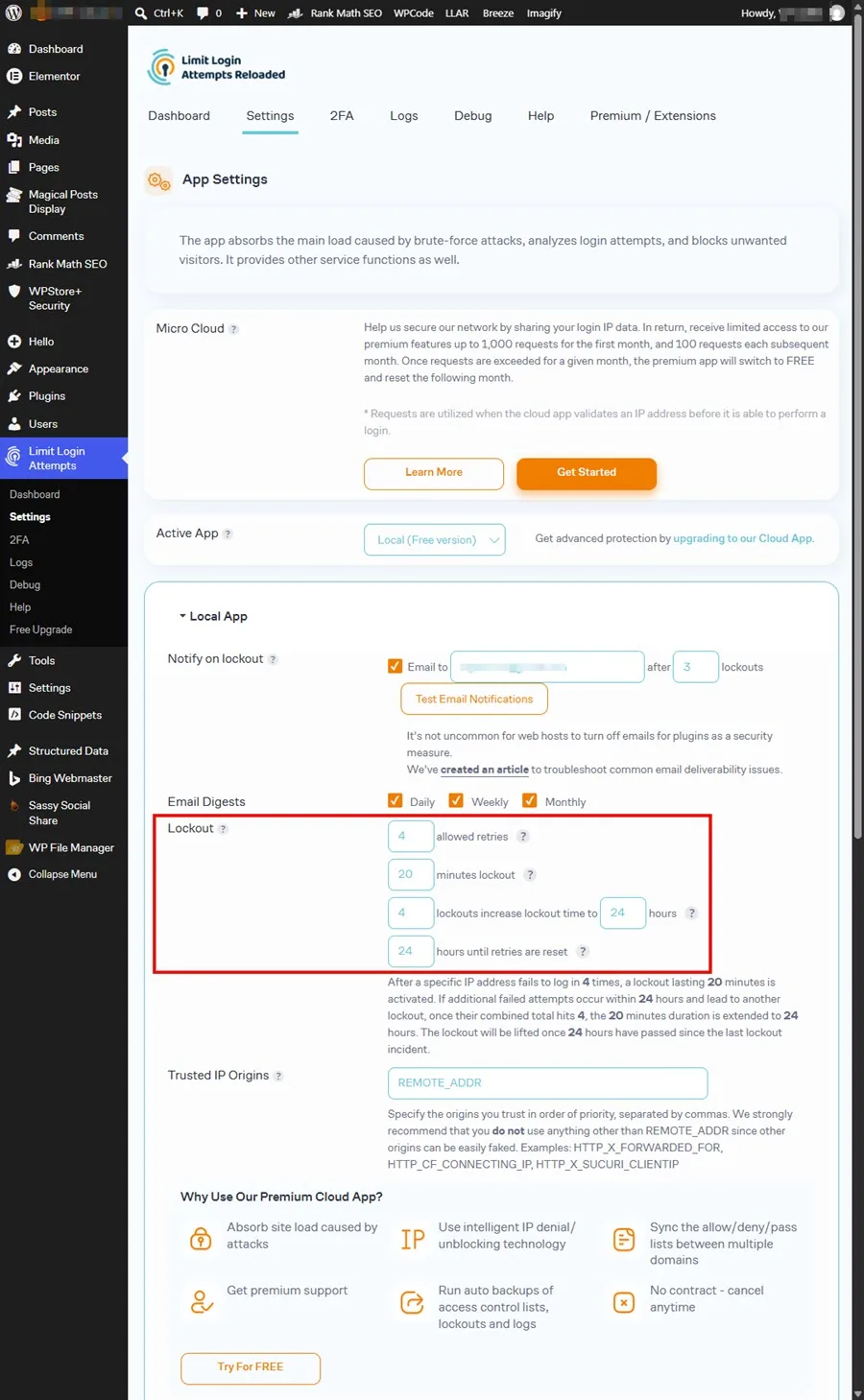
Navigate to the plugin’s Settings or Firewall Rules screen.
Define the Allowed Retries parameter. Set this value to 3 to 5 attempts. This provides sufficient margin for legitimate human error while throttling automated dictionary tools.
Configure the Lockout Duration. Establish a lockout window between 20 and 30 minutes for initial violations.
Establish the Long-term Lockout Threshold. Configure the system such that after 3 to 4 consecutive lockouts, the offending IP address is blocked for 24 hours.
Enable Email Notifications. Set alert triggers to notify the system administrator when an IP reaches a long-term lockout threshold, while keeping notifications disabled for individual failed attempts to prevent notification flooding.
Advanced Hardening and Perimeter Control Mechanisms
Limiting login attempts within the application framework is an essential first line of defense. However, pairing plugin-level rate limiting with structural architectural hardening delivers the highest degree of defense against determined botnets.
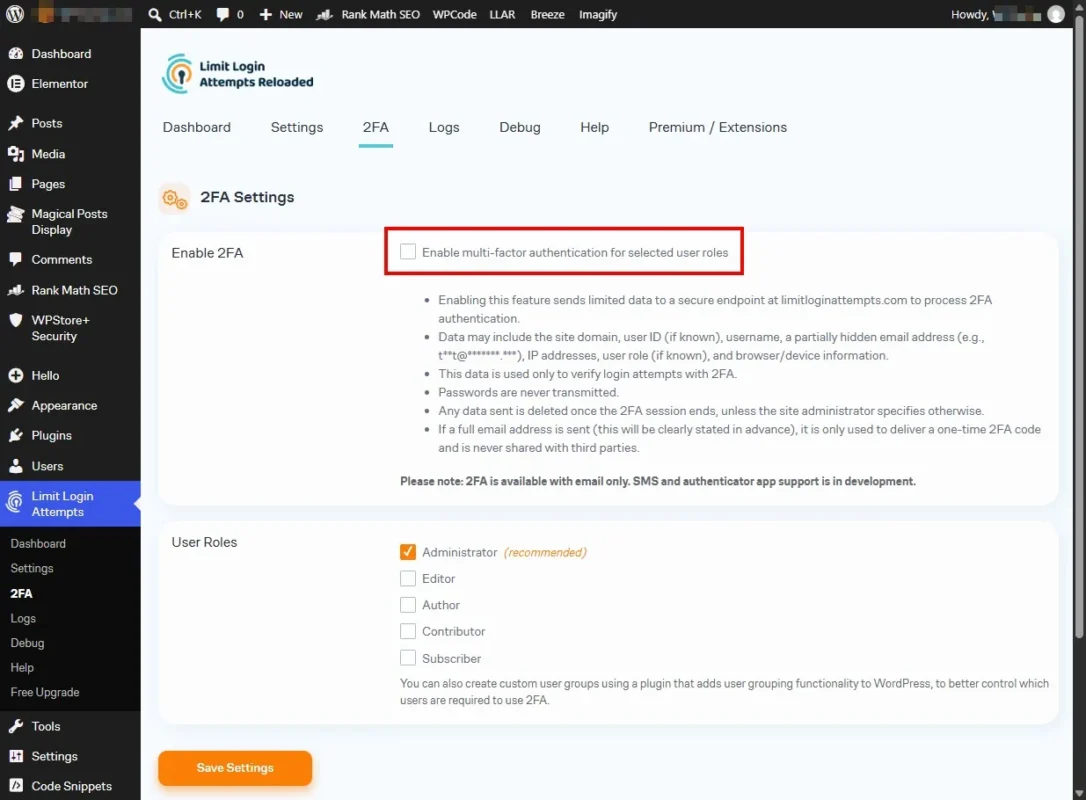
Implementing Two-Factor Authentication (2FA)
Two-factor authentication introduces a cryptographic, time-based one-time password (TOTP) requirement alongside the traditional username and password pair. Even if an attacker uncovers an administrator’s password via a brute force breach, they cannot bypass the secondary authentication barrier without possession of the physical authenticator device.
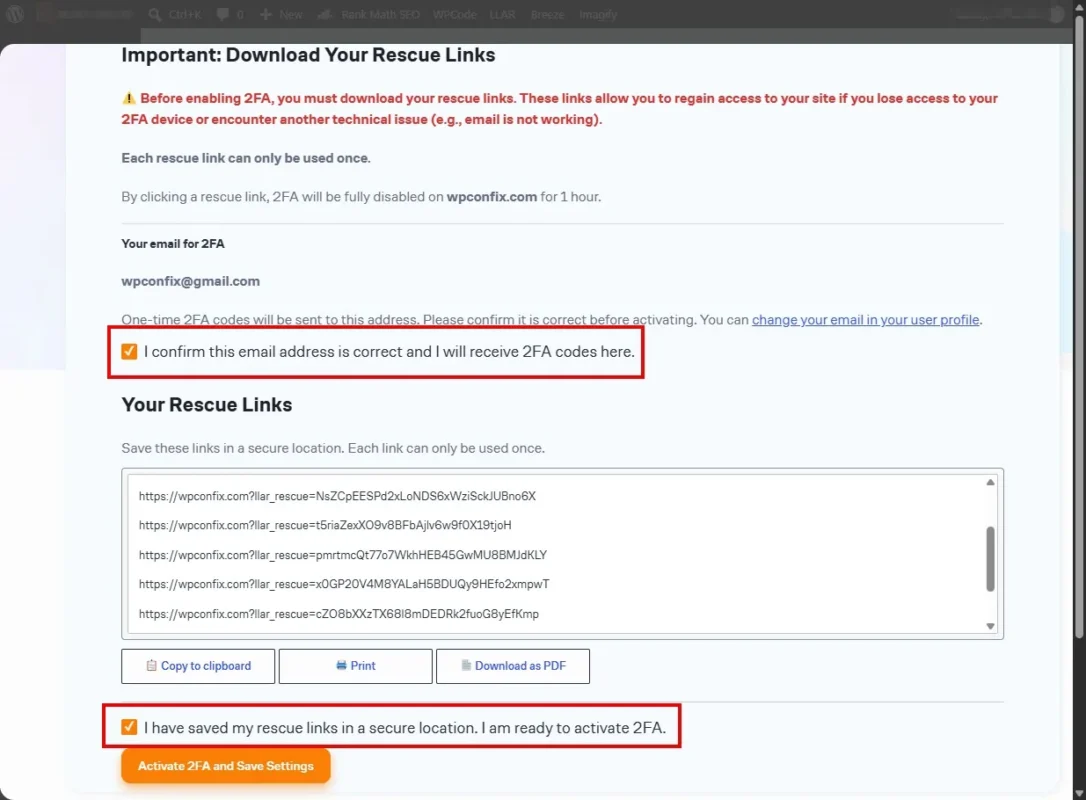
Install an established 2FA plugin, such as WP 2FA or the native 2FA module within Wordfence.
Go to Users > Profile or the plugin’s global configuration dashboard.
Select the enforcement policy: configure 2FA as mandatory for all user roles with administrative and editorial capabilities (
Administrator,Editor,Shop Manager).Scan the presented QR code using an authenticator application (e.g., Google Authenticator, 1Password, or Microsoft Authenticator).
Input the 6-digit confirmation code generated by your device to finalize synchronization.
Generate and securely store your offline Emergency Backup Codes in an encrypted password manager to prevent administrative lockouts.
Restricting and Hardening the XML-RPC Interface
The WordPress XML-RPC API (xmlrpc.php) was originally built to allow external applications to interact with WordPress remotely. However, it presents an acute brute force vulnerability via the system.multicall method, which allows an attacker to test hundreds of password combinations within a single HTTP request, completely bypassing standard browser-based login rate limiters.
If your website does not rely on the Jetpack plugin or the WordPress mobile application, disable XML-RPC entirely:
Disabling via Apache (.htaccess)
Insert the following directive into your root .htaccess file before the # BEGIN WordPress marker:
# Block WordPress XML-RPC Requests
<Files xmlrpc.php>
order deny,allow
deny from all
</Files>
Disabling via Nginx
Add the following location block inside your primary server configuration:
# Block XML-RPC access
location = /xmlrpc.php {
    deny all;
    access_log off;
    log_not_found off;
    return 403;
}
Deploying CAPTCHA on Authentication Endpoints
Incorporating cryptographic or behavioral CAPTCHA challenges forces automated agents to pass bot-detection heuristics before submitting authentication forms.
Register your domain on the Google reCAPTCHA v3 or Cloudflare Turnstile console.
Obtain your unique Site Key and Secret Key.
Inside your security plugin’s integration menu, toggle on CAPTCHA validation.
Assign the challenge to the Login Form, Registration Form, Password Reset Form, and WooCommerce Checkout Endpoints.
Save your preferences and verify that the script loads correctly on the public login view.
Testing the Plugin and Verification Procedures
Deploying security configurations without empirical verification risks leaving security holes open or inadvertently locking out valid users. Follow this standardized testing protocol to confirm your defensive perimeter functions as intended.
Step 1: Conducting a Controlled Lockout Test
Launch an isolated, private browsing session (Incognito mode) or open a secondary web browser where you are not authenticated.
Navigate to your site’s login URL (
[example.com/wp-login.php](https://example.com/wp-login.php)).Intentionally enter an invalid username and an incorrect password.
Repeat this action up to the threshold configured in your security plugin (e.g., 4 attempts).
Confirm that the interface presents a clear security restriction notice (e.g., “Too many failed login attempts. Please try again in 20 minutes.”) and refuses subsequent inputs.
Step 2: Validating Administrative Whitelist Rules
In your primary administrative session, navigate to the plugin’s active lockouts log.
Verify that the testing IP address is recorded accurately along with the timestamp and failure count.
Test your emergency override procedure by manually releasing the IP lockout from the administrator console.
Confirm that the IP can immediately access the login form once more.
Step 3: Verifying Two-Factor Authentication Flow
Log out of a testing administrator account that has active 2FA.
Provide the correct username and password.
Verify that the browser halts and presents a clean TOTP prompt.
Enter an invalid verification code; confirm that access is denied.
Enter a valid TOTP code; confirm successful access to the dashboard.
Frequently Asked Questions (FAQs)
Will protecting against brute force attacks slow down my website?
No. High-quality rate-limiting plugins and edge-level firewall rules actually conserve server resources. By intercepting automated attacks before they run full database queries, your server handles significantly fewer concurrent processes, stabilizing site speed.
Should I change my default WordPress login URL?
Changing the default /wp-login.php path (security through obscurity) reduces automated log noise from low-sophistication bots. However, it does not replace genuine security measures. Determined scripts can locate customized login paths via public redirects, CSS assets, or author links. Use custom URLs as a supplementary step, not a primary defense.
What should I do if an administrator is locked out accidentally?
If an administrator triggers a lockout, access can be restored via three direct methods:
Log in from a different IP address or mobile network that is not locked out.
Access the hosting control panel, open the database management interface (e.g., phpMyAdmin), locate the security plugin’s lockout table or options record, and clear the blocked IP.
Access the server via SFTP or SSH, temporarily rename the security plugin’s folder inside
/wp-content/plugins/, log in via the browser, and rename the folder back to its original name.
Does Cloudflare help prevent brute force attacks?
Yes. Cloudflare operates as a reverse proxy, inspecting traffic before it reaches your web server. Cloudflare’s Web Application Firewall (WAF) and automated Managed Challenge rules inspect threat reputations and drop malicious bot traffic at the network edge, ensuring your origin server never expends resources processing the malicious requests.
Why is the default “admin” username a major security liability?
Automated brute force dictionaries prioritize standard usernames such as admin, administrator, and the domain name itself. Utilizing these default handles eliminates half of the attacker’s required guessing effort. Always deploy distinct, unpredictable administrative usernames.
Summary
Defending your WordPress website against brute force attacks requires a comprehensive, defense-in-depth framework rather than a single setting. Relying purely on traditional password complexity leaves your infrastructure exposed to server resource exhaustion, connection saturation, and potential data compromise.
By implementing strict login attempt limitations, enforcing two-factor authentication, shutting down unused APIs such as XML-RPC, and validating all configurations through routine testing, you eliminate vulnerabilities that automated botnets exploit. Review your access logs periodically, keep all core files and plugins updated, and ensure all administrative accounts adhere strictly to modern authentication standards. Establishing these controls preserves the long-term reliability, performance, and security of your digital platform.
Need assistance securing your WordPress infrastructure or deploying enterprise security policies? Browse our comprehensive library of WordPress Security Documentation on WPStore+ or contact our technical support team for tailored configuration support.

