
Knowledge, WordPress Troubleshooting
How to Fix cURL Error 28: Connection Timed Out in WordPress – 6 Effective Solutions
Sep
cURL error 28 WordPress notifications point to an unresolved data transfer attempt between your server and an external web resource. When WordPress runs routine tasks—such as checking for core software updates, communicating with WooCommerce payment gateways, syncing REST API endpoints, or importing external feeds—it utilizes a command-line software library called cURL (Client URL). If the receiving or transmitting server fails to respond within the predetermined threshold, the process terminates abruptly, displaying a notification such as cURL error 28: Operation timed out after X milliseconds with 0 bytes received.
For site administrators and business owners, this error disrupts essential site operations. Automated cron jobs can stall, third-party webhooks can drop, and the WordPress Site Health diagnostic utility flags persistent REST API communication failures. Resolving this issue promptly is necessary to maintain continuous uptime, robust transactional workflows, and seamless backend administration.
This troubleshooting guide provides six verifiable solutions to diagnose, debug, and resolve the cURL error 28 issue in WordPress environments. By following our systematic troubleshooting hierarchy—ranging from immediate application-level inspections to server-side configuration changes—you will isolate the underlying bottleneck, restore external communication protocols, and ensure your hosting parameters accommodate your website’s operational demands.
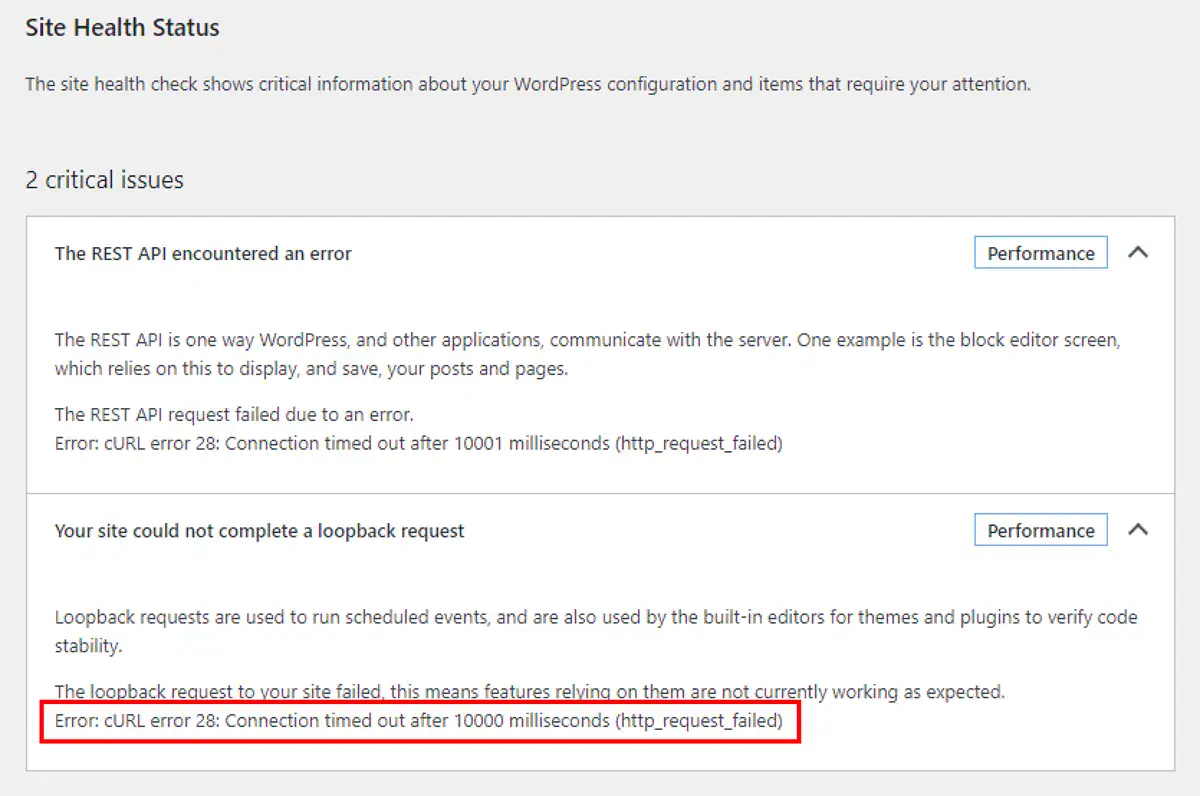
Understanding cURL and Core Root Causes
Before altering your system configuration, it is beneficial to examine the underlying mechanics of cURL and why a connection timeout occurs. The cURL library operates through PHP (php-curl) to establish network requests via standard protocols such as HTTP, HTTPS, FTP, and SFTP. WordPress relies heavily on these requests via the WP_HTTP class and WordPress REST API.
+-----------------------------------------------------------+
|                    Your WordPress Site                    |
|             (WP Core / WooCommerce / Plugins)             |
+-----------------------------------------------------------+
                              |
                              | [HTTP/HTTPS Request via cURL]
                              v
+-----------------------------------------------------------+
|                     External Endpoint                     |
|           (Licensing Server, Payment API, CDN)            |
+-----------------------------------------------------------+
                              |
                     [Response Timeout]
                              |
                              v
    cURL Error 28: Connection Timed Out (> Threshold Limit)
Several infrastructure and software bottlenecks trigger this timeout condition:
-
Web Application Firewall (WAF) Interception: Security solutions at the plugin, server, or DNS level (such as Cloudflare or Wordfence) may erroneously flag authentic outbound or loopback calls as unauthorized network requests.
-
Plugin and Theme Conflicts: Poorly coded plugins can send malformed headers or overload the server with nested API queries, preventing WordPress from finishing execution cycles.
-
Server Resource Depletion: A low
max_execution_timeor inadequate PHP memory ceiling forcibly halts requests before remote servers return payload packages. -
Outdated Server Packages: Obsolete cURL or OpenSSL distributions fail to negotiate modern cipher suites, stalling the Transport Layer Security (TLS) handshake.
-
DNS Resolution Delays: Misconfigured server-level nameservers trigger slow domain lookups, consuming the entire timeout allowance before data exchange begins.
6 Proven Methods to Fix cURL Error 28 in WordPress
Follow these six sequential methods to isolate the problem at the application layer before implementing adjustments at the server environment layer.
1. Temporarily Disable Web Application Firewalls
Security plugins and cloud-based Web Application Firewalls (WAFs) inspect incoming and outgoing traffic. Occasionally, a firewall rule identifies WordPress loopback requests (where your server sends requests back to itself via the REST API) as suspicious activity, terminating the connection.
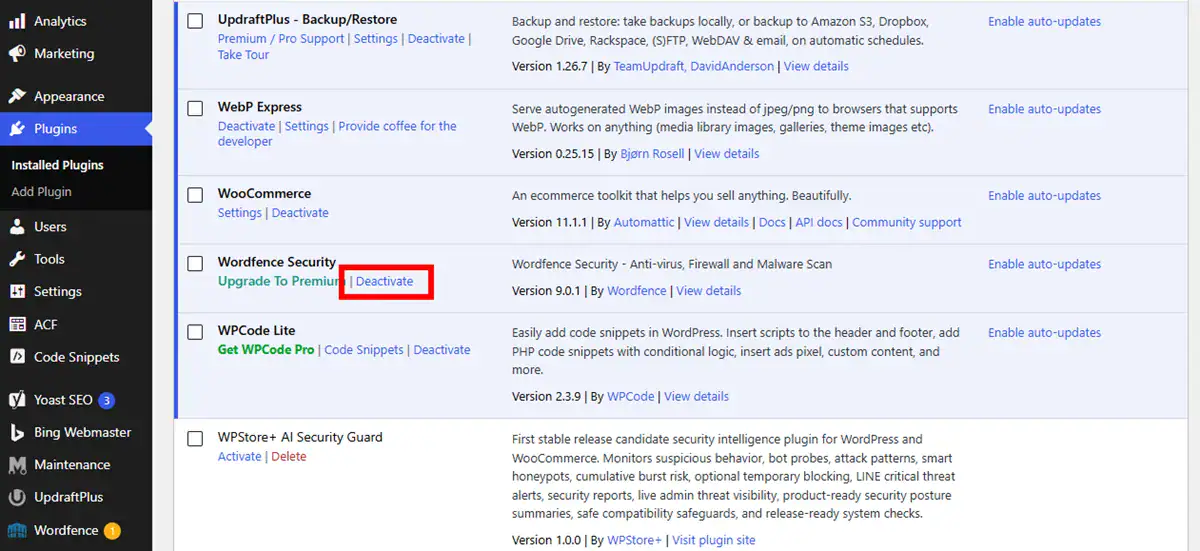
Plugin-Level Firewall (e.g., Wordfence, Sucuri, iThemes)
-
Navigate to your WordPress Dashboard.
-
Select your security plugin’s settings tab (e.g., Wordfence > Firewall).
-
Switch the firewall status to Learning Mode or toggle the engine to Disabled.
-
Navigate to Tools > Site Health to verify whether the REST API test completes successfully.
DNS-Level Firewall (e.g., Cloudflare)
-
Log in to your Cloudflare dashboard.
-
Navigate to Security > WAF.
-
Temporarily pause Cloudflare on your domain or review the Security Events log.
-
If you observe blocked requests targeting
wp-jsonendpoints, create a specific WAF bypass rule for your server’s static IP address.
Security Precaution: Do not leave your firewall disabled permanently. If disabling the firewall resolves cURL error 28, whitelist your origin server IP address within the firewall configuration and re-enable active protection immediately.
2. Identify and Resolve Plugin or Theme Conflicts
Active WordPress plugins that execute external calls—such as social feeds, marketing pixels, external analytics, and license verification modules—can monopolize network buffers and trigger cascading timeouts.
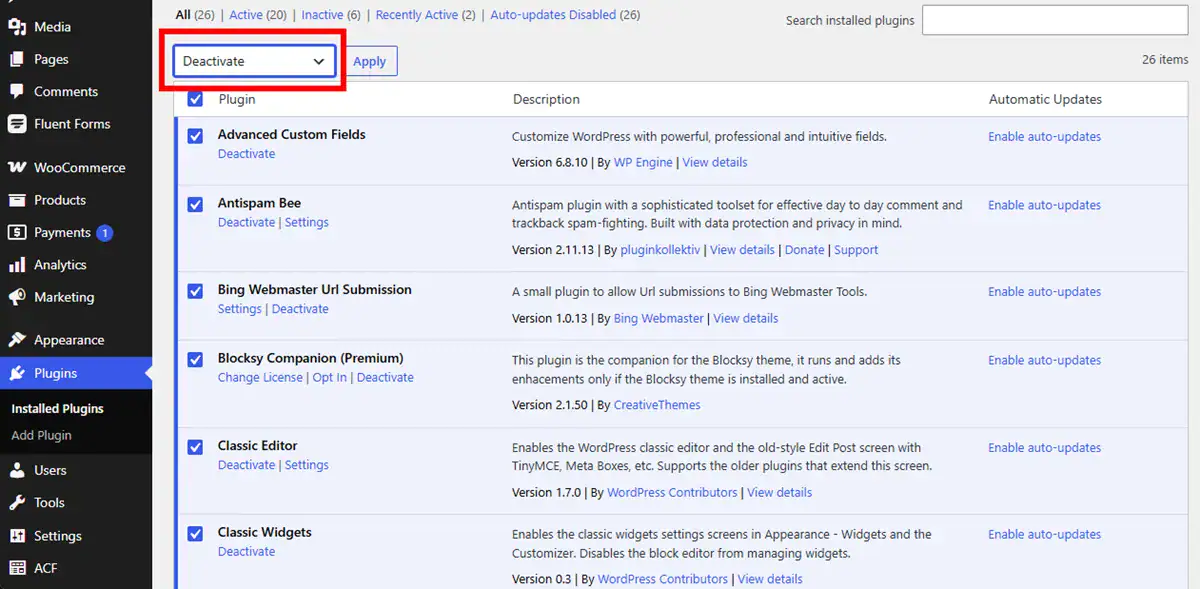
Systematic Deactivation Procedure
-
Navigate to Plugins > Installed Plugins.
-
Select the master checkbox to select all active plugins.
-
Choose Deactivate from the bulk actions dropdown menu and click Apply.
-
Check Tools > Site Health to confirm if the cURL error disappears.
-
Reactivate your plugins one by one, checking the Site Health interface after each reactivation. When the error reappears, the most recently activated plugin is the conflicting item.
[Deactivate All Plugins]
          │
          ▼
[Check Site Health Status]
     ├── Error Persists ──> [Issue is Server/Host Related]
     └── Error Resolves ──> [Reactivate One by One to Isolate Defective Plugin]
If you manage an active WooCommerce store and cannot deactivate plugins on the live platform, perform this diagnostic test within a dedicated staging environment or install the Health Check & Troubleshooting plugin by the WordPress.org community, which isolates plugins solely for your administrator session.
3. Diagnose and Reconfigure SSL/TLS Certificates
An incorrectly configured SSL certificate can prevent cURL from establishing an authenticated HTTPS connection. If the local trust store lacks your Certificate Authority (CA) root bundle, or if your server serves an incomplete SSL intermediate chain, cURL aborts the transfer to prevent security vulnerabilities.
Verification Steps
-
Run an external diagnostic scan on your domain using tools like Qualys SSL Labs.
-
Review the report specifically for warnings regarding Chain Issues: Incomplete.
-
If an intermediate certificate is missing, open your web hosting control panel (cPanel, Plesk, or proprietary cloud dashboard).
-
Re-install your SSL certificate, ensuring both the Certificate (.crt) and CA Bundle (.ca-bundle) fields are populated.
-
If using self-signed certificates in local staging setups (such as LocalWP or Docker), configure your development environment to trust local root authority certificates explicitly, or update your PHP
curl.cainfoconfiguration path in yourphp.inifile.
4. Verify and Update cURL and OpenSSL Software Versions
WordPress runs optimally when the hosting server maintains updated software libraries. Obsolete versions of cURL contain security flaws and lack protocol support for modern web endpoints (such as HTTP/2 or recent TLS protocols).
Checking Software Versions via WordPress Dashboard
-
Go to Tools > Site Health.
-
Click on the Info tab and expand the Server accordion.
-
Locate the entries for cURL version and OpenSSL version.
| Software Component | Minimum Safe Standard | Recommended Production Standard |
| cURL Version | 7.68.0 | 8.2.1 or newer |
| OpenSSL Version | OpenSSL 1.1.1 | OpenSSL 3.0.x or newer |
| PHP Version | 7.4.x | 8.1.x, 8.2.x, or 8.3.x |
If your host runs a cURL version older than 7.68.0, external servers may systematically reject your site’s handshake requests. Contact your hosting infrastructure provider and request an operating system package update to bring the curl and php-curl libraries up to the current distribution standard.
5. Increase PHP Memory and Execution Limits
When external services take longer to compile responses, a strict server execution cutoff will abort the operation, manifesting as a cURL 28 timeout. Elevating these resource ceilings provides WordPress with enough execution headroom to complete heavy data transfers.
Existing Threshold:  [===== 30s =====] -> cURL Execution Fails (Terminated)
Adjusted Threshold:  [========================= 120s =========================] -> Response Received Successfully
Method A: Modify .htaccess (Apache/LiteSpeed Servers)
Connect to your website via SFTP or cPanel File Manager, locate .htaccess in your root directory, and append the following directives:
Apache
php_value max_execution_time 120
php_value memory_limit 256M
Method B: Modify wp-config.php
Edit the wp-config.php file situated in your core web root directory and insert the following parameter directly above the line that reads /* That's all, stop editing! Happy publishing. */:
PHP
define('WP_MEMORY_LIMIT', '256M');
Method C: Adjust php.ini
If you maintain administrative access to your server’s primary or local php.ini file, edit the default directives directly:
Ini, TOML
max_execution_time = 120
memory_limit = 256M
post_max_size = 64M
default_socket_timeout = 120
After implementing these modifications, clear all object caches, restart your PHP-FPM service (if running VPS or dedicated infrastructure), and check the Site Health screen to verify that the changes took effect.
6. Verify Server Network and DNS Configuration (Web Host Escalation)
If internal configuration adjustments do not clear the error, the root cause typically resides in network routing or DNS resolution failures at your web host’s network layer.
Common Web Host Infrastructure Blockers
-
DNS Resolver Lag: The server’s designated resolver (e.g.,
/etc/resolv.conf) cannot resolve external domain names promptly. -
Port Restrictions: Outbound connections via ports 80, 443, or specialized API ports are blocked by strict server-level iptables, CSF rules, or hardware routers.
-
IP Blacklisting: Your server’s public IP address has been flagged by spam databases, leading third-party API providers to drop your connection requests at their edge perimeter.
Technical Inquiry Template for Your Hosting Provider
Submit a technical support request containing the specific diagnostic details:
“Hello Support Team,
Our WordPress site is experiencing persistent ‘cURL error 28: Connection timed out’ failures impacting the WordPress REST API and outbound external requests.
We have completed local debugging: plugins were systematically isolated, SSL chains are intact, and local execution limits were raised to 120 seconds. Despite this, outgoing cURL requests to external services continue to drop.
Could you please verify:
Whether outgoing HTTP/HTTPS traffic across ports 80 and 443 is restricted at the network firewall level.
Whether local loopback requests to our server IP are unobstructed.
The health and latency of the server’s upstream DNS resolvers in
/etc/resolv.conf.The installed versions of
php-curland OpenSSL on this server node.Thank you.”
Testing the Plugin & Connection Health
Once you implement the recommended adjustments, verify that your WordPress environment processes external network requests without delays. Do not assume the issue is resolved without verifying these diagnostic checkpoints.
[Apply System Changes]
          │
          ▼
[Clear System & Object Caches]
          │
          ▼
[Execute Site Health REST API Test]
          │
          ▼
[Run Custom PHP-cURL Test Script]
          │
          ▼
[Verify Background Cron Tasks]
Step 1: Execute WordPress Site Health Diagnostics
-
In your WordPress administration panel, navigate to Tools > Site Health.
-
Allow the automatic scanner to finish its diagnostics.
-
Expand the Status tab and confirm the following assessments read Good:
-
The REST API is available
-
Your site can communicate with WordPress.org
-
Background updates are working as expected
-
Step 2: Validate cURL Using an Independent PHP Script
To eliminate potential application-layer interference from themes or plugins, run an isolated testing script directly on your server.
-
Access your web server directory via SFTP.
-
Inside your public root directory (
public_html), create a temporary file namedcurl-test.php. -
Add the following code snippet:
PHP
<?php
// Initialize test handle to a reliable external repository
$ch = curl_init('https://api.wordpress.org/core/version-check/1.7/');
curl_setopt($ch, CURLOPT_RETURNTRANSFER, true);
curl_setopt($ch, CURLOPT_TIMEOUT, 10);
curl_setopt($ch, CURLOPT_VERBOSE, true);

$response = curl_exec($ch);
$http_code = curl_getinfo($ch, CURLINFO_HTTP_CODE);
$error_no = curl_errno($ch);
$error_msg = curl_error($ch);
curl_close($ch);

echo "<h2>cURL Diagnostic Output</h2>";
if ($error_no === 0) {
    echo "<p style='color: green;'>✅ Handshake Successful! HTTP Response Code: " . htmlspecialchars($http_code) . "</p>";
} else {
    echo "<p style='color: red;'>❌ Handshake Failed. Error (" . htmlspecialchars($error_no) . "): " . htmlspecialchars($error_msg) . "</p>";
}
-
Open your web browser and navigate to
[https://example.com/curl-test.php](https://example.com/curl-test.php). -
A successful connection returns a green confirmation notice with HTTP Status Code
200. If it fails, the script will output the exact network layer error code. -
Important: Delete the
curl-test.phpfile from your server after completing your tests to prevent unauthorized access.
Step 3: Verify Background Cron Tasks
If your site uses WooCommerce or automated publishing schedules, check Tools > Scheduled Actions (or use the WP Crontrol plugin) to confirm that queued recurring tasks execute successfully without timing out.
Frequently Asked Questions (FAQs)
What causes cURL error 28 to happen while downloading updates or themes?
When this error occurs during active file transfers, it typically points to an unstable network connection between your web host and the remote file repository, or a low connection timeout threshold (default_socket_timeout). If the remote server takes longer to prepare and stream the installation package than your PHP configuration permits, the connection drops. Increasing your server’s max_execution_time to 120 or 300 seconds usually resolves this issue.
What is the current stable version of cURL?
cURL maintains a continuous release lifecycle. While version distributions vary across Linux operating systems, modern enterprise installations recommend running cURL 8.2.1 or newer alongside OpenSSL 3.0+. You can check the current global stable release by visiting the official cURL website.
Can a Content Delivery Network (CDN) cause cURL error 28?
Yes. CDNs such as Cloudflare sit between your site visitors and your web server. If your CDN configuration blocks your server’s origin IP address from calling its own internal endpoints, loopback requests will stall. To resolve this, configure your CDN firewall rules to explicitly whitelist your server’s public IP address.
Is cURL error 28 dangerous to my website’s security?
No. The error itself is not a security breach or vulnerability. Rather, it is a defensive network timeout triggered when an expected data transfer fails to complete. However, if left unresolved, it can compromise your site’s security by preventing automatic core updates, security patches, and plugin licensing checks.
Why does the error appear intermittently rather than constantly?
Intermittent occurrences indicate that your server is operating near its capacity. Shared hosting environments with shifting resource allocations can slow down DNS lookups and HTTP handshakes during peak traffic hours, causing requests to time out periodically.
Summary
Resolving the cURL error 28: Connection timed out in WordPress requires a structured approach to troubleshooting. Because this error stems from broken network communication between your server and external APIs, isolating the problem systematically saves significant administrative time.
Begin by addressing application-layer components: rule out local firewall interferences, test for plugin incompatibilities using isolated staging environments, and verify that your SSL certificate serves a complete and valid chain. If the problem persists, move to the server environment layer: inspect your installed versions of cURL and OpenSSL, increase PHP execution and memory constraints, and use an independent test script to evaluate raw server network connectivity.
If application adjustments do not clear the issue, escalate the ticket to your hosting provider using the technical checklist provided above. Upstream routing restrictions, slow internal DNS resolvers, and over-utilized shared networks require administrative intervention at the hosting level. Maintaining modern server software packages and adequate resource allowances ensures your WordPress site remains stable, secure, and fully operational.
If you are looking for technical solutions, speed optimization tips, or in-depth plugin setup guides for WordPress and WooCommerce, be sure to explore our comprehensive Knowledge Base. This hub contains a collection of manuals and best practices curated by our team to help you maintain and manage your website smoothly and efficiently.

