
Knowledge, WordPress Troubleshooting
How to Fix WordPress Not Sending Emails (Complete Troubleshooting Guide)
Sep
WordPress not sending emails is one of the most frequent operational obstacles encountered by website owners, developers, and eCommerce managers running WooCommerce. Reliable communication forms the core of any online operation, powering transactional updates like order confirmations, password reset links, automated account activations, and critical administrative security alerts. When core emails abruptly fail to deliver or consistently land inside recipient spam folders, customer trust deteriorates, user acquisition drops, and mission-critical automated workflows grind to a complete halt.
The underlying problem rarely originates within the WordPress application itself. By default, core WordPress utilizes the native PHP mail() function through the internal wp_mail() wrapper to route messages directly via your underlying hosting server. Because shared web hosts are fundamentally optimized for serving website files and processing database queries rather than handling complex email infrastructure, messages dispatched through PHP scripts lack essential authentication protocols. Modern email providers like Google Workspace, Microsoft Outlook, and Yahoo enforce strict email authentication standards, routinely flagging or silently dropping unauthenticated messages dispatched from shared server IP addresses.
This official Knowledge Base technical guide provides a systematic, step-by-step resolution roadmap. You will learn how to verify delivery health using logging utilities, audit standard administrative email parameters, reset hosting-level throttling constraints, and implement industry-standard Simple Mail Transfer Protocol (SMTP) using dedicated mail servers and the WP Mail SMTP plugin. Following these procedures restores operational reliability to your website’s notification channels and ensures uninterrupted business communications across your WordPress installation.
Understanding Why WordPress Emails Fail to Deliver
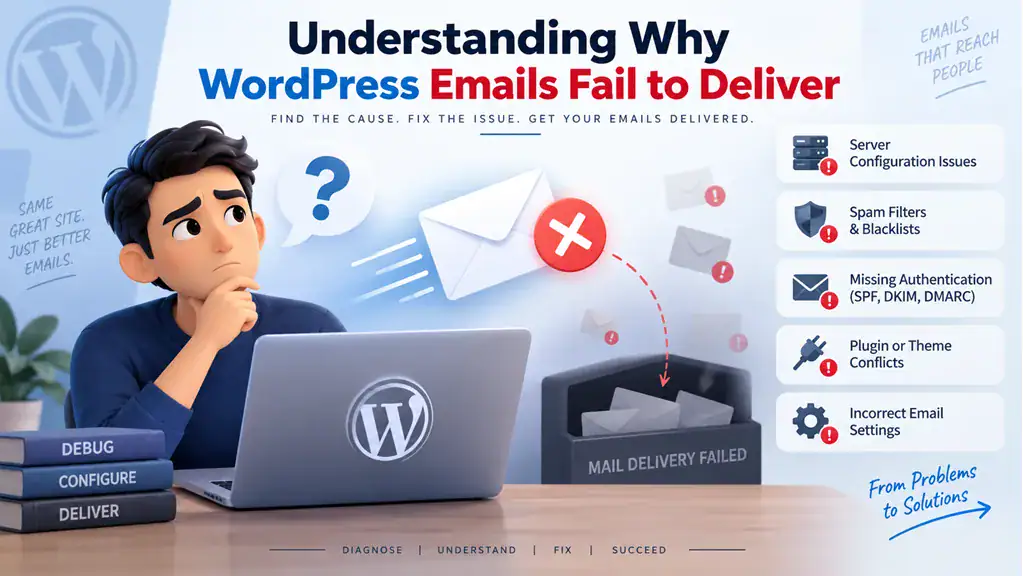
Before initiating technical reconfiguration, identifying the underlying architectural constraint prevents recurring delivery failures. While symptoms appear identical—an email never arrives—the root mechanism typically traces back to one of several specific technical roadblocks.
-
Server Misconfiguration of PHP Mail: The internal
wp_mail()function depends on the web server’s native local mail transfer agent (such as Sendmail or Postfix). Many modern hosting architectures disable or strictly restrict PHPmail()execution to protect internal server loads and prevent unauthorized outgoing scripts. -
Security Throttling and Hourly Limits: Shared hosting platforms regularly enforce outgoing transactional quotas (e.g., maximum 50–100 messages per hour) to mitigate unauthorized mass spam scripts. Once your site hits this ceiling—whether due to high order volume or compromised plugins—outgoing communications are blocked immediately.
-
Poor Shared Sender IP Reputation: On standard shared hosting clusters, hundreds of websites share identical outbound IP addresses. If an adjacent neighbor sends unsolicited marketing blasts or triggers spam traps, receiving mail exchange (MX) servers place that entire IP pool on blocklists, destroying your domain’s delivery rates.
-
Missing Cryptographic Authentication Records: Major email service providers reject incoming messages lacking authenticated sender records. If your domain lacks Sender Policy Framework (SPF), DomainKeys Identified Mail (DKIM), and Domain-based Message Authentication, Reporting, and Conformance (DMARC) DNS entries, servers flag automated emails as high-risk spoofing attempts.
-
Plugin and Form Integration Errors: Contact forms and eCommerce extensions frequently mismatch the designated “From” envelope sender address with the actual sending server domain, causing modern anti-spoofing filters to reject the transmission immediately.
Diagnosing Delivery Health with an Email Logger
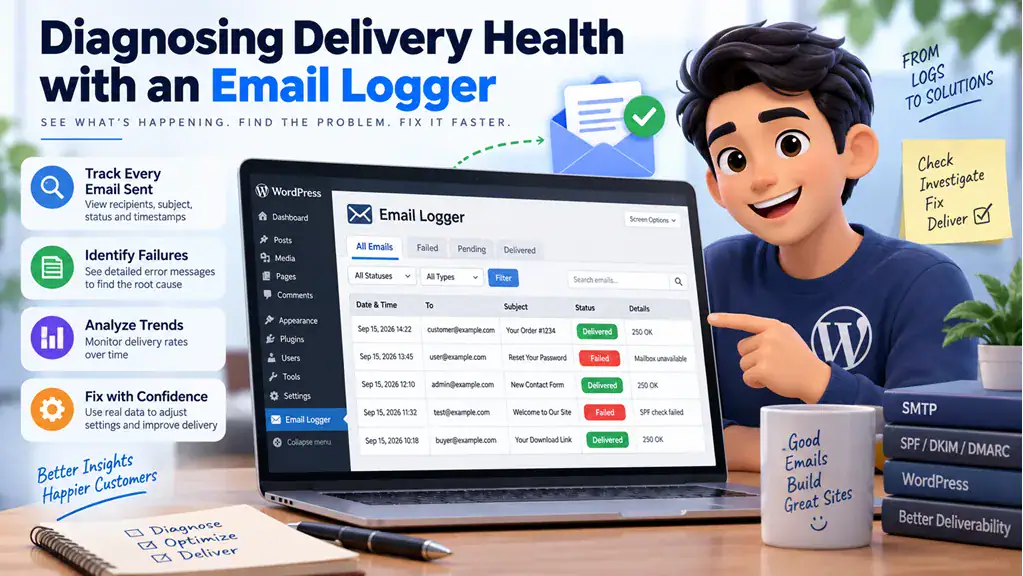
Before modifying hosting configurations or deploying new extensions, verify whether your WordPress system actively initiates message generation or fails during transmission.
Step 1: Install a Verification Tool
Log into your WordPress Administrator Dashboard, navigate to Plugins → Add New Plugin, search for Check & Log Email, install the plugin, and click Activate.
Step 2: Dispatch a Test Message
Navigate to the newly added Check & Log Email → Status screen. Locate the Send a Test Email module, input an external email address that you manage, and select Send Test Email.
Step 3: Analyze the Results
-
If the test displays a success notice and arrives in your inbox: Your base WordPress installation transmits mail normally; the root fault lies inside the configuration of specific form extensions, spam filtering rules, or specialized checkout workflows.
-
If the test displays a PHP execution failure: Your host’s underlying PHP
mail()engine is turned off, broken, or actively throttled. -
If the test succeeds internally but no email ever arrives: The host dispatches the request, but recipient mail servers reject or drop the message due to absent sender authentication or low server IP reputation.
Core Methods to Fix WordPress Email Issues
Follow these standardized procedures sequentially to diagnose, repair, and permanently stabilize your WordPress transactional email delivery.
1. Verify the WordPress Administration Email Settings
A frequent point of failure involves mismatched or outdated administration email addresses within native WordPress core settings.
-
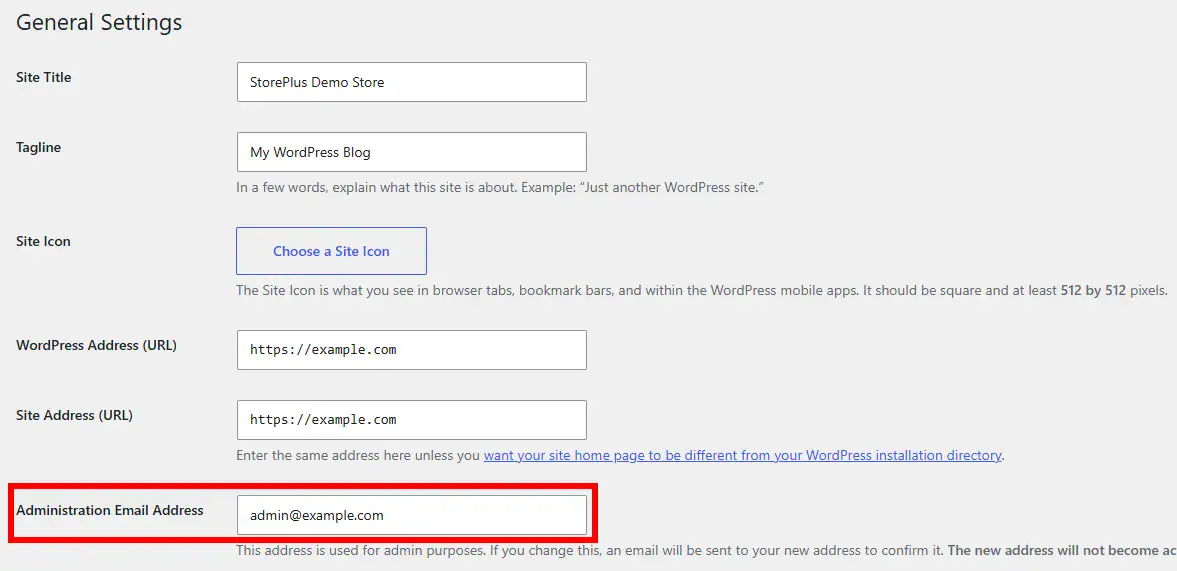
Navigate to Settings → General from the WordPress admin sidebar.
-
Locate the Administration Email Address field.
-
Confirm that the address is fully spelled out, active, and capable of receiving incoming messages.
-
Ensure that the domain name matches your operational website domain (e.g.,
[email protected]rather than a generic@gmail.comor@yahoo.comhandle). -
If you alter this address, WordPress sends a mandatory confirmation link to the newly specified inbox; you must click this link to finalize the administrative transition.
2. Clear Hosting Account Email Blocks and Limitations
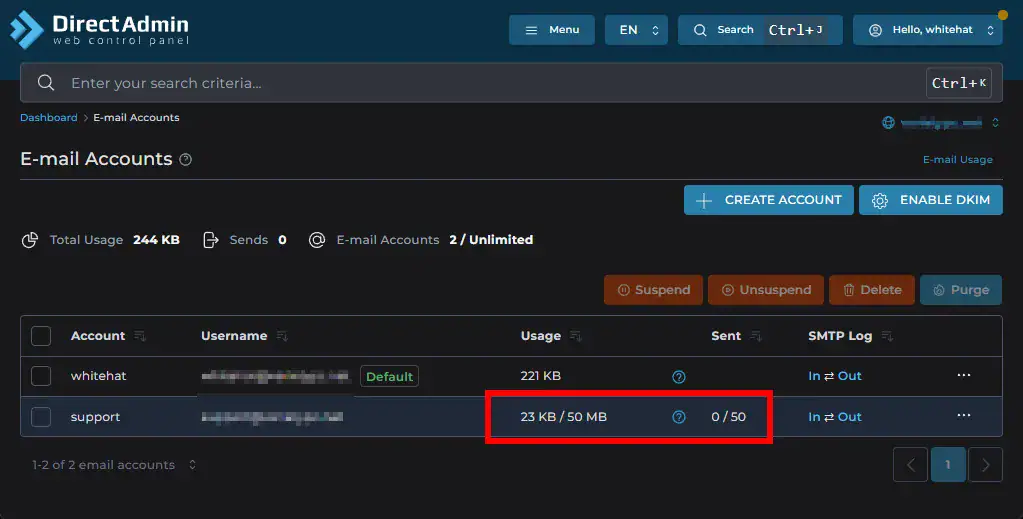
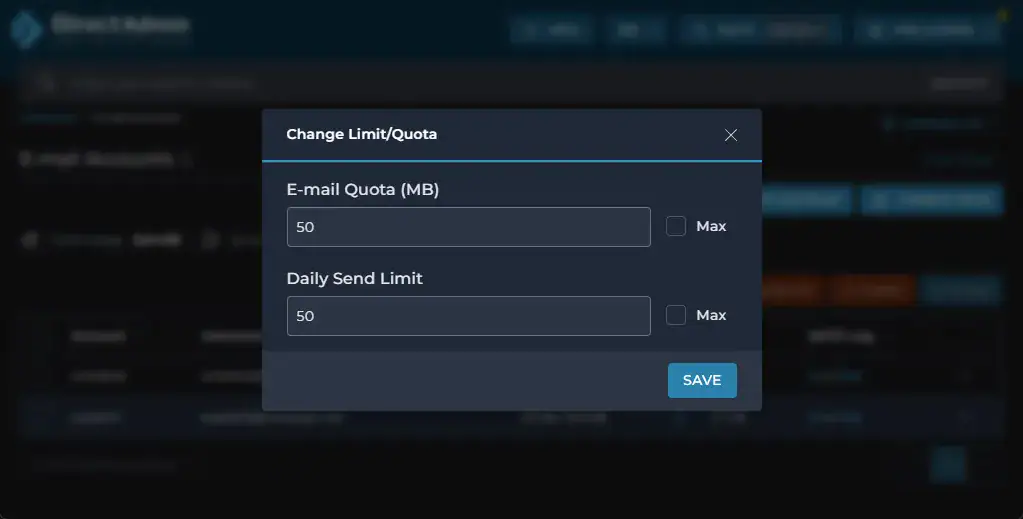
If your hosting provider imposes automated security restrictions after an unexpected traffic surge or plugin conflict, resetting the service resolves temporary transport locks.
-
Access your hosting control panel (such as Hostinger hPanel, cPanel, or Plesk).
-
Navigate to your platform’s Emails → Manage Email Accounts section.
-
Locate your operational sender account, navigate to its settings or administrative menu, and toggle the account status to Disabled or Suspended. Save changes.
-
Wait approximately 60 seconds to allow background server daemons to clear stalled connection states, then toggle the account setting back to Active and confirm the update.
-
Verify with your hosting provider’s support team that outbound port 587 or port 465 is not blocked at the server firewall level, as these ports are required for external SMTP traffic.
3. Configure WP Mail SMTP with a Dedicated Email Provider
Transitioning from unauthenticated PHP mail() to dedicated Simple Mail Transfer Protocol (SMTP) represents the industry standard for production WordPress websites. Using SMTP ensures that all outbound system notifications route through dedicated, cryptographically signed email infrastructure.
[WordPress wp_mail()] ──► [WP Mail SMTP Plugin] ──► [Dedicated SMTP Server] ──► [Recipient Inbox (SPF/DKIM Verified)]
Step 3.1: Gather Mail Server Credentials
Collect your mail server parameters from your hosting account or email provider’s management panel under Connect Apps & Devices or Email Configuration:
-
Outgoing Mail Server (SMTP Host): (e.g.,
smtp.hostinger.comorsmtp.mailgun.org) -
Encryption Protocol: TLS or SSL
-
SMTP Port: 587 (for TLS) or 465 (for SSL)
-
Authentication Requirements: Enabled (Yes)
-
SMTP Username: Your complete email address (e.g.,
[email protected]) -
SMTP Password: The secure password configured for that specific mailbox
Step 3.2: Install and Configure the Plugin
-
In your WordPress dashboard, navigate to Plugins → Add New Plugin, enter WP Mail SMTP in the search bar, install the software developed by WPForms, and click Activate.
-
Launch the Setup Wizard, or navigate manually to WP Mail SMTP → Settings.
-
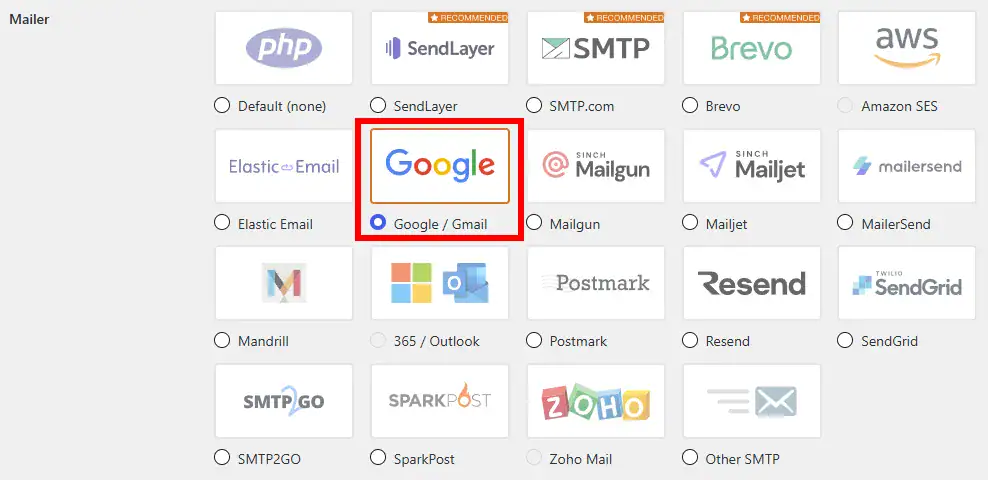
Under the Primary Mailer section, select Other SMTP (or select your dedicated transactional provider, such as SendLayer, Brevo, or Mailgun, if you utilize their API infrastructure).
-
Populate the server parameters precisely as retrieved in Step 3.1:
-
SMTP Host: Input your server hostname.
-
Encryption: Select TLS (recommended standard) or SSL.
-
SMTP Port: Input
587(TLS) or465(SSL). -
Auto TLS: Toggle to On.
-
Authentication: Toggle to On.
-
SMTP Username: Enter your full corporate sender mailbox address.
-
SMTP Password: Enter the corresponding mailbox password.
-
-
Configure your outgoing identity parameters:
-
From Email: Enter the identical email address used in your SMTP Username field. Check the box labeled Force From Email to ensure third-party extensions do not override this setting with invalid addresses.
-
From Name: Specify your official business or website name. Check Force From Name for system-wide branding uniformity.
-
-
Click Save Settings.
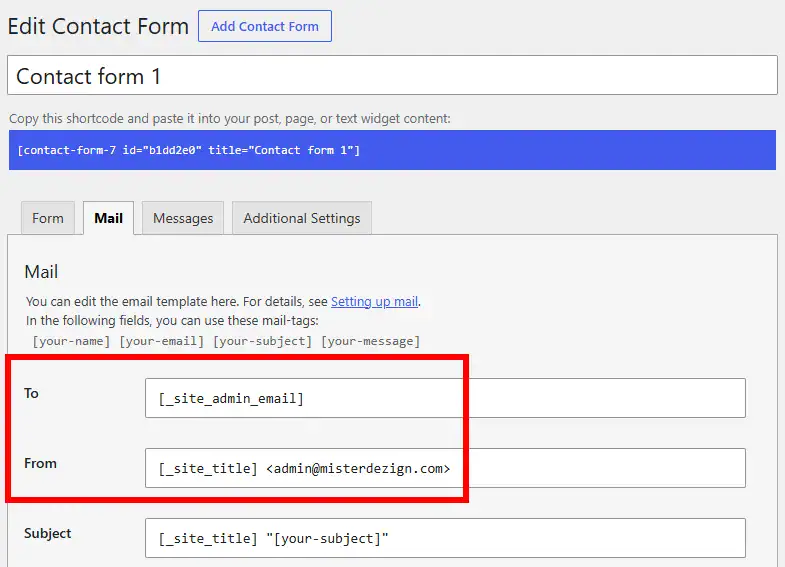
4. Adjust Form and E-Commerce Extensions (e.g., Contact Form 7)
If core WordPress notifications deliver successfully but contact forms or WooCommerce checkout forms fail, check individual plugin routing settings.
-
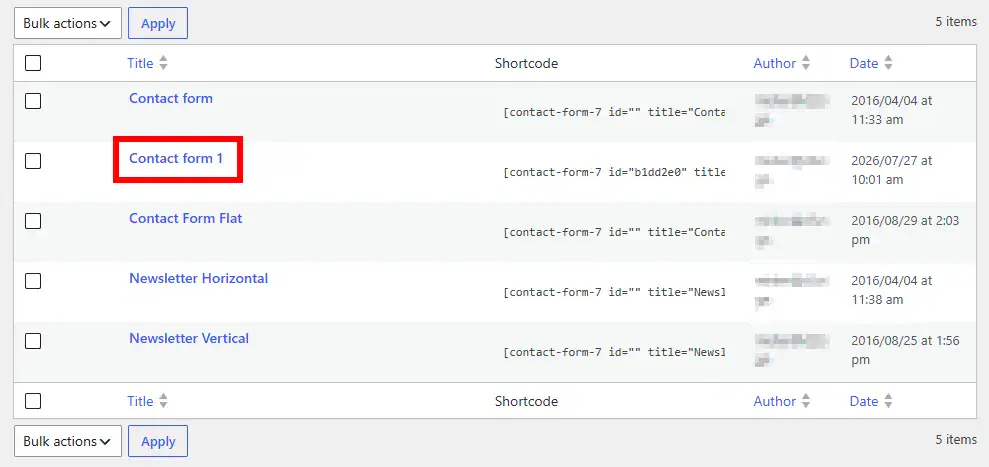
Navigate to the administrative management screen of your form utility (e.g., Contact → Contact Forms in Contact Form 7).
-
Open the target form and switch to the Mail tab.
-
Audit the “From” Field: Ensure the address uses an authentic domain-matching handle (e.g.,
[email protected]). Never map the form submitter’s dynamic user input field (e.g.,[your-email]) into the senderFrom:header, as mail exchangers immediately flag external addresses originating from your server as unauthorized spoofing. -
Set Reply Handling: To reply directly to the submitter, insert
Reply-To: [your-email]into the Additional Headers configuration box instead of altering the primary sender header. -
Save adjustments and review validation notices to confirm no syntax warnings remain.
5. Enforce Sender Reputation and Anti-Spam Protocols
To guarantee long-term deliverability and prevent transactional messages from landing in spam folders, your domain must present correct DNS authentication records to global recipient servers.
| Authentication Layer | Primary Purpose | Standard Record Type | Recommended Configuration |
| SPF (Sender Policy Framework) | Authorizes specific server IP addresses to transmit mail on behalf of your domain. | DNS TXT | v=spf1 include:_spf.yourhost.com ~all |
| DKIM (DomainKeys Identified Mail) | Attaches an asymmetric cryptographic signature to the email header to verify integrity. | DNS CNAME / TXT | Generated uniquely via your email hosting dashboard. |
| DMARC (Domain Message Authentication) | Instructs receiving servers how to handle emails failing SPF or DKIM validation. | DNS TXT | v=DMARC1; p=quarantine; pct=100; |
| Custom Reverse DNS (PTR) | Confirms sending IP address maps back to the designated outbound hostname. | Host Network PTR | Handled at the dedicated server or ISP infrastructure level. |
Testing the Plugin Configuration
Once configuration changes are saved, conduct an end-to-end verification before deploying updates to production traffic.
-
Dispatch a Plugin System Test: Inside the WordPress dashboard, navigate to WP Mail SMTP → Tools.
-
Click on the Email Test tab.
-
Enter a functional destination email address inside the Send To input field.
-
Toggle the HTML switch to ON to test rich-text content delivery.
-
Click the Send Email button.
-
Evaluate the Diagnostic Log:
-
If correctly configured, the screen presents a green confirmation banner stating: “The test email was sent successfully!” Check the destination inbox to confirm delivery.
-
If transmission fails, WP Mail SMTP generates an exhaustive debug error log indicating the exact point of failure (e.g.,
Connection refused,535 Authentication Failed, orInvalid recipient). Use this debug text to adjust port numbers, verify authentication passwords, or resolve firewall blocks.
-
Frequently Asked Questions (FAQs)
Why does WordPress use PHP mail by default instead of SMTP?
WordPress core was engineered to run across as many diverse server hosting environments as possible out of the box. The native PHP mail() function requires no initial authentication setup during installation, providing quick initial utility. However, it lacks modern security and authentication mechanisms, making it unsuitable for reliable production email delivery.
Can I use a free Gmail account to send WordPress emails via SMTP?
While technical integrations allow standard Gmail accounts to send transactional messages via Google’s API, it is not recommended for production websites. Google imposes strict daily sending limits (typically 100–500 recipients per day for free accounts) and frequently blocks connections if automated transactional volumes spike. Using a dedicated domain mailbox or a specialized transactional email provider (such as SendLayer, Postmark, or Amazon SES) provides vastly superior uptime and deliverability.
Why are my WooCommerce order confirmation emails going straight to spam?
Transactional eCommerce messages often include dynamic pricing, tabular product data, links, and billing details that trigger strict anti-phishing algorithms. If your domain lacks active DKIM and SPF records, or if the WooCommerce sender email address does not match your website’s exact root domain, major email providers automatically route those messages to spam folders.
Do SMTP plugins slow down the performance of my WordPress site?
A standard SMTP configuration adds only a minimal, imperceptible network request when sending an email. However, if your website sends large volumes of concurrent notifications (such as during flash sales), routing synchronous SMTP calls can momentarily delay page execution. To prevent this, enterprise-grade SMTP plugins offload transactional dispatches via optimized background processing or REST APIs rather than standard SMTP sockets.
Summary
Resolving WordPress email delivery problems requires establishing an authenticated communication chain between your server and recipient mail exchangers. The standard PHP mail() function lacks modern security verification, leaving transactional notifications vulnerable to server-level blocks and spam filters.
To keep your WordPress email system reliable:
-
Confirm your core administrative contact parameters match your active domain.
-
Remove host-level throttling constraints and check for outgoing server port blocks.
-
Deploy a dedicated mail transfer agent using WP Mail SMTP configured with authenticated TLS/SSL ports.
-
Align form submission sender headers with your actual domain name.
-
Implement standard SPF, DKIM, and DMARC DNS records to maintain your domain’s sending reputation.
Following these practices ensures password reset notices, customer orders, and critical contact inquiries arrive in user inboxes reliably.
Optimize Your WordPress Infrastructure with WPStore+
Tired of deliverability headaches and slow website performance? Discover enterprise-grade, performance-tuned WordPress plugins, developer toolkits, and premium optimization resources designed to scale your online business. Explore the WPStore+ Plugin Repository today and streamline your digital infrastructure with proven solutions.

