
Knowledge, WordPress Security
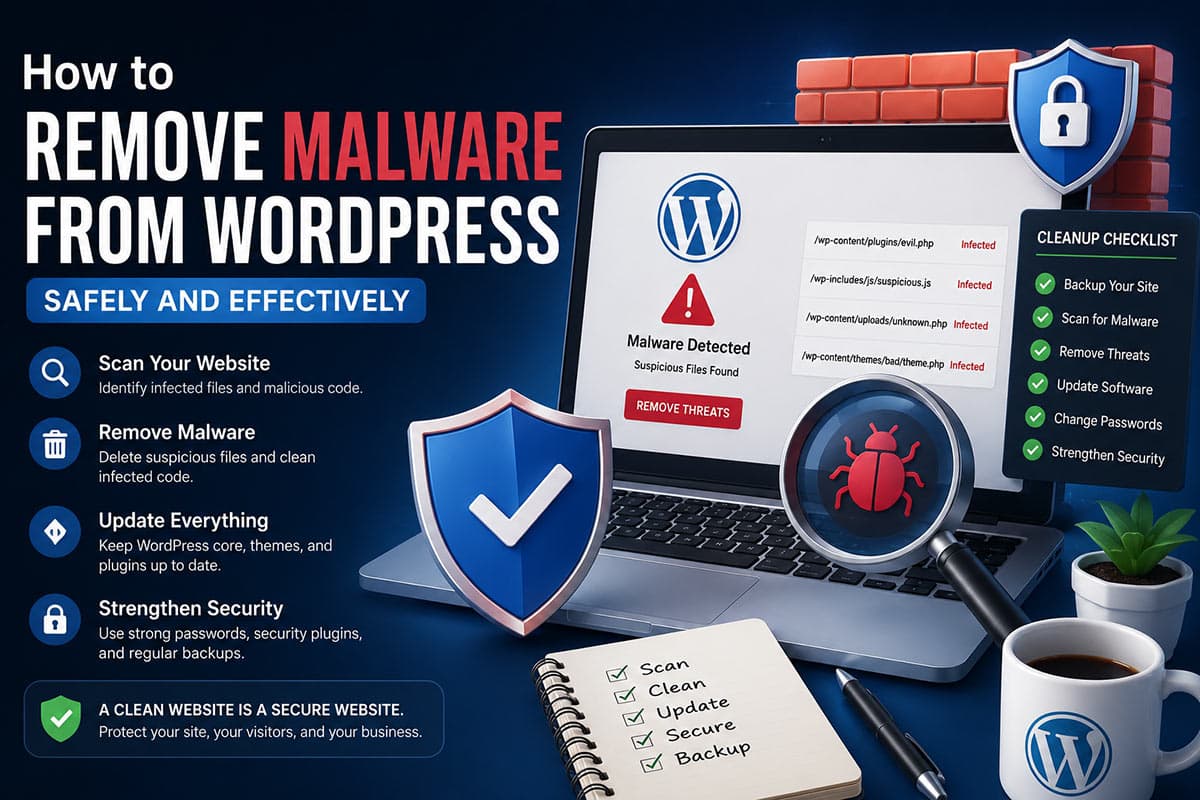
How to Remove Malware from WordPress Safely and Effectively
Jun
How to Remove Malware from WordPress is one of the most important skills website owners should understand when maintaining a secure and reliable WordPress environment. Malware infections can cause website downtime, SEO penalties, unauthorized redirects, and even data theft. Fortunately, there are practical steps that can help identify, remove, and prevent malware from affecting your website. 🔒
Why Malware Infects WordPress Websites
WordPress powers millions of websites worldwide, making it a common target for cybercriminals. Malware often enters a website through outdated plugins, vulnerable themes, weak passwords, or compromised hosting environments.
Some common signs of a malware infection include:
- Unexpected redirects to suspicious websites
- New administrator accounts appearing without authorization
- Google Safe Browsing warnings
- Slow website performance
- Unknown files appearing in WordPress directories
- Spam content being added to pages or posts
Website owners should investigate these warning signs immediately to reduce potential damage.
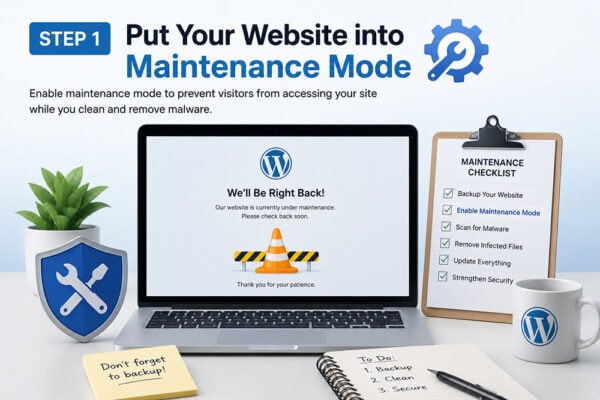
Step 1: Put Your Website into Maintenance Mode
Before making any changes, it is recommended to temporarily place the website into maintenance mode. This helps protect visitors from potential security risks while the cleanup process is underway.
Creating a complete backup before beginning any malware removal work is also highly recommended. A backup can provide a recovery point if unexpected issues occur during cleanup.
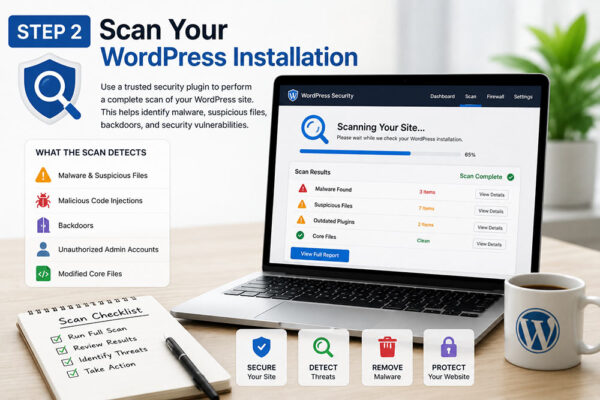
Step 2: Scan Your WordPress Installation
Use a reputable WordPress security plugin to perform a comprehensive malware scan. Security tools can help identify:
- Infected files
- Modified core files
- Suspicious code injections
- Backdoor scripts
- Unauthorized administrator accounts
The scan results can help narrow down the areas that require immediate attention.
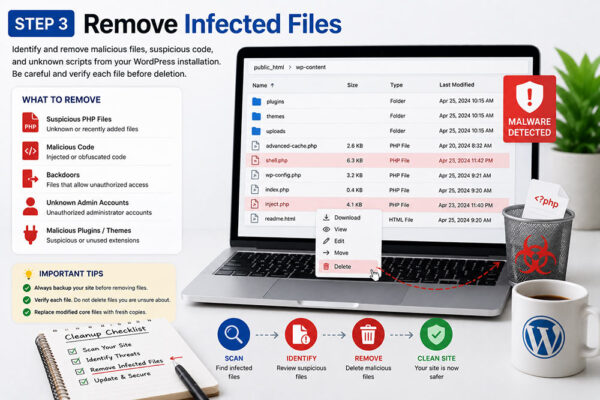
Step 3: Remove Infected Files
After identifying malicious files, carefully review and remove them.
Recommended actions include:
- Deleting suspicious plugins or themes
- Replacing modified WordPress core files with fresh copies
- Removing unknown PHP scripts
- Cleaning malware-injected code from legitimate files
Website owners should verify every file before deletion to avoid disrupting normal website functionality.
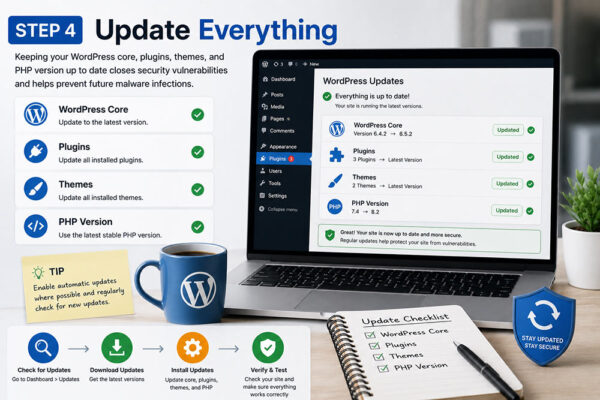
Step 4: Update Everything
Outdated software is one of the leading causes of malware infections.
Ensure that the following components are fully updated:
- WordPress Core
- Plugins
- Themes
- PHP Version
Installing updates helps close known security vulnerabilities that attackers may exploit.
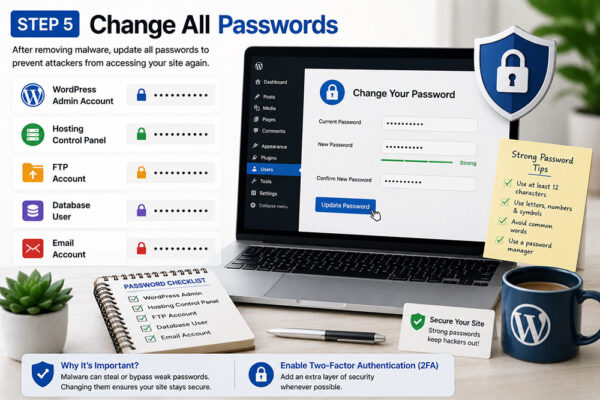
Step 5: Change All Passwords
Following malware removal, update all access credentials including:
- WordPress Administrator Accounts
- Hosting Control Panel
- FTP Accounts
- Database Users
- Email Accounts
Strong passwords combined with two-factor authentication can significantly improve website security. 🔐
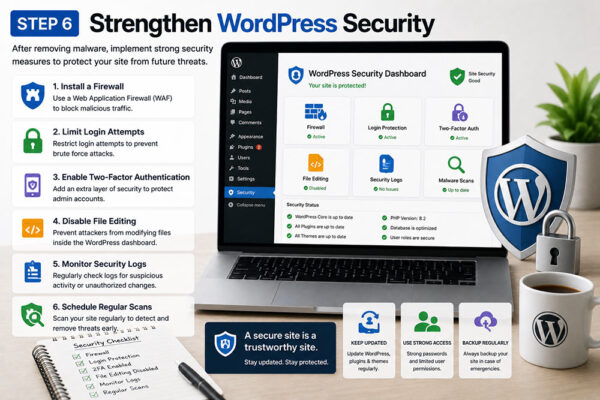
Step 6: Strengthen WordPress Security
After cleaning the website, additional security measures should be implemented.
Recommended security practices include:
- Installing a trusted firewall
- Limiting login attempts
- Enabling two-factor authentication
- Disabling file editing from the WordPress dashboard
- Regularly monitoring security logs
- Scheduling routine malware scans
These practices can help reduce the likelihood of future compromises.
Frequently Asked Questions (FAQs)
How do I know if my WordPress site has malware?
Common indicators include unexpected redirects, Google warnings, slow performance, suspicious files, unauthorized admin accounts, and unusual website behavior.
Can I remove WordPress malware without a plugin?
Yes. Experienced administrators can manually inspect files and databases. However, security plugins can simplify detection and reduce the risk of missing hidden malware.
Will malware affect my SEO rankings?
Yes. Search engines may flag infected websites as unsafe, which can result in reduced rankings, lower traffic, and warning messages displayed to visitors.
Should I restore from a backup instead?
Restoring a clean backup can be effective if the backup was created before the infection occurred. However, the underlying vulnerability should still be identified and fixed.
Summary
How to Remove Malware from WordPress involves identifying infected files, cleaning malicious code, updating software, changing credentials, and implementing stronger security measures. While malware infections can be concerning, a structured approach can help restore website integrity and improve long-term protection. Website owners who regularly maintain and secure their WordPress installations can significantly reduce the risk of future attacks. 🛡️
Call To Action
How to Remove Malware from WordPress is a critical process for maintaining website security and protecting visitors. If your website shows signs of infection, take action immediately by scanning your site, cleaning malicious files, and strengthening security measures to keep your WordPress website safe and reliable.

