
Knowledge, WooCommerce, WordPress Troubleshooting
How to Fix WooCommerce Payment Gateway Errors
Jun
WooCommerce Payment Gateway Errors can happen when a payment method is not configured correctly, a plugin conflict exists, or the checkout page cannot communicate with the payment provider. This guide explains how to troubleshoot common WooCommerce payment issues in a safe, structured, and beginner-friendly way.
Payment gateway errors may appear during checkout, after clicking the Place Order button, or when a customer is redirected back from a third-party payment provider. In some cases, the payment method may not appear at all. By checking the correct settings step by step, you can usually identify the cause without making risky changes to your live store.
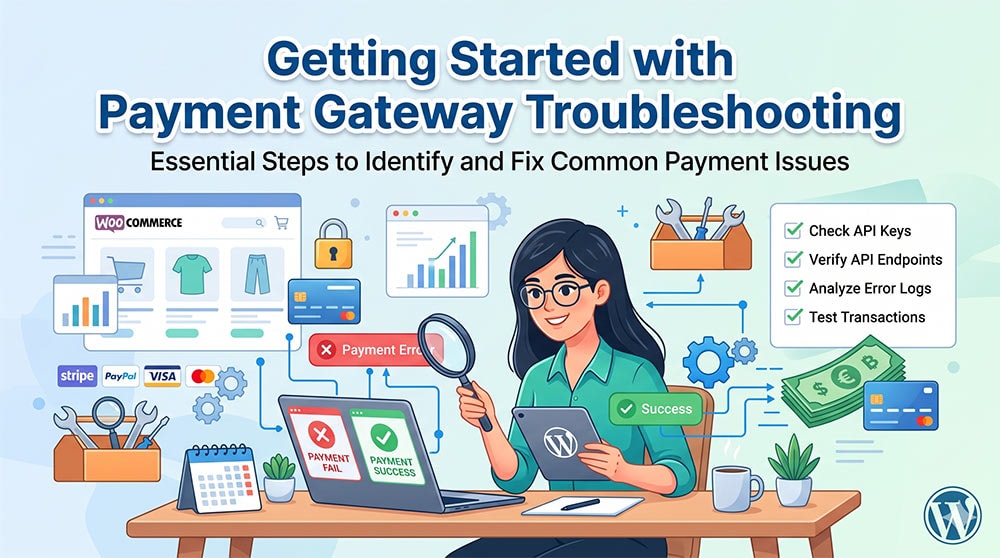
Getting Started with Payment Gateway Troubleshooting
Before changing advanced settings, start with the basic setup. Most WooCommerce payment issues are related to configuration, currency, plugin compatibility, or missing account credentials.
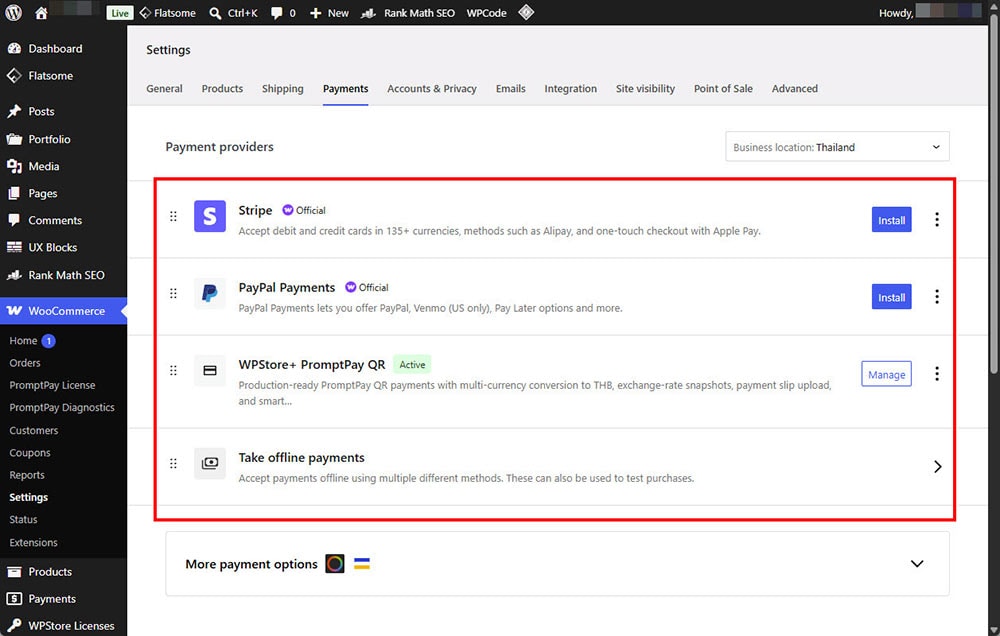
1. Check the WooCommerce Payment Settings
Go to:
WordPress Dashboard > WooCommerce > Settings > Payments
Make sure the payment gateway you want to use is enabled. If the gateway is disabled, customers will not see it on the checkout page.
You should also confirm that the gateway supports your store currency, country, and checkout flow. Some payment providers only support specific currencies or merchant account regions.
2. Verify Payment Gateway Credentials
Most payment gateways require API keys, merchant IDs, secret keys, access tokens, or webhook settings. If any of these details are incorrect, expired, or copied from the wrong environment, payment errors may occur.
Check whether your gateway is using:
- Live credentials for real payments
- Sandbox or test credentials for testing
- Correct webhook URLs if required
- Correct merchant account status
📍 Always avoid using live payment testing unless you understand the transaction process. For initial testing, sandbox mode is usually safer.
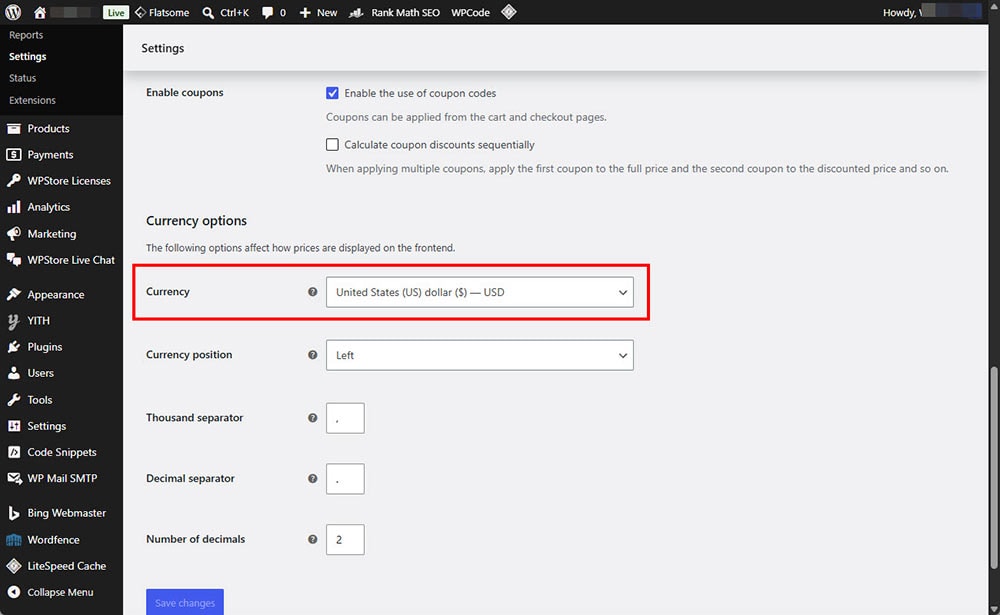
3. Confirm WooCommerce Currency and Checkout Settings
Go to:
WooCommerce > Settings > General
Check your store currency and selling location. Some gateways will not work if the selected currency is not supported.
For example, a local payment gateway may only support one country or one currency. If your WooCommerce store uses a different currency, the payment method may fail or become unavailable during checkout.
4. Update WooCommerce and the Payment Plugin
Outdated plugins may cause payment gateway errors, especially after WooCommerce or WordPress updates.
Before updating, create a full backup of your website. Then update in this order:
- WordPress core
- WooCommerce
- Payment gateway plugin
- Related checkout or security plugins
✅ If your website is important for business, test updates on a staging site first whenever possible.
5. Check for Plugin or Theme Conflicts
Plugin conflicts are a common reason for WooCommerce payment not working correctly. Checkout-related plugins, cache plugins, security plugins, and custom code can sometimes interfere with payment requests.
To test for conflicts safely, use a staging site if available. Temporarily switch to a default WordPress theme such as Storefront and disable non-essential plugins. Then test checkout again.
If the payment gateway works after disabling another plugin, re-enable plugins one by one until the issue returns. This helps identify the conflict.
6. Review Cache and Security Settings
WooCommerce checkout pages should not be cached. If a cache plugin caches the cart, checkout, or My Account pages, payment errors may occur.
Make sure these pages are excluded from cache:
- Cart
- Checkout
- My Account
- Order Received / Thank You page
Security plugins or firewall rules may also block payment callbacks, webhook requests, or API communication. If your gateway uses webhooks, check that the webhook request is not blocked by your firewall.
Testing the Plugin
After checking the settings, test the payment gateway before allowing customers to use it.
Basic Checkout Test
Create a test product with a small price and go through the checkout process as a customer. Confirm that:
- The payment method appears on the checkout page
- The Place Order button works correctly
- The customer is redirected properly if needed
- The order is created in WooCommerce
- The order status changes as expected
- The customer receives the correct email notification
- The admin receives the order notification
Test Failed and Successful Payments
If your payment provider supports sandbox mode, test both successful and failed payment cases. This helps confirm that WooCommerce handles order statuses correctly.
For example:
- Successful payment should usually mark the order as Processing or Completed
- Failed payment should mark the order as Failed
- Manual or pending payment may mark the order as On hold or Pending payment
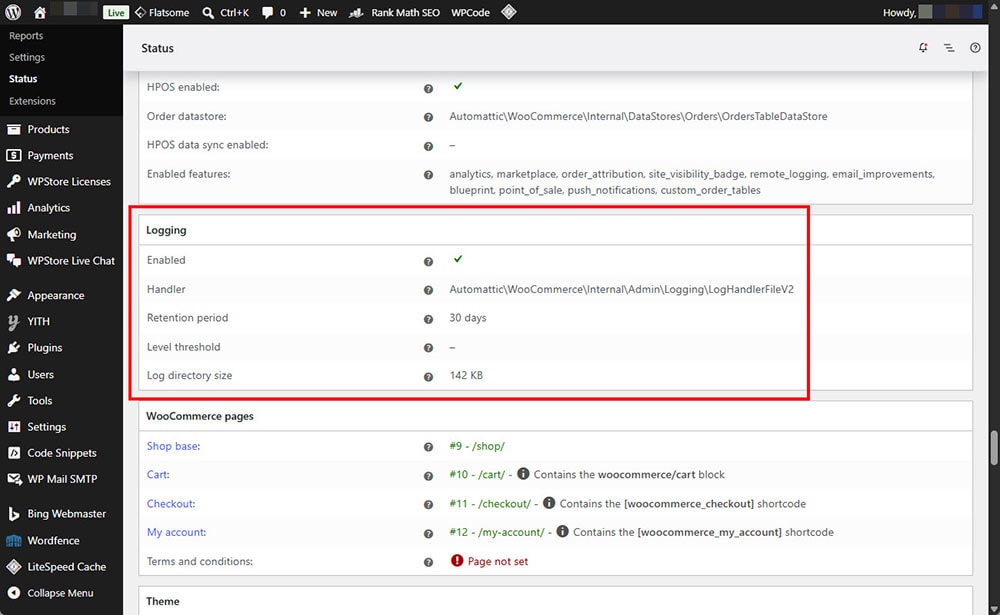
Check WooCommerce Logs
Go to:
WooCommerce > Status > Logs
Look for logs related to your payment gateway. These logs may show API errors, invalid credentials, webhook issues, or connection problems.
Do not share secret keys, access tokens, or private API data publicly when asking for support.
FAQs
Why is my WooCommerce payment method not showing?
The payment method may be disabled, unsupported in your store currency, restricted by country, or affected by a plugin conflict. Check WooCommerce payment settings and confirm that the gateway supports your store configuration.
For payment gateway errors that do not show a clear message, enabling WordPress debug with code can help you review PHP warnings, plugin conflicts, or WooCommerce-related errors in the debug log.
Why does WooCommerce show a payment failed message?
A failed payment message may be caused by incorrect API credentials, declined transactions, webhook errors, or communication issues between your website and the payment provider.
Should I disable all plugins on my live store?
No. It is safer to test plugin conflicts on a staging site. If you must test on a live site, create a full backup first and avoid making changes during peak business hours.
Can cache plugins cause payment gateway errors?
Yes. Cache plugins can cause checkout issues if they cache dynamic WooCommerce pages. Cart, Checkout, My Account, and Order Received pages should normally be excluded from cache.
What should I check first when payment errors happen?
Start with the payment gateway settings, API credentials, WooCommerce currency, plugin updates, and checkout page cache exclusions. These are the most common causes.
Summary
WooCommerce Payment Gateway Errors should be handled carefully because they directly affect the checkout process. Start by reviewing payment settings, credentials, currency support, plugin updates, cache exclusions, and WooCommerce logs.
A structured troubleshooting process helps reduce risk and makes it easier to identify the real cause. Before making major changes, always create a backup and test on a staging site when possible.
Need help with WooCommerce setup or payment gateway issues? Visit WPStore+ for practical WordPress and WooCommerce solutions.

