
Knowledge, WooCommerce, WordPress Troubleshooting
WooCommerce Checkout Not Working: Common Causes and How to Fix It
Jun
WooCommerce Checkout Not Working is a common issue that can prevent customers from completing purchases and directly impact online sales. 🛒 When the checkout page fails to load, displays errors, or stops processing payments, store owners need to identify the cause quickly to restore normal operations and maintain customer trust.
Whether the issue is caused by a plugin conflict, theme compatibility problem, payment gateway error, or server configuration, understanding the root cause is the first step toward resolving the problem effectively.
Common Causes of WooCommerce Checkout Problems
Several factors can lead to checkout issues in WooCommerce. While some are easy to identify, others may require deeper troubleshooting.
One of the most common causes is a plugin conflict. Newly installed or recently updated plugins can interfere with WooCommerce functionality, causing checkout forms to malfunction or fail completely.
Another frequent issue involves theme compatibility. Custom themes or outdated templates may not fully support the latest WooCommerce version, leading to broken checkout pages or missing form elements.
Payment gateway configuration errors can also prevent customers from completing transactions. Incorrect API credentials, expired tokens, or communication issues with payment providers may trigger checkout failures.
Additionally, server-related limitations such as low PHP memory, outdated PHP versions, or caching conflicts can negatively affect checkout performance.
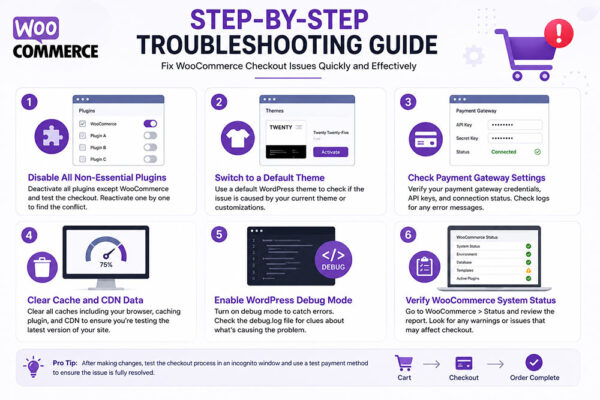
Step-by-Step Troubleshooting Guide
Disable All Non-Essential Plugins
Start by temporarily deactivating all plugins except WooCommerce. Then test the checkout page again.
If the checkout process begins working normally, reactivate plugins one at a time until the conflicting plugin is identified.
Switch to a Default WordPress Theme
Temporarily switch to a default WordPress theme such as Twenty Twenty-Five.
If the checkout page functions correctly after changing themes, the issue may be related to theme customization or outdated WooCommerce template files.
Check Payment Gateway Settings
Verify that your payment gateway credentials are correct and active.
Review logs provided by payment processors to determine whether transactions are being blocked due to authentication errors, connection failures, or configuration issues.
Clear Cache and CDN Data
Caching plugins and CDN services may serve outdated checkout content.
Clear all website caches, object caches, and CDN caches before testing the checkout process again.
Enable WordPress Debug Mode
WordPress debugging can help identify hidden errors.
Add the following settings to your wp-config.php file:
- WP_DEBUG
- WP_DEBUG_LOG
- WP_DEBUG_DISPLAY
Review the generated debug.log file to locate plugin, theme, or PHP errors affecting the checkout page.
Additional Checks for WooCommerce Stores
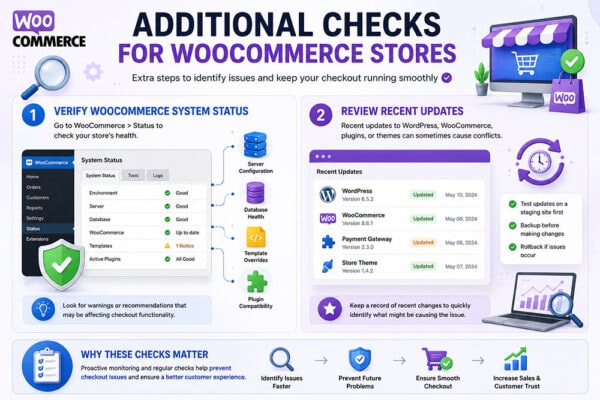
Verify WooCommerce System Status
Navigate to:
WooCommerce → Status
This page provides important information about server configuration, database health, template overrides, and plugin compatibility.
Look for warnings or recommendations that may be affecting checkout functionality.
Review Recent Updates
If the checkout issue appeared immediately after updating WordPress, WooCommerce, a plugin, or a theme, consider testing on a staging site or rolling back to a previously stable version.
Keeping records of recent changes can significantly reduce troubleshooting time.
Frequently Asked Questions (FAQs)
Why does my WooCommerce checkout page keep loading indefinitely?
This is often caused by JavaScript conflicts, payment gateway communication errors, or server performance issues. Reviewing browser console logs and WooCommerce logs can help identify the source.
If the checkout page stops working without a clear message, you may need to enable WordPress debug logging and review the error log before disabling payment, shipping, or checkout-related plugins.
Can caching plugins break WooCommerce checkout?
Yes. Improper cache configuration may affect dynamic WooCommerce pages such as Cart, Checkout, and My Account pages. These pages should generally be excluded from caching.
How do I know if a plugin is causing the problem?
Deactivate all plugins except WooCommerce and test the checkout page. Reactivate plugins individually until the issue returns.
Should I update WooCommerce immediately?
Updating WooCommerce can resolve known bugs, but updates should first be tested in a staging environment to avoid introducing new compatibility issues.
Summary
WooCommerce Checkout Not Working can result from plugin conflicts, theme compatibility issues, payment gateway errors, or server configuration problems. By systematically testing plugins, themes, payment settings, caching systems, and server resources, most checkout issues can be identified and resolved efficiently. Maintaining regular updates, backups, and staging environments can also help reduce future disruptions and improve store reliability. 📍
Call To Action
WooCommerce Checkout Not Working should be addressed as quickly as possible to avoid lost sales and customer frustration. If your store is experiencing checkout issues, perform the troubleshooting steps outlined above and monitor system logs carefully to identify the root cause and restore a smooth purchasing experience.

