
Knowledge, WordPress Tutorials
How to Fix 500 Internal Server Error in WordPress
Jun
How to Fix 500 Internal Server Error is one of the most common questions among WordPress website owners. This error can suddenly make a website inaccessible, affecting both visitors and administrators. While the message may appear alarming, the issue is often caused by configuration conflicts, plugin problems, theme errors, or server-side limitations. 🔧
Understanding the possible causes and following a structured troubleshooting process can help restore your website quickly and safely.
What Causes a 500 Internal Server Error?
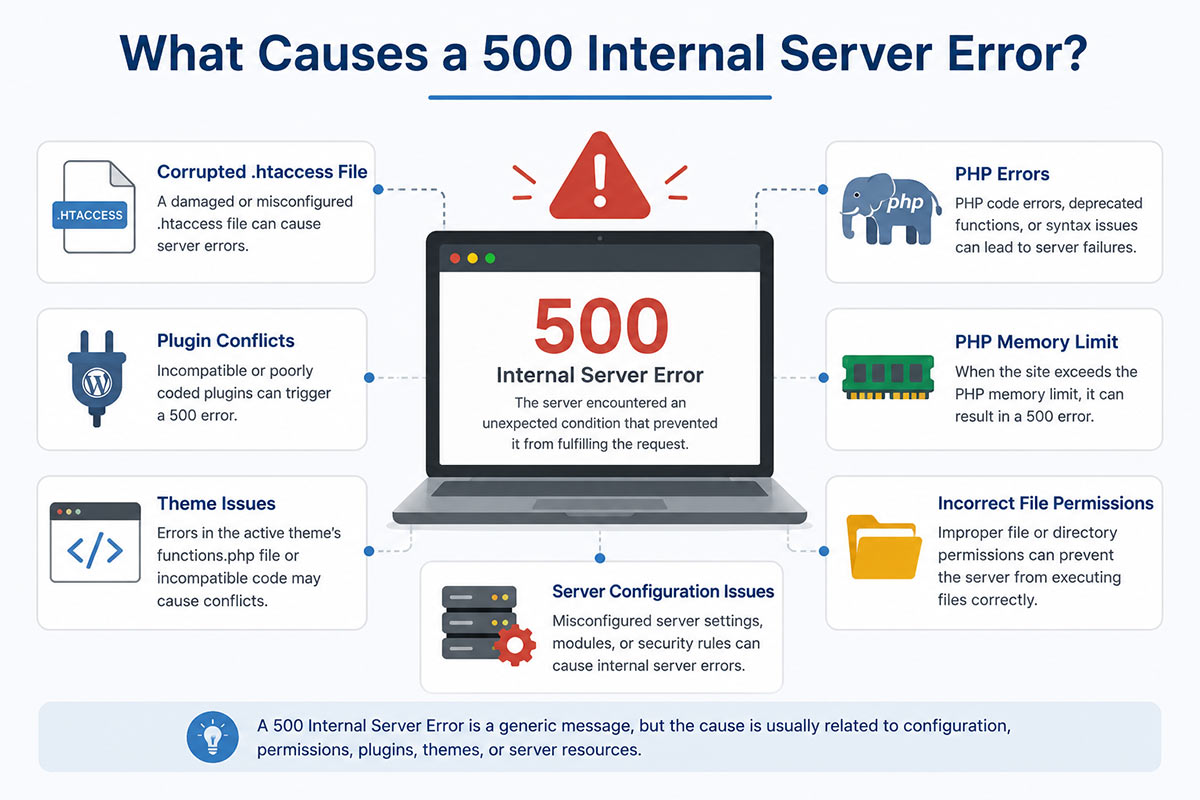
A 500 Internal Server Error is a generic server response indicating that something unexpected has occurred, but the server cannot identify the exact problem. In WordPress environments, several factors commonly contribute to this issue.
📍 Common causes include:
- Corrupted
.htaccessfile - Plugin conflicts
- Theme compatibility issues
- PHP memory exhaustion
- Incorrect file permissions
- Server configuration errors
- Corrupted WordPress core files
If the 500 error is caused by a PHP issue, checking the WordPress debug log can help you find the plugin, theme, or code snippet that triggered the problem.
Because the error message is general, identifying the root cause requires systematic troubleshooting.
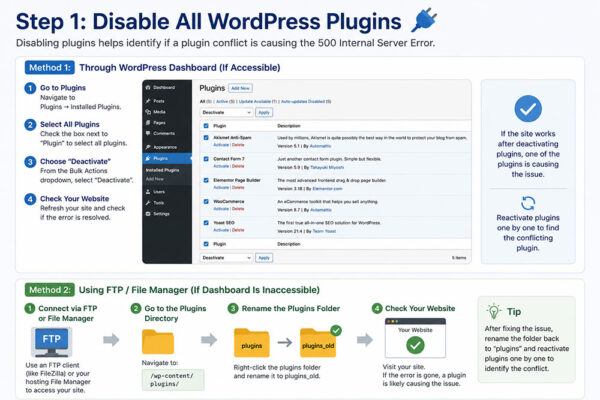
Step 1: Disable All WordPress Plugins
Plugins are among the most frequent causes of 500 Internal Server Errors.
If you can access the WordPress Dashboard:
- Navigate to Plugins → Installed Plugins
- Select all plugins
- Choose Deactivate
- Check whether the website loads normally
If the Dashboard is inaccessible:
- Connect via FTP or File Manager
- Rename the
pluginsfolder toplugins_old - Reload your website
If the site becomes accessible again, reactivate plugins one by one to identify the conflicting plugin.
Additional Troubleshooting for Plugin Conflicts
Some plugins may become incompatible after WordPress updates or PHP version changes. Website owners should ensure that all plugins remain updated and supported by their developers.
Reviewing plugin changelogs and compatibility information can help prevent recurring issues.
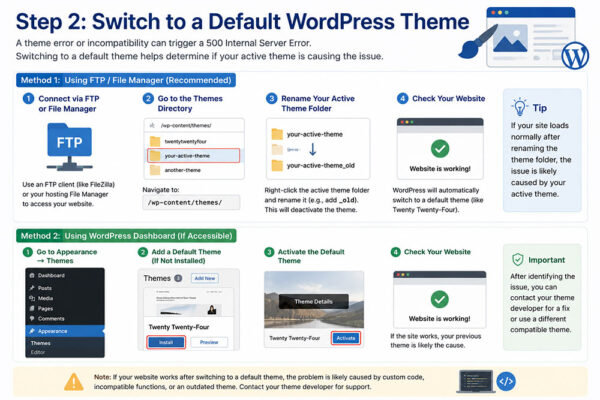
Step 2: Switch to a Default WordPress Theme
Theme-related code errors can also trigger a 500 Internal Server Error.
To test this:
- Access your site via FTP
- Navigate to
wp-content/themes - Rename your active theme folder
- WordPress will automatically switch to a default theme if available
If the error disappears, the problem may originate from custom theme functions, outdated code, or compatibility issues.
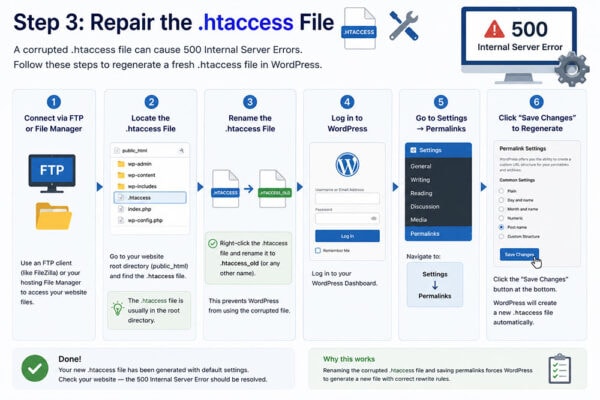
Step 3: Repair the .htaccess File
A corrupted .htaccess file is another common source of server errors.
To regenerate it:
- Connect to your website via FTP
- Locate the
.htaccessfile in the root directory - Rename it to
.htaccess_old - Log in to WordPress
- Navigate to Settings → Permalinks
- Click Save Changes
WordPress will automatically generate a new .htaccess file with default settings.
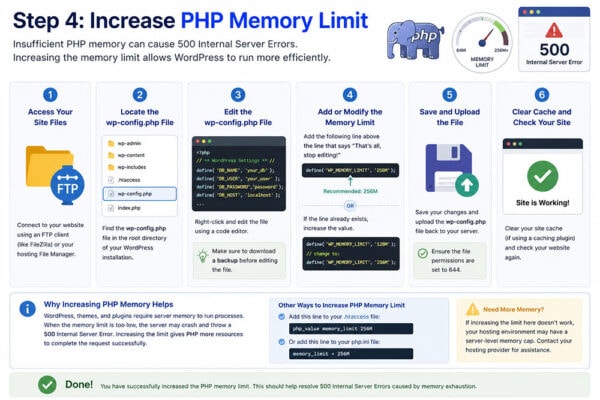
Step 4: Increase PHP Memory Limit
Insufficient server memory can prevent WordPress from processing requests correctly.
You may increase memory allocation by editing the wp-config.php file:
define( 'WP_MEMORY_LIMIT', '256M' );After saving the file, clear caches and test the website again.
💡 If the issue persists, contact your hosting provider to verify available server resources.
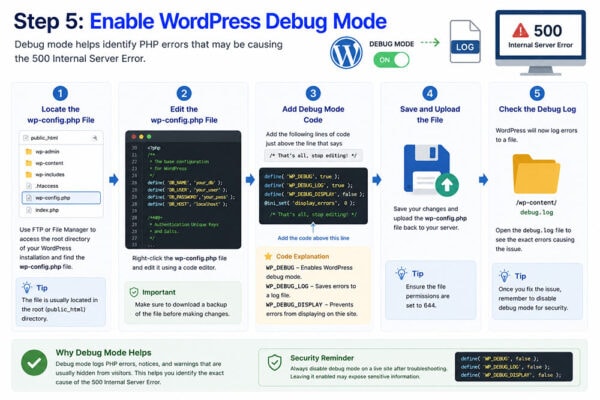
Step 5: Enable WordPress Debug Mode
Debug mode helps identify hidden PHP errors that may not be visible on the website.
Add the following lines to wp-config.php:
define( 'WP_DEBUG', true );
define( 'WP_DEBUG_LOG', true );
define( 'WP_DEBUG_DISPLAY', false );
Error logs will be saved to:
/wp-content/debug.logReviewing this file often reveals the exact plugin, theme, or script responsible for the problem.
Frequently Asked Questions (FAQs)
What does a 500 Internal Server Error mean?
It means the web server encountered an unexpected condition that prevented it from fulfilling the request.
Can a plugin cause a 500 Internal Server Error?
Yes. Faulty, outdated, or incompatible plugins are among the most common causes.
Will visitors see the error too?
Yes. In most cases, both website visitors and administrators will encounter the same error page.
Is the error related to hosting?
Sometimes. Server resource limitations, PHP configuration issues, or hosting misconfigurations can contribute to the problem.
Should I contact my hosting provider?
If standard troubleshooting steps do not resolve the issue, contacting your hosting provider is recommended.
News Summary
How to Fix 500 Internal Server Error involves a systematic troubleshooting approach that includes disabling plugins, testing themes, repairing the .htaccess file, increasing PHP memory limits, and enabling WordPress debugging tools. By following these steps, website owners can identify the root cause and restore website functionality efficiently while minimizing downtime. 🚀
Call To Action
How to Fix 500 Internal Server Error can save valuable time and prevent extended website downtime. If you found this guide helpful, explore more WordPress troubleshooting tutorials and website maintenance tips to keep your WordPress site running smoothly and securely.

