
Knowledge, WordPress Troubleshooting
How to Fix the “Error Establishing a Database Connection” in WordPress
Jul
Error Establishing a Database Connection is a WordPress message that appears when the website cannot communicate with its database. Because WordPress stores posts, pages, settings, users, and WooCommerce information in the database, the website may become unavailable until the connection is restored.
This guide explains how to verify the database configuration, repair damaged tables, identify server-related problems, and test the website safely after completing the fix.
Create a backup before changing any website file or database setting whenever possible.
Common Causes of the Error
WordPress uses the details stored in the wp-config.php file to connect to a MySQL or MariaDB database. Common causes of the error include:
- An incorrect database name, username, password, or host
- A database server that is temporarily offline or overloaded
- Missing database user permissions
- Corrupted WordPress database tables
- An incomplete website migration or backup restoration
- A recently changed database password
- Hosting storage, memory, or connection limits
Step 1: Check the Database Server
Open both the website homepage and the WordPress administration page:
https://example.com/
https://example.com/wp-admin/
If both pages display the same database connection error, check the hosting control panel for MySQL incidents, maintenance notices, storage warnings, or resource-limit alerts.
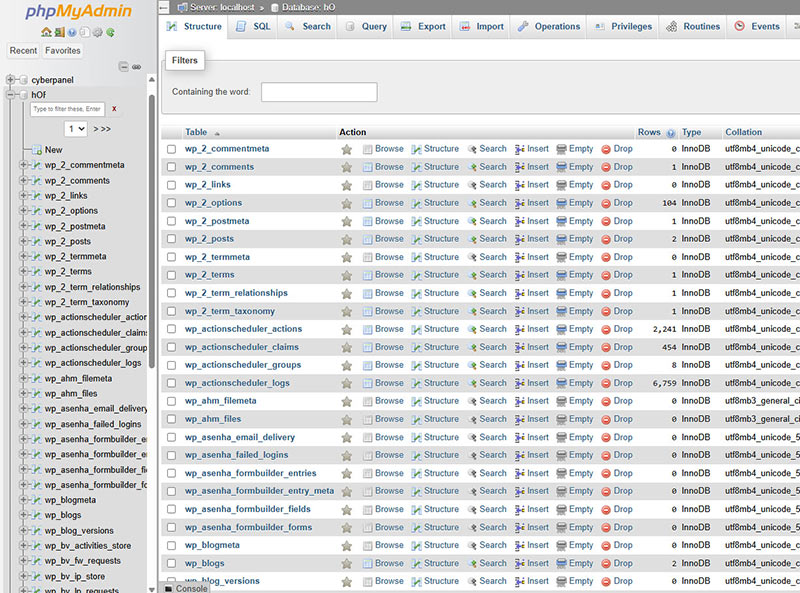
Try opening phpMyAdmin or the database management tool provided by your hosting company. If the database tool also cannot connect, the problem is likely related to the hosting environment or database server.
Contact the hosting provider and include the exact error message and the approximate time when the problem started.
Step 2: Verify the Database Credentials
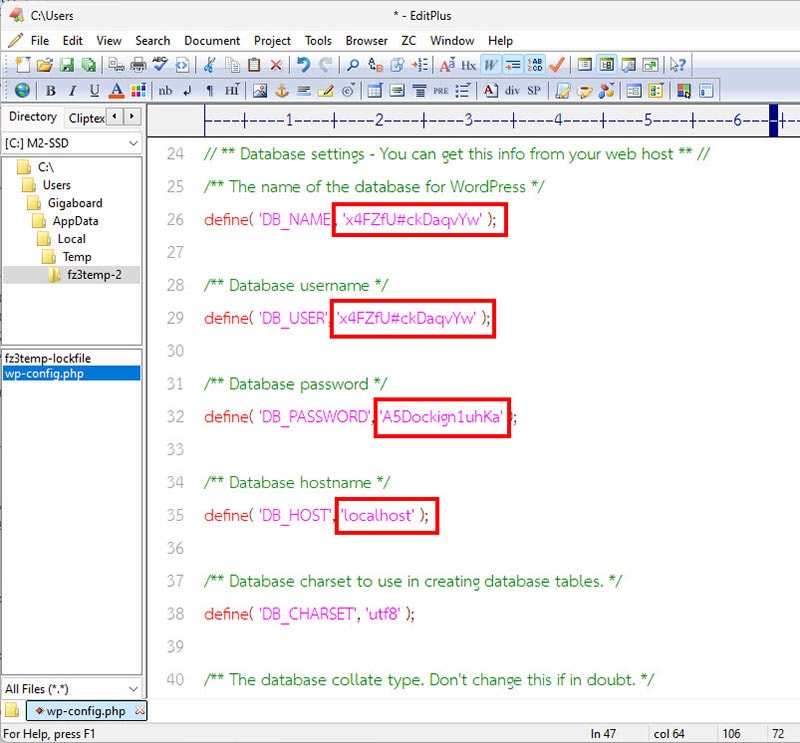
Open the wp-config.php file in the main WordPress directory using the hosting file manager, SFTP, or SSH.
Locate the following settings:
define( 'DB_NAME', 'database_name' );
define( 'DB_USER', 'database_username' );
define( 'DB_PASSWORD', 'database_password' );
define( 'DB_HOST', 'localhost' );
Check the Database Name
Confirm that DB_NAME exactly matches the database assigned to the WordPress website.
Some hosting providers automatically add an account prefix to database names. Check the complete name in the database section of the hosting control panel.
Check the Username and Password
Confirm that DB_USER belongs to the correct database and that DB_PASSWORD contains the current password.
If the database password was recently changed in the hosting panel, the same password must also be updated in wp-config.php.
Copy each value carefully. Extra spaces, missing symbols, or incorrect quotation marks can prevent WordPress from connecting.
Check the Database Host
Many hosting environments use localhost as the database host. However, some providers require a hostname, IP address, socket path, or port number.
Use the database host value supplied by your hosting provider rather than assuming that localhost is correct.
Step 3: Confirm Database User Permissions
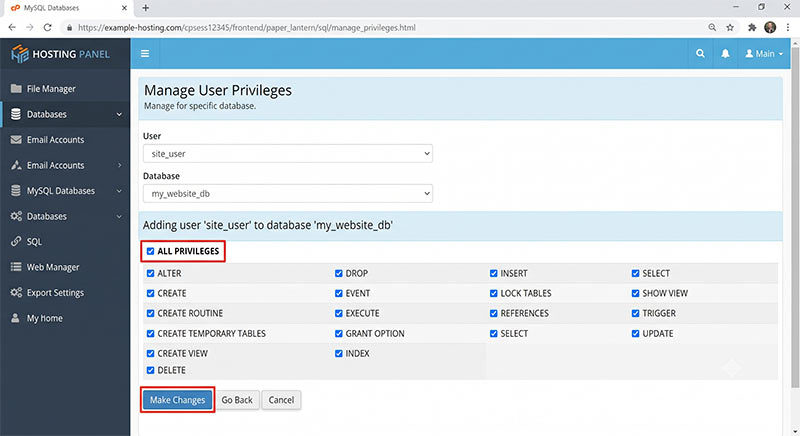
Open the database management section of the hosting control panel and confirm that the database user is assigned to the correct database.
The user must have the permissions WordPress needs to read, create, update, and delete data.
On many shared hosting systems, the required setting appears as All Privileges.
Do not share database credentials publicly or assign unrelated database users to the WordPress database.
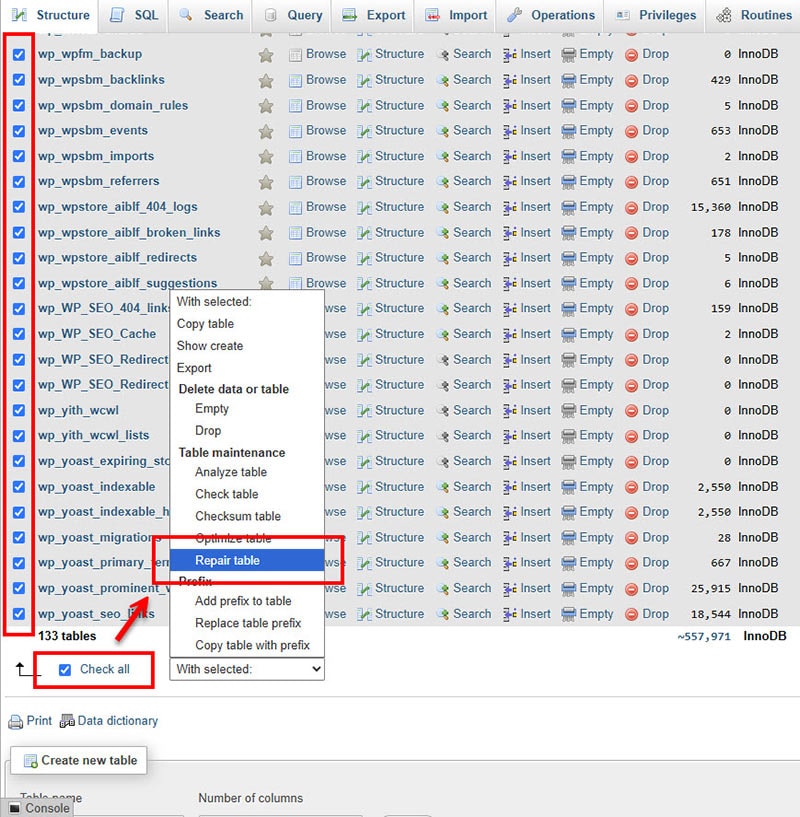
Step 4: Inspect and Repair the Database
Open phpMyAdmin and select the WordPress database. Confirm that WordPress tables such as the following are visible:
wp_optionswp_postswp_userswp_postmeta
The table prefix may be different from wp_.
If WordPress reports that the database needs repair, add the following line to wp-config.php above the line that says “That’s all, stop editing”:
define( 'WP_ALLOW_REPAIR', true );Then visit:
https://example.com/wp-admin/maint/repair.php
Choose Repair Database. Select Repair and Optimize Database only when database optimization is also required.
🔐 Remove the WP_ALLOW_REPAIR line immediately after the repair process is complete. The repair page does not require a WordPress login while this option is enabled.
Step 5: Review Recent Website Changes
Consider what happened shortly before the error appeared. Common triggers include:
- Moving the website to another server
- Restoring a backup
- Changing the database password
- Copying a staging website
- Editing
wp-config.php - Reaching a hosting storage limit
- Receiving an unusual increase in traffic
Plugins and themes rarely change database credentials directly. However, inefficient code may create heavy database activity and contribute to connection timeouts.
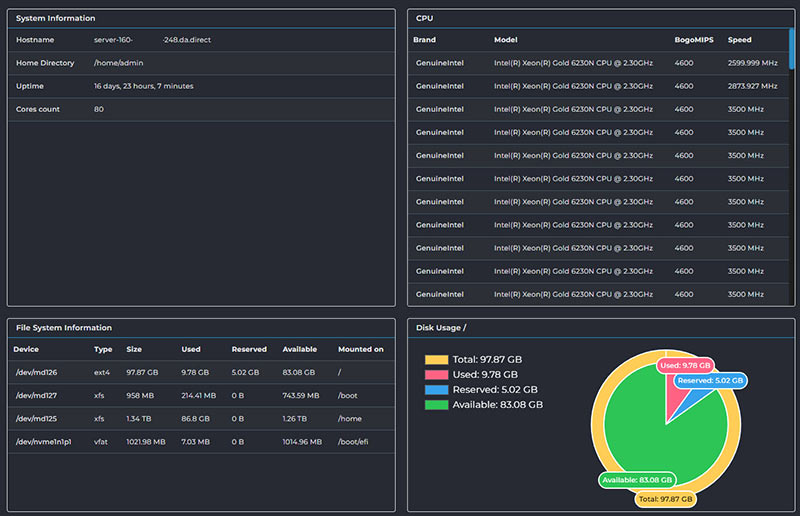
Review the PHP error log, database log, WordPress debug log, and hosting resource usage when the error occurs repeatedly.
Testing the Website After the Fix
After restoring the database connection, test the website in a private or incognito browser window.
- Open the homepage and several internal pages.
- Log in to
/wp-admin/. - Create or update a test draft.
- Test forms, search, media, and user login.
- For WooCommerce websites, check the Shop, Cart, Checkout, My Account, and order administration pages.
Use the payment gateway’s test mode when checking WooCommerce Checkout.
Clear the WordPress cache, server cache, CDN cache, and browser cache if an old error page remains visible after the connection has been restored.
Monitor the website for recurring failures. Repeated database errors may indicate insufficient hosting resources, unstable database service, excessive queries, or damaged server storage.
FAQs
Can a plugin cause this database connection error?
A plugin rarely changes the database credentials directly. However, a poorly optimized plugin may create excessive database queries and contribute to timeouts or exhausted server resources.
Is it safe to edit wp-config.php?
Yes, provided that the file is backed up and edited carefully. Preserve the PHP syntax, quotation marks, and existing security keys.
Will repairing the database delete my content?
The built-in WordPress repair tool is designed to repair database tables, not remove normal content. However, creating a current database backup is strongly recommended.
What should I do if all database credentials are correct?
Check the database server status, user permissions, storage limits, active database connections, and hosting incident reports. Contact the hosting provider if phpMyAdmin cannot connect.
Summary
The Error Establishing a Database Connection message means that WordPress cannot access the database required to load the website.
Begin by checking the database server. Then verify the DB_NAME, DB_USER, DB_PASSWORD, and DB_HOST values in wp-config.php. Confirm the database user permissions and repair damaged tables when necessary.
After restoring the connection, test both the public website and the WordPress administration area. Recurring errors should be investigated at the server and database level rather than handled by repeatedly changing WordPress files.
Call to Action
Need help restoring your WordPress website? Contact WPStore+ Support for careful troubleshooting of database, configuration, and server-related errors.
Explore more practical WordPress and WooCommerce guides in the [ WPStore+ Knowledge Base ] to troubleshoot common issues, improve website security, and manage your site with greater confidence.

