
Knowledge, WordPress Troubleshooting
How to Fix the “Briefly Unavailable for Scheduled Maintenance” Error in WordPress
Jul
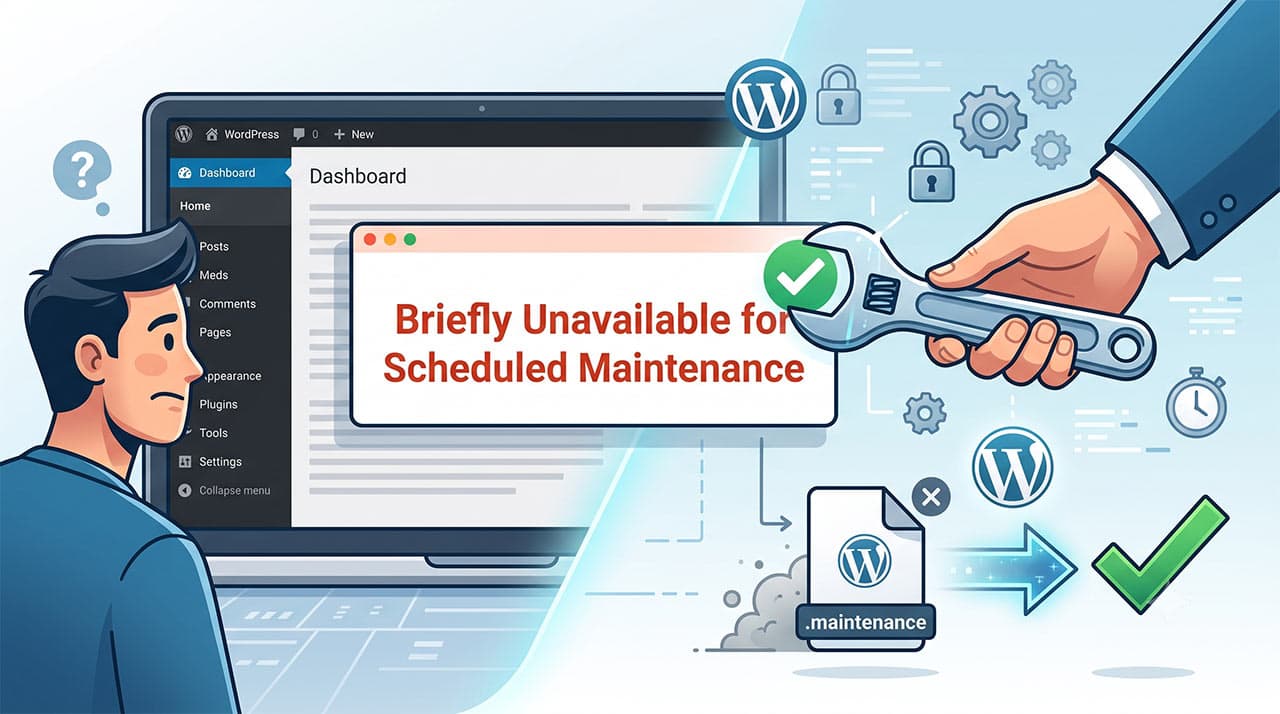
Encountering the Briefly unavailable for scheduled maintenance error can be alarming, but it is one of the easiest WordPress issues to resolve. This message typically appears when a WordPress core, theme, or plugin update is interrupted or times out before completion. During any update, WordPress automatically creates a temporary file to put your site into maintenance mode. If the update process fails to finish, this file is not deleted, leaving your website locked in this state. This official guide will provide you with a structured, step-by-step approach to manually removing the maintenance lock and restoring your website’s functionality.
Essential Steps to Resolve the Maintenance Error
To fix this error, you will need to access your website’s core files. This can be done either through your web hosting control panel (cPanel, DirectAdmin) or by using an FTP (File Transfer Protocol) application. Below is the standard procedure to regain access to your site.
Step 1: Download and Install an FTP Client (Optional)
If you prefer not to use your hosting provider’s web-based File Manager, you will need to download and install a reliable FTP client, such as FileZilla or Cyberduck.
-
Download: Visit the official website of FileZilla and download the appropriate version for your operating system.
-
Install: Follow the standard installation prompts on your computer.
-
Setup: Gather your FTP credentials (hostname, username, password, and port) from your hosting provider dashboard to prepare for connection.
Step 2: Connect to Your Server and Locate the WordPress Root Directory
Once your FTP client is ready, or if you have logged into your hosting’s File Manager, you must navigate to the folder containing your WordPress installation.
-
Connecting: Enter your credentials into the FTP client and click connect.
-
Navigating: Look for your root directory, which is typically named
public_html,www, or the name of your specific website. -
Important Note: The WordPress root directory is the folder that contains standard core folders such as
wp-admin,wp-content, andwp-includes.
Step 3: Display Hidden Files and Delete .maintenance
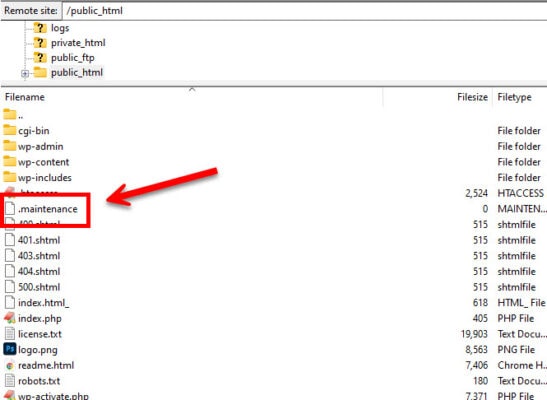
The file causing the error is a hidden system file. You must locate it to restore your website.
-
Show Hidden Files: In cPanel File Manager, click on “Settings” in the top right corner and check the box that says “Show Hidden Files (dotfiles).” In FileZilla, click on “Server” in the top menu and select “Force showing hidden files.”
-
Locate the File: Search for a file named specifically
.maintenancein your root directory. -
Delete: Right-click on the
.maintenancefile and select “Delete.” -
Precautions: 🔐 Be extremely careful not to delete any other essential files, such as
.htaccessorwp-config.php, as this will cause severe critical errors on your website.
Step 4: Verify Basic Settings and Clear Site Cache
After successfully removing the file, your website should instantly return to normal.
-
Clear Cache: If you still see the error message, clear your web browser’s cache.
-
Purge Server Cache: If you utilize a caching plugin or server-level caching (like Cloudflare or Varnish), you may need to log into your WordPress dashboard and purge the cache entirely to ensure visitors see the live site.
Testing the Website and Plugins After the Fix
Once the site is accessible again, it is crucial to perform a series of tests to ensure the interrupted update did not corrupt your system.
-
Frontend Inspection: Open your website in an incognito or private browsing window. Verify that the homepage, product pages, and blog posts are loading correctly without formatting issues.
-
Backend Verification: Log into your WordPress admin dashboard. Check for any missing menus or warning notices at the top of your screen.
-
Testing the Plugins: Navigate to the Plugins > Installed Plugins menu. The error usually occurs because a plugin update failed. Identify the plugin that was updating when the error happened. Click “Update Now” on that single plugin to process the update again.
-
WooCommerce Check: If you run a store, perform a test transaction or simply add an item to the cart to ensure WooCommerce database processes are running smoothly.
FAQs 💬
Why did this error happen in the first place? The error occurs when an update script takes too long to execute, often due to a slow server response, low PHP memory limits, or attempting to update too many heavy plugins simultaneously.
Why can’t I find the .maintenance file? Because the file name begins with a dot (.), your server recognizes it as a hidden system file. You must explicitly enable the “Show Hidden Files” setting in your FTP client or File Manager to see it.
How can I prevent this error in the future? To avoid this issue, it is highly recommended to update your plugins one by one rather than using the bulk update feature, especially for large extensions like WooCommerce or page builders. Additionally, avoid navigating away from the update page or refreshing the browser while an update is currently in progress.
What should I do if my site is broken after deleting the file? If your site loads but displays a fatal error, it means the interrupted update corrupted a plugin or theme file. You will need to access wp-content/plugins via FTP, locate the folder of the plugin that was updating, and rename it (e.g., plugin-name-disabled). This will deactivate the plugin and allow you to access the dashboard.
Summary
The Briefly unavailable for scheduled maintenance notice is a built-in protective measure by WordPress, not a critical failure. By accessing your server environment via FTP or File Manager and deleting the hidden .maintenance file, you can restore website access in a matter of minutes. Always remember to clear your cache after applying the fix and verify that your plugins are functioning correctly. Implementing safe update practices—such as updating items individually and maintaining adequate server resources—will effectively prevent this minor inconvenience from recurring. 📍
Looking for reliable, premium tools for your website? Explore the extensive collection of themes and plugins at WPStore+ to elevate your WordPress and WooCommerce experience today!

