
Knowledge, WordPress Tips & Tutorials
How to Improve WordPress SEO Without Paid Plugins
Jul
WordPress SEO is a fundamental aspect of digital marketing, and improving it does not inherently require expensive premium tools. By leveraging the core capabilities of the WordPress content management system alongside high-quality free plugins, website administrators can establish a robust search engine optimization strategy. This documentation provides a comprehensive, step-by-step guide to configuring your website, optimizing your content, and testing your implementations—all without purchasing a paid license.
Initial Setup: Establishing Your SEO Foundation
Before writing content or building backlinks, your website’s technical foundation must be configured correctly to allow search engine crawlers to index your pages. The following steps detail how to download, install, and configure the necessary free tools and core settings to initialize your SEO efforts. ✅
Configuring WordPress Visibility Settings
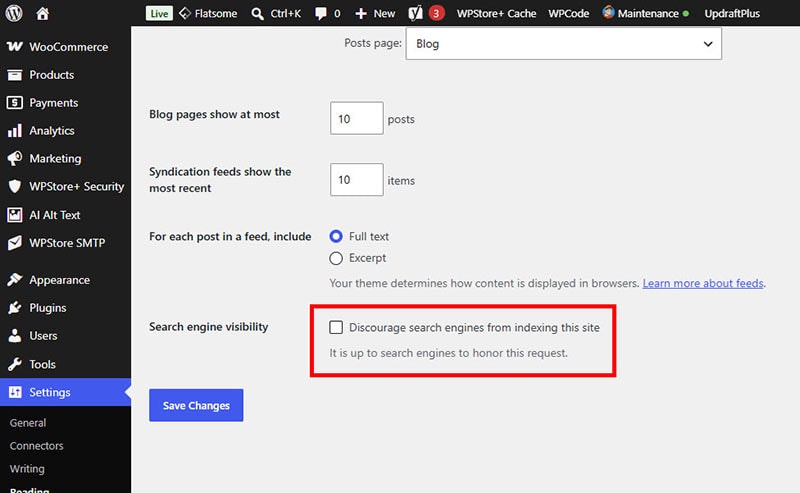
The first critical step is ensuring that WordPress is not actively blocking search engines. Upon fresh installations or during staging phases, developers often hide the site from crawlers.
-
Navigate to your WordPress Dashboard.
-
Go to Settings > Reading.
-
Locate the Search Engine Visibility section.
-
Ensure the checkbox labeled “Discourage search engines from indexing this site” is unchecked.
-
Click Save Changes. Leaving this box checked will completely nullify any subsequent SEO efforts.
Setting Up SEO-Friendly Permalinks
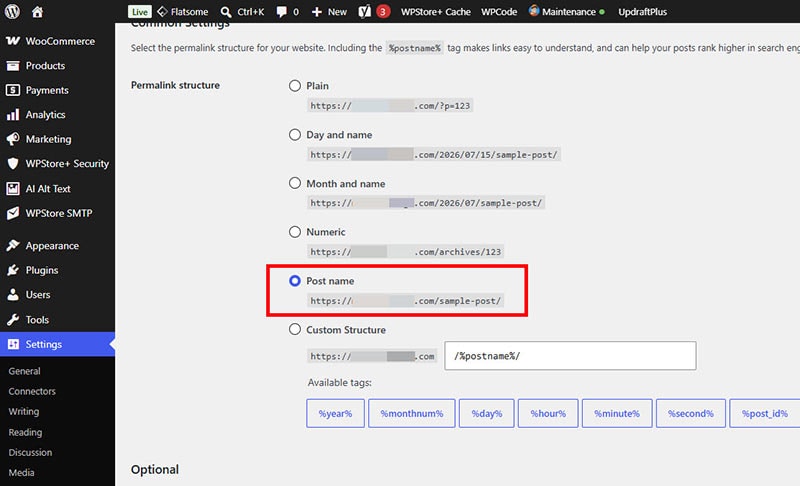
Permalinks dictate the permanent URL structure of your pages and posts. By default, WordPress may use a plain structure (e.g., /?p=123), which provides no contextual information to Google or your users.
-
Navigate to Settings > Permalinks.
-
Select the Post name option (e.g.,
[yourdomain.com/sample-post/](https://yourdomain.com/sample-post/)). -
Click Save Changes. This structure ensures that your URLs contain your focus keywords, making them clean, readable, and highly optimized for search engine algorithms.
Installing and Activating a Free SEO Plugin
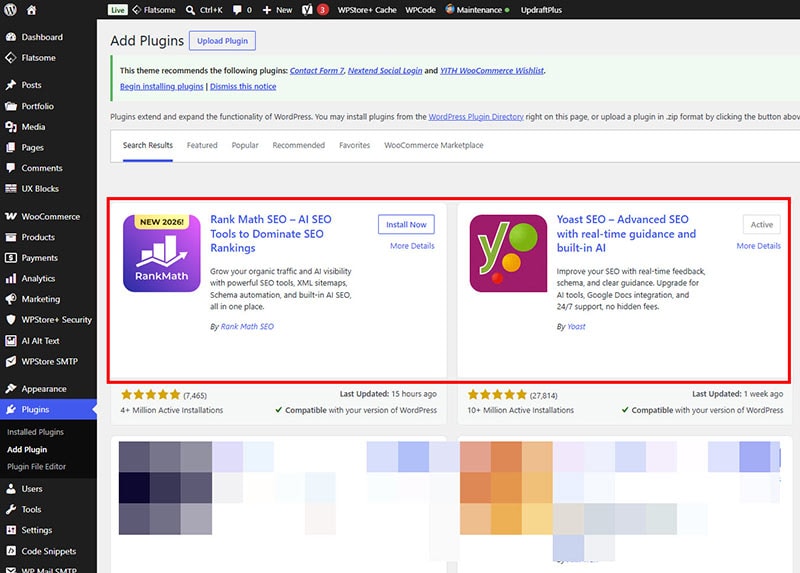
While this guide focuses on operating without paid plugins, utilizing a free SEO plugin is highly recommended to manage metadata and sitemaps efficiently. Leading solutions like Rank Math SEO or Yoast SEO offer comprehensive free tiers that do not require a premium license activation.
-
Navigate to Plugins > Add New in your WordPress dashboard.
-
Search for a reputable free plugin, such as “Rank Math” or “Yoast SEO”.
-
Click Install Now, followed by Activate.
-
Run the plugin’s built-in Setup Wizard. You will be prompted to connect a free account, but you can safely skip any prompts requesting a premium license key.
-
Complete the basic configuration, which typically includes setting your site type (e.g., Blog, Webshop) and generating your default XML sitemap.
Executing On-Page Optimization
With your foundational settings properly configured, the next phase involves optimizing the actual content of your pages and posts. These techniques require zero financial investment and rely purely on content structuring and metadata management.
Crafting Meta Titles and Descriptions
The free SEO plugin you installed provides a meta box located below or beside the WordPress block editor. This tool allows you to customize the snippet that appears on search engine result pages (SERPs).
-
SEO Title: Ensure your title tag is compelling, contains your primary focus keyword near the beginning, and remains under 60 characters to prevent truncation.
-
Meta Description: Write a concise summary of the page (approximately 150-160 characters). While meta descriptions are not a direct ranking factor, a well-written description significantly improves your click-through rate (CTR).
Structuring Content with Proper Headings
Search engines use heading tags (H1, H2, H3, etc.) to understand the hierarchy and context of your content.
-
H1 Tag: This is the main title of your page. WordPress automatically wraps your post title in an H1 tag. Never use more than one H1 tag per page.
-
H2 and H3 Tags: Use these tags to break your content into logical, scannable sections. Incorporate secondary keywords naturally into these subheadings to provide additional context to search engine crawlers.
Optimizing Media and Images
Heavy, unoptimized images slow down your website, which negatively impacts your SEO performance. Furthermore, search engines cannot “see” images; they read the text associated with them.
-
Compress Images: Before uploading, compress your images using free web-based tools, or install a free image optimization plugin to reduce file sizes without losing quality.
-
Implement Alt Text: Whenever you upload an image to the WordPress Media Library, fill out the Alternative Text field. Describe the image accurately and naturally weave in relevant keywords if they fit the context. This practice also ensures web accessibility for visually impaired users.
Testing the Plugin and SEO Configuration 🔐
After setting up your site and optimizing your content, it is crucial to verify that your free SEO plugin is functioning correctly and that your site is properly communicating with search engines.
-
Verify Source Code: Open any published post on your website. Right-click anywhere on the page and select View Page Source. Press
Ctrl+F(orCmd+Fon Mac) and search for<title>. Verify that the title output matches the custom SEO title you configured in your plugin. -
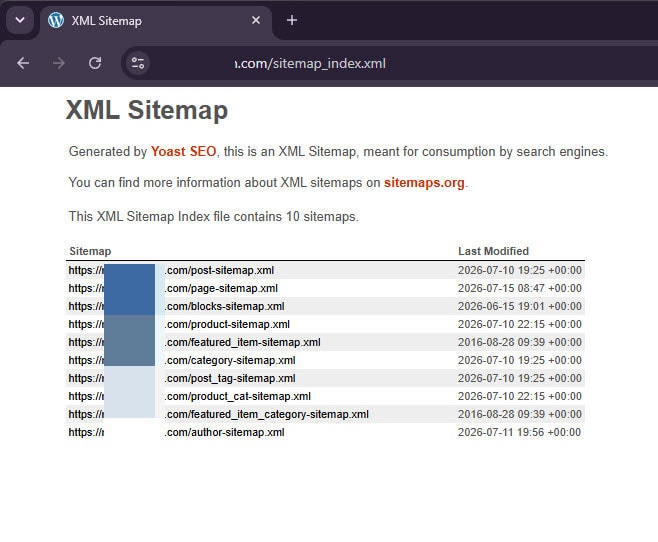
Check the XML Sitemap: Type your domain followed by your sitemap extension (commonly
[yourdomain.com/sitemap_index.xml](https://yourdomain.com/sitemap_index.xml)). Ensure the page loads an organized XML index of your posts, pages, and categories. This confirms the plugin is successfully generating the map search engines need to crawl your site. -
Google Search Console Verification: The most definitive way to test your SEO setup is to connect your site to Google Search Console (a free service). Submit your XML sitemap URL within the Search Console dashboard. Use the “URL Inspection” tool to test a specific page; Google will report back immediately if the page is indexable, mobile-friendly, and free of critical errors.
FAQs 💬
Do I need multiple SEO plugins to maximize my rankings? No. You should strictly only install and activate one SEO plugin at a time. Installing multiple SEO plugins (e.g., running Yoast and Rank Math simultaneously) will cause severe code conflicts, duplicate metadata, and ultimately harm your search rankings.
Can I rank on the first page of Google using only free SEO plugins? Absolutely. Free SEO plugins provide the essential framework required by search engines, such as meta tag management, schema markup, and XML sitemaps. Your ability to rank on the first page depends far more on the quality of your content, your site speed, and your backlink profile than on whether you possess a premium plugin license.
How long does it take to see improvements in organic traffic? SEO is a long-term digital marketing strategy. Depending on the competitiveness of your niche and the age of your domain, it typically takes anywhere from three to six months to begin seeing measurable improvements in your search engine rankings after implementing proper optimization techniques.
Summary
Improving your WordPress SEO without relying on paid plugins is highly achievable through a disciplined approach to core configurations and content structuring. By simply ensuring your site is visible to crawlers, configuring proper permalink structures, and utilizing a reliable free SEO plugin for metadata management, you create a solid technical foundation. Consistently applying on-page optimization techniques—such as utilizing hierarchical heading tags, compressing media, and crafting compelling meta descriptions—will gradually increase your organic visibility. Focus on providing high-quality, relevant content to your users, and search engines will naturally reward your efforts over time.
Looking for more WordPress and WooCommerce tips? Return to our main Knowledge Base to explore more step-by-step tutorials, troubleshooting guides, and best practices for your website.

