
Knowledge, WordPress Troubleshooting
How to Fix the “WordPress Media Library Not Loading” Issue
Aug
Encountering the WordPress media library not loading issue can be an incredibly frustrating experience for any website owner, administrator, or content creator. When you navigate to the media section of your WordPress dashboard, you expect to see a neatly organized grid of your uploaded images, videos, and documents. Instead, you might be greeted by a continuously spinning loading wheel, a completely blank white screen, or broken image thumbnails that refuse to display correctly. This malfunction completely halts your ability to publish new blog posts, update product images in WooCommerce, or design visually appealing pages, effectively putting your workflow on pause.
At its core, the WordPress media library relies heavily on AJAX and JavaScript to fetch and display your media files seamlessly without requiring a full page reload. When this system breaks down, it is almost always due to an underlying conflict or server restriction rather than a core WordPress failure. The most frequent culprits include incompatible plugins, poorly coded themes, exhausted PHP memory limits on your web hosting server, or incorrect file and folder permissions that block your server from accessing the uploaded files. Additionally, aggressive caching mechanisms—whether from a plugin or a Content Delivery Network (CDN)—can sometimes serve outdated JavaScript files that prevent the grid view from rendering properly.
This comprehensive Knowledge Base document is designed to help you methodically troubleshoot and eliminate this problem. By following these step-by-step diagnostic procedures, you will learn how to identify the root cause of the error and implement the correct fix. Whether you are a WordPress beginner or an experienced webmaster, the instructions below will guide you through resolving conflicts, adjusting essential server settings, and restoring your media library to full functionality securely and efficiently.
Core Troubleshooting Steps and Configuration
Since this error can stem from various sources, it is crucial to follow a systematic approach. Before proceeding, we highly recommend generating a complete backup of your WordPress website—including the database and wp-content directory—to ensure your data remains secure.
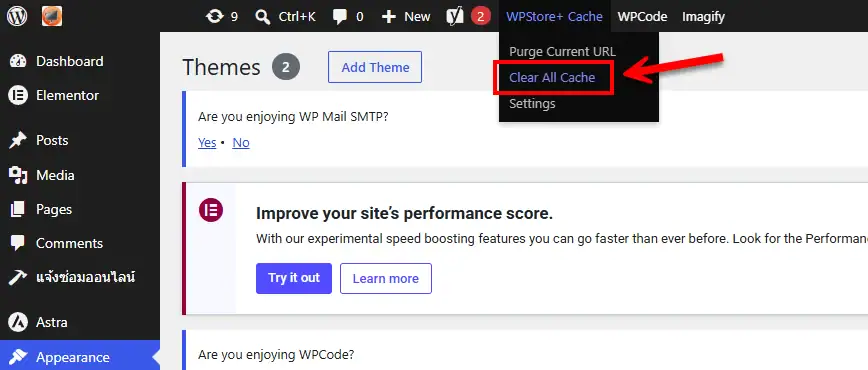
Step 1: Clear Web Browser and Plugin Cache
Often, the easiest solution is the correct one. Caching tools are designed to speed up your website, but they can sometimes cache outdated or broken JavaScript files associated with the WordPress dashboard.
-
Browser Cache: Begin by hard-refreshing your browser (Ctrl + F5 on Windows, or Cmd + Shift + R on Mac) to bypass the local cache.
-
WordPress Cache: If you use caching plugins (such as WP Rocket, LiteSpeed Cache, W3 Total Cache or WPStore+ Cache Optimizer), navigate to the plugin settings and click the “Purge All Caches” or “Clear Cache” button. Check your media library again.
Step 2: Inspect and Deactivate Conflicting Plugins
If clearing the cache fails, a plugin conflict is the most likely culprit. Code conflicts in third-party extensions can easily break the AJAX functionality required by the media library.
-
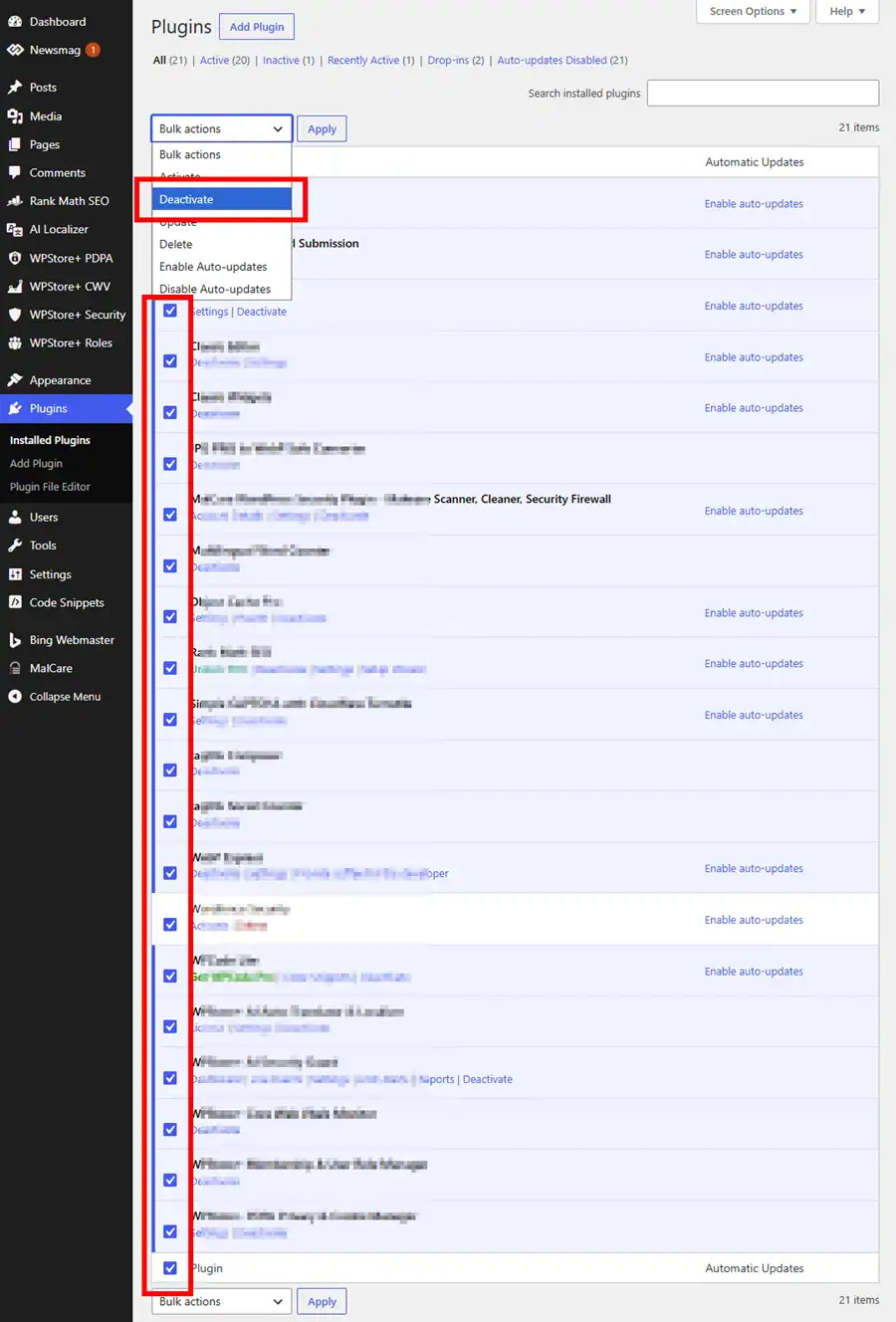
Navigate to Plugins > Installed Plugins.
-
Select all active plugins, choose Deactivate from the bulk actions dropdown, and click Apply.
-
Return to the Media Library. If it loads perfectly, a plugin is causing the issue.
-
Reactivate your plugins one by one, checking the media library after each activation to isolate the problematic plugin.
Step 3: Switch to a Default WordPress Theme
Custom themes, particularly those with complex page builders or outdated code, can inject conflicting JavaScript into the WordPress admin area.
-
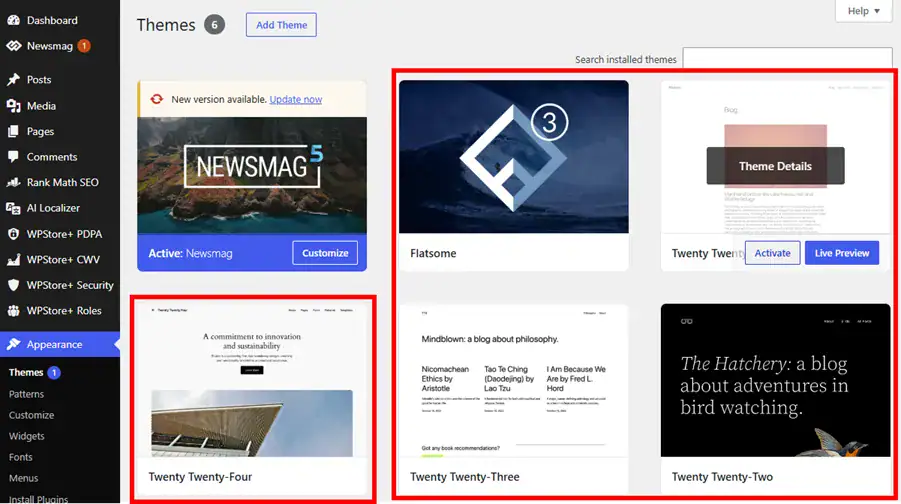
Go to Appearance > Themes.
-
Activate a default WordPress theme, such as Twenty Twenty-Four or Twenty Twenty-Three.
-
Test the media library. If the issue is resolved, your previous theme requires an update or debugging by its developer.
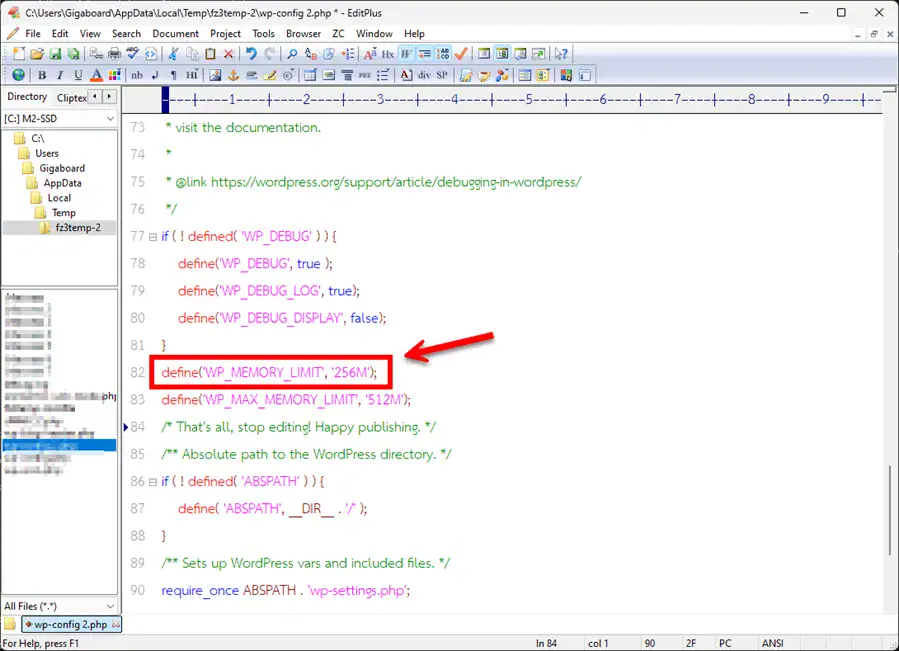
Step 4: Increase the WordPress PHP Memory Limit
A depleted memory limit can prevent WordPress from processing the scripts required to load your media library grid.
-
Access your website files via FTP or your hosting cPanel File Manager.
-
Locate the
wp-config.phpfile in the root directory. -
Edit the file and insert the following code just above the line that says
/* That's all, stop editing! Happy publishing. */:define( 'WP_MEMORY_LIMIT', '256M' ); -
Save the file and reload your dashboard.
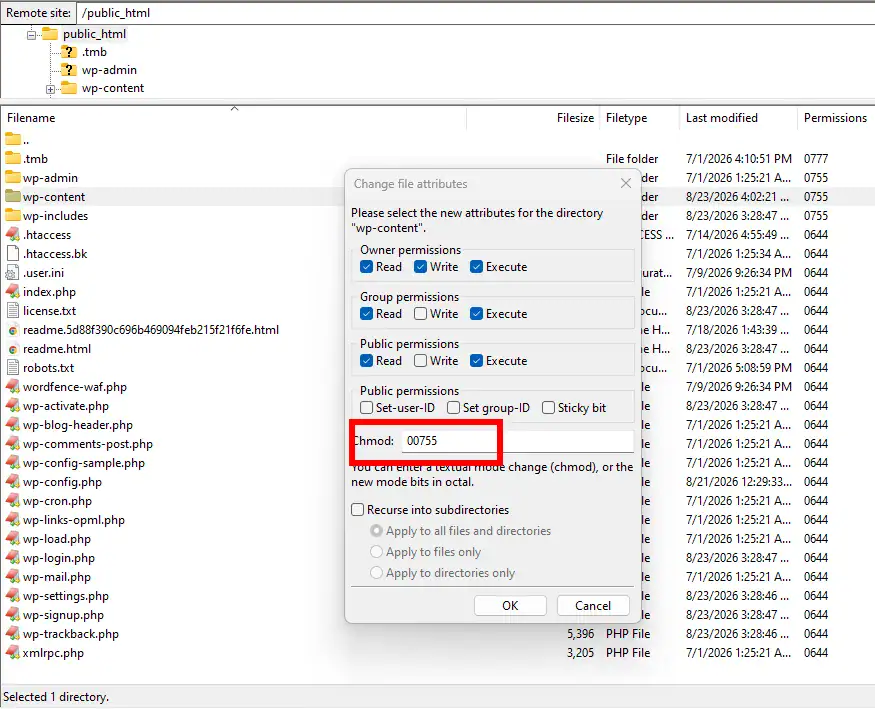
Step 5: Verify Upload Directory File Permissions
Incorrect file permissions will block WordPress from reading or displaying your media files. 🔐
-
Using an FTP client, navigate to the
wp-contentfolder. -
Right-click the
uploadsdirectory and select File Permissions. -
Ensure that the numeric value for directories is set to 755 (or 744). Apply this to directories only.
-
Set the file permissions within those directories to 644. Apply this strictly to files only.
Testing the Solution
Once you have applied the troubleshooting steps above, it is vital to verify that the core functionality is fully restored. Navigate back to Media > Library within your dashboard. You should immediately see the grid view populate with your existing images without a persistent loading spinner.
To conduct a thorough test, attempt to upload a new image by clicking the Add New Media File button. Drag and drop a standard .jpg or .png file into the upload area. If the upload completes successfully and generates a thumbnail preview, the underlying issue has been resolved. Additionally, try toggling between the “List View” and “Grid View” icons in the upper left corner of the library screen to ensure both display methods are functioning without triggering any JavaScript console errors.
FAQs 💬
Why does the media library load in “List View” but not in “Grid View”? The Grid View relies entirely on AJAX and JavaScript to fetch and display thumbnails dynamically. The List View utilizes standard PHP and HTML. If only the Grid View is broken, it is almost certainly a JavaScript conflict caused by a plugin or theme.
Will deactivating plugins delete my data or settings? No. ✅ Deactivating a plugin simply pauses its functionality. All your data, settings, and configurations are safely stored in your WordPress database and will immediately return once the plugin is reactivated.
What should I do if none of these steps work? If you have cleared caches, ruled out plugins/themes, fixed permissions, and increased memory without success, you may need to update your WordPress core manually or contact your web hosting provider to check server-side error logs (such as ModSecurity blocks or PHP version incompatibilities).
Summary
Resolving the WordPress media library not loading issue requires a logical process of elimination. By systematically clearing your cache, isolating plugin and theme conflicts, increasing your server’s PHP memory limit, and ensuring correct folder permissions, you can quickly restore your dashboard’s media management capabilities. Maintaining updated plugins and utilizing reliable themes are the best preventative measures to keep your WordPress environment stable, allowing you to focus on publishing excellent content without technical interruptions.
Looking for more WordPress and WooCommerce tips? Return to our main Knowledge Base to explore more step-by-step tutorials, troubleshooting guides, and best practices for your website.

