
Knowledge, WordPress Security
How to Recover a Hacked WordPress Website
Jun
WordPress hacked website recovery should be handled carefully because a compromised website may contain malware, unauthorized admin accounts, injected scripts, spam links, or hidden backdoors. This guide explains the recommended steps to help WordPress site owners recover a hacked website safely, restore normal operation, and reduce the chance of future attacks.
A hacked WordPress website can affect customer trust, search engine visibility, website performance, and email reputation. The goal is not only to remove visible malware, but also to identify how the attack happened and secure the website after cleanup.
First Steps Before Recovering a Hacked WordPress Website
Before making changes, avoid deleting files randomly. A careful recovery process helps prevent data loss and makes it easier to find the root cause of the infection.
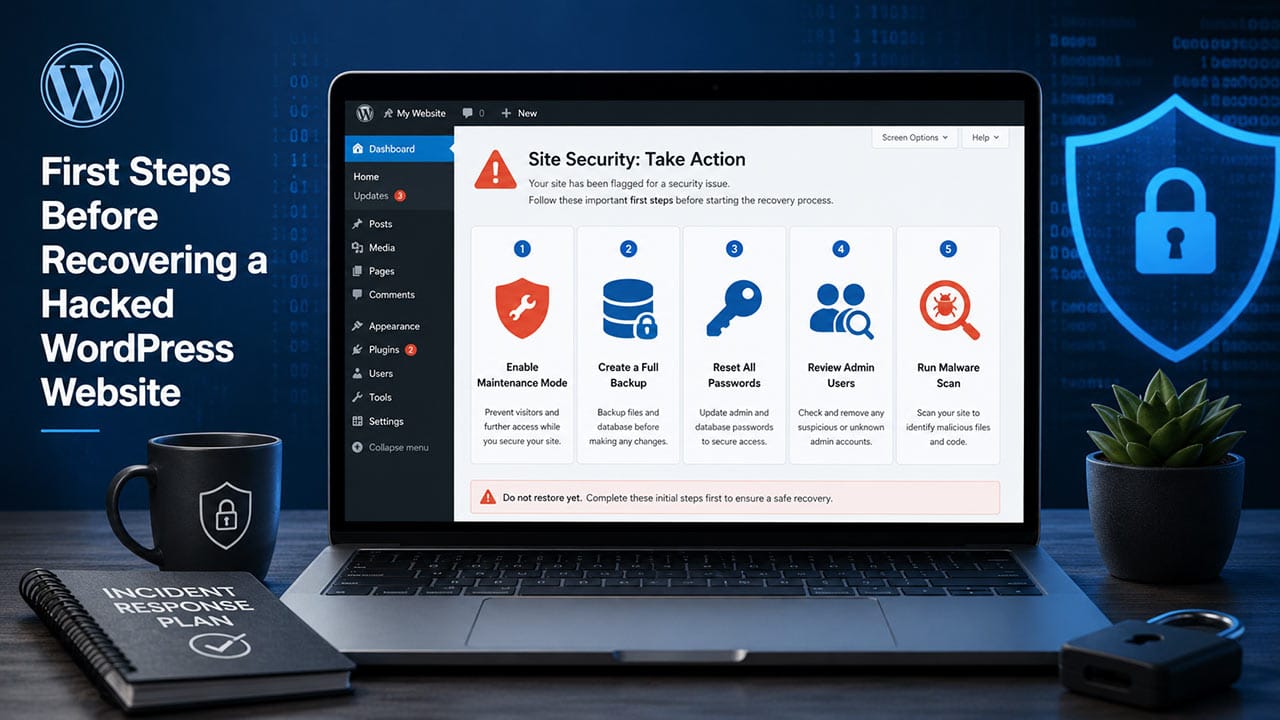
1. Put the Website in Maintenance Mode
If the website is showing malware warnings, spam pages, redirects, or suspicious popups, place the website in maintenance mode if possible. This helps protect visitors while you investigate the issue.
If you cannot access the WordPress dashboard, you may need to temporarily restrict access from the hosting control panel, server firewall, or Cloudflare.
2. Create a Full Backup Before Cleanup
Even if the website is infected, create a full backup of the current state before making any changes. This should include:
- WordPress files
- Database
- Uploads folder
- wp-config.php
- .htaccess or server configuration files
This backup is useful for forensic review and can help you recover important content if anything is accidentally removed during cleanup.
3. Change All Important Passwords
Change passwords immediately for all important access points. This includes:
- WordPress administrator accounts
- Hosting control panel
- FTP or SFTP accounts
- Database user
- Email accounts connected to the website
- Cloudflare or DNS accounts
Use strong, unique passwords and enable two-factor authentication where available. 🔐
4. Review WordPress Admin Users
Go to Users > All Users and review all administrator accounts. Remove any unknown users or accounts that should not have admin access.
Also check whether existing users have been changed to administrator roles without permission. If you find suspicious accounts, delete them and assign their content to a trusted user when needed.
5. Scan the Website for Malware
Use a trusted WordPress security plugin or server-side malware scanner to scan the website files and database. Look for suspicious PHP files, injected scripts, strange filenames, modified core files, and unknown code inside theme or plugin folders.
Common locations to inspect include:
/wp-content/uploads//wp-content/plugins//wp-content/themes/- WordPress root directory
.htaccesswp-config.php
Be especially careful with PHP files inside the uploads folder, because normal media uploads should not usually contain executable PHP files.
6. Restore Clean WordPress Core Files
If WordPress core files were modified, replace them with a fresh copy from the official WordPress source. Do not overwrite wp-config.php or the wp-content folder without checking first.
You can also reinstall WordPress core from the dashboard by going to Dashboard > Updates > Re-install version, if the dashboard is still accessible.
7. Remove Suspicious Plugins and Themes
Delete unused plugins and themes. If a plugin or theme looks suspicious, outdated, abandoned, or downloaded from an untrusted source, remove it.
After cleanup, reinstall legitimate plugins and themes from trusted sources only. Avoid nulled themes and plugins because they often contain hidden malware or backdoors.
8. Clean the Database
Some WordPress attacks inject spam links, malicious scripts, or hidden redirects into the database. Check common areas such as:
- Posts and pages
- Widgets
- Theme options
- Plugin settings
wp_optionstable- Custom HTML blocks
Do not delete database records unless you understand what they do. When unsure, compare with a clean backup or ask a WordPress security specialist.
9. Update WordPress, Plugins, and Themes
After removing malware, update WordPress core, plugins, and themes to the latest stable versions. Many WordPress attacks happen through outdated plugins, weak passwords, or unpatched vulnerabilities.
Before updating a live website, make sure you have a recent backup.
10. Harden Website Security After Recovery
After the website is clean, apply basic WordPress hardening steps:
- Enable two-factor authentication
- Disable file editing from the WordPress dashboard
- Block PHP execution in uploads when possible
- Limit login attempts
- Use a web application firewall
- Review file permissions
- Remove unused admin accounts
- Keep regular offsite backups
Security hardening does not guarantee that a website will never be attacked again, but it greatly reduces common risks.
Testing the Plugin
If you use a security plugin or malware cleanup plugin during recovery, test it carefully before relying on it for live protection.
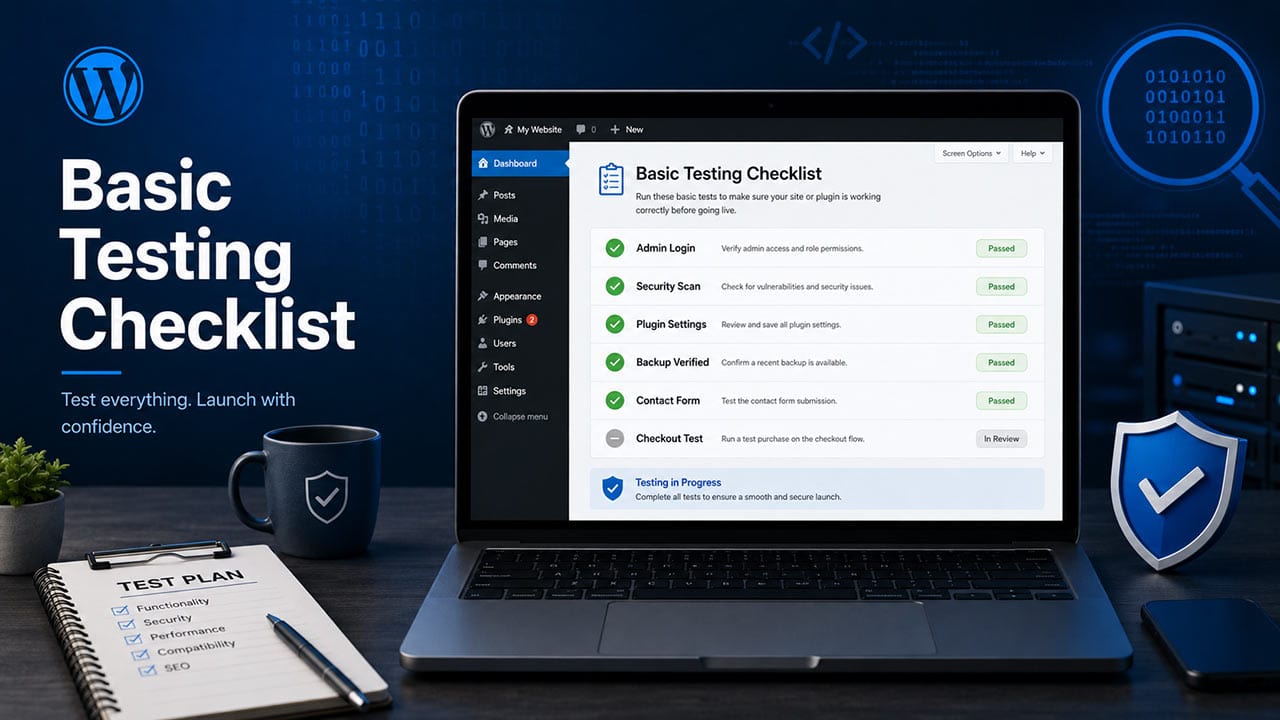
Basic Testing Checklist
After installation and activation, review the plugin settings and confirm that key features are working correctly:
- Malware scan runs successfully
- Firewall or protection mode is enabled
- Login protection is active
- Security alerts are configured
- No important website functions are blocked
- Checkout, contact forms, and login pages still work normally
For WooCommerce websites, always test the cart, checkout, payment method, order email, and customer account pages after enabling security rules.
FAQs
How do I know if my WordPress website has been hacked?
Common signs include unknown admin users, unexpected redirects, malware warnings, spam pages, strange files, slow performance, or suspicious code in theme and plugin files.
Can I recover a hacked WordPress website without a backup?
Yes, in many cases it is possible, but recovery may take longer. A clean backup makes the process safer and faster.
Should I delete all files and start again?
Not always. A full rebuild may be necessary for severe infections, but many hacked WordPress websites can be recovered by carefully cleaning files, database entries, users, and security settings.
Is updating plugins enough to fix a hacked website?
No. Updates are important, but malware, backdoors, and injected database content may remain even after updating. You should scan, clean, and harden the website properly.
Should I keep unused plugins disabled?
It is better to delete unused plugins and themes. Disabled plugins can still become security risks if vulnerable files remain on the server.
Summary
Recovering a hacked WordPress website requires a careful and structured process. Start by securing access, backing up the current website, reviewing admin users, scanning for malware, cleaning infected files, checking the database, and updating all trusted components.
After recovery, apply security hardening, enable regular backups, and monitor the website for suspicious activity. A clean website is only the first step. Long-term protection depends on regular maintenance, strong access control, and safe WordPress management practices.
Need help recovering or securing your WordPress website? Contact WPStore+ for professional WordPress troubleshooting, malware cleanup, and security hardening support.

