
Knowledge, WooCommerce
How to Fix WooCommerce Emails Not Sending
Jul
Experiencing the frustrating issue of WooCommerce emails not sending can disrupt your daily operations and confuse your customers. When order confirmations, shipping updates, and password resets fail to reach the inbox, it directly impacts user trust and increases customer support requests. This Knowledge Base guide will walk you through the most effective solutions to restore your email functionality. By checking your core settings and implementing a proper SMTP configuration, you can bypass default server limitations and ensure your transactional emails are delivered reliably every time.
Setting Up an SMTP Plugin to Resolve Delivery Issues
Standard WordPress installations rely on the default PHP mail() function to dispatch notifications. Unfortunately, this method is notoriously unreliable, lacks proper authentication, and is frequently blocked by modern email providers’ spam filters. To resolve this permanently, you must route your store’s communications through a dedicated SMTP (Simple Mail Transfer Protocol) service. Below are the essential steps to download, install, activate, and configure a reliable SMTP plugin for your WooCommerce store.
Downloading and Installing the Plugin
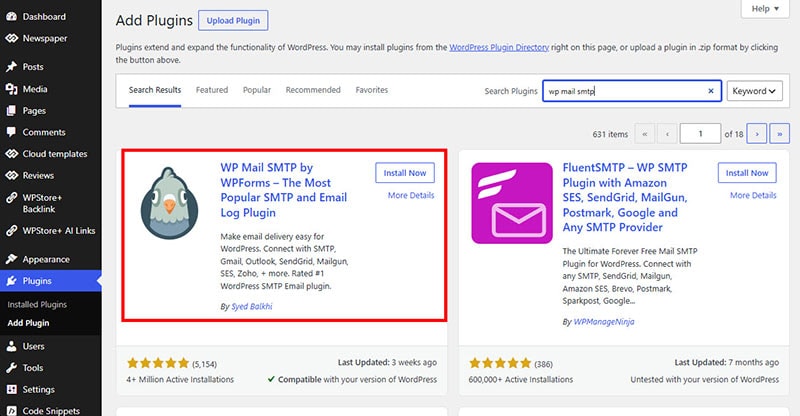
To begin securing your email delivery, you must first integrate an SMTP plugin into your WordPress environment.
-
Navigate to your WordPress admin dashboard.
-
Go to Plugins > Add New in the left-hand menu.
-
Search for a reputable and highly-rated SMTP plugin, such as WP Mail SMTP, Post SMTP, or FluentSMTP.
-
Click Install Now next to your chosen plugin.
-
Once the installation process concludes, click Activate. This crucial step overrides the default WordPress mail function and prepares your site for a more robust delivery framework.
Activating Your License (For Premium Versions)
If you have chosen a premium SMTP plugin to access advanced business features—such as detailed email logging, fallback routing, or priority support—you will need to verify your software license.
-
Locate the newly added menu item for your SMTP plugin in the WordPress dashboard.
-
Navigate to the Settings or License tab.
-
Enter the license key provided upon your purchase.
-
Click Verify Key or Activate. ✅ Ensuring your license is active is vital for receiving continuous security patches and version updates, which keeps your store secure and compliant with modern email standards.
Configuring Basic Settings and Providers
With the plugin active, you must now connect it to a dedicated email delivery provider (such as SendGrid, Brevo, Mailgun, or Google Workspace).
-
Open the plugin’s main configuration page or setup wizard.
-
Select your preferred SMTP provider from the available list.
-
Enter the required API keys or SMTP credentials provided by your chosen service.
-
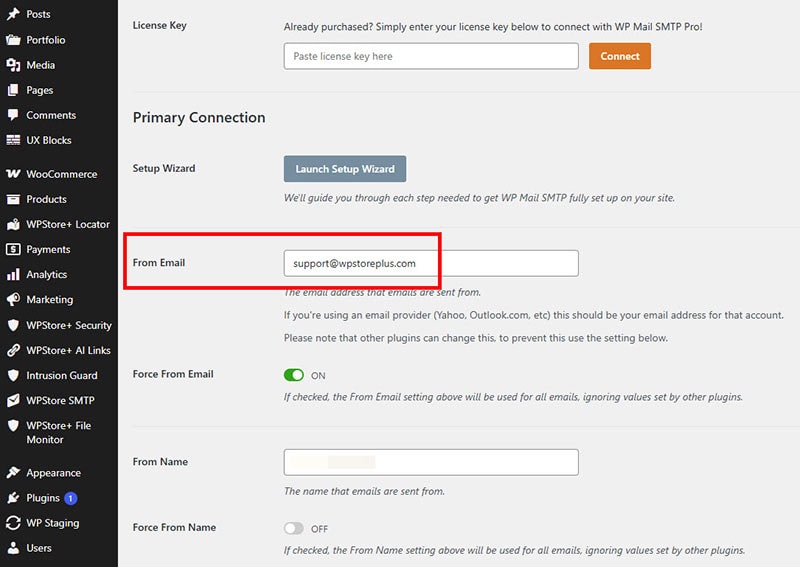
From Email: Set this to an official address associated with your WooCommerce store (e.g.,
[email protected]). -
From Name: Enter your store’s official brand name to ensure clear recognition in the customer’s inbox.
Warning: 🔐 Never leave your “From Email” configured as a generic webmail address (such as @gmail.com or @yahoo.com) if you are sending transactional emails for a business. Doing so will inevitably trigger strict DMARC and SPF spam filters, causing your emails to be rejected by the receiving servers.
Testing the Plugin
Before concluding your troubleshooting process, it is strictly necessary to verify that the new email system is functioning correctly. Testing the plugin ensures your WooCommerce order notifications will successfully bypass spam folders and reach your customers without delay.
-
Navigate to the Email Test or Tools tab within your SMTP plugin settings.
-
Enter a valid email address that you have immediate access to.
-
Click the Send Test Email button.
-
Check the inbox of the provided address. If the test email arrives successfully, your configuration is correct and active.
-
If the system returns an error message, carefully review your API keys, provider credentials, and DNS records (SPF/DKIM) for any typographical errors.
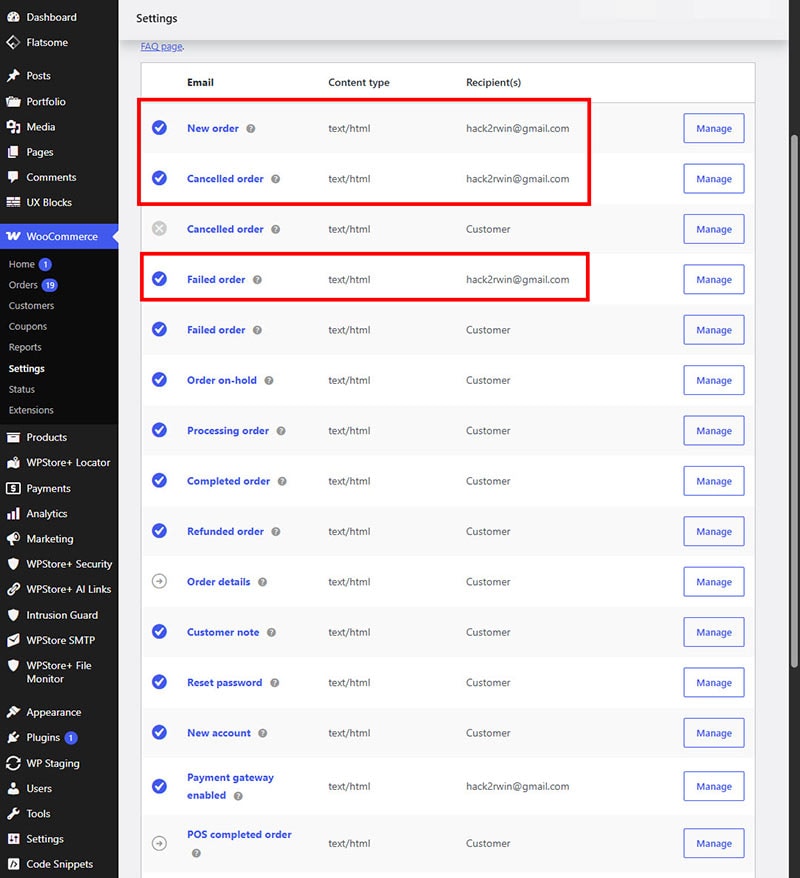
As a final verification step, create a manual test order directly within WooCommerce. Check to ensure that the specific “New Order” admin notification and the “Processing Order” customer email are both successfully dispatched.
FAQs
Q: Why are my WooCommerce emails suddenly not sending? A: This sudden failure typically occurs due to changes in your web hosting environment, stricter security policies implemented by receiving email clients (like Gmail or Outlook), or conflicts with the default PHP mail function. Switching to an authenticated SMTP provider usually resolves this issue instantly.
Q: Do I have to pay for an external SMTP service? A: Not necessarily. While enterprise stores may require paid plans, many highly reliable providers offer generous free tiers that can handle hundreds of transactional emails per day. This is generally more than sufficient for small to medium-sized WooCommerce operations.
Q: How can I check if WooCommerce is actually generating the emails in the first place? A: You can install a free email logging plugin. If the logs indicate that the email was successfully generated but it never arrived in the inbox, the issue lies solely with server delivery—which an SMTP plugin will fix. If no email is generated in the logs at all, navigate to WooCommerce > Settings > Emails to ensure that the specific notifications are properly enabled and not accidentally disabled.
Summary
Dealing with WooCommerce email delivery failures is a common operational challenge, but it is easily and permanently resolvable. By bypassing the unreliable default WordPress mail function and integrating a dedicated SMTP plugin, you secure a trusted communication channel between your online store and your customers. Following the structural steps to download, install, and properly configure your SMTP provider credentials will ensure that your crucial transactional emails are authenticated and successfully delivered every time, maintaining your store’s professional reputation.
Need reliable premium plugins for your online store? Explore WPStore+ for verified WooCommerce extensions and keep your business running smoothly.
Looking for more WordPress and WooCommerce tips? Return to our main Knowledge Base to explore more step-by-step tutorials, troubleshooting guides, and best practices for your website.

