
Knowledge, WordPress Troubleshooting
How to Solve the “Destination Folder Already Exists” Error in WordPress
Aug
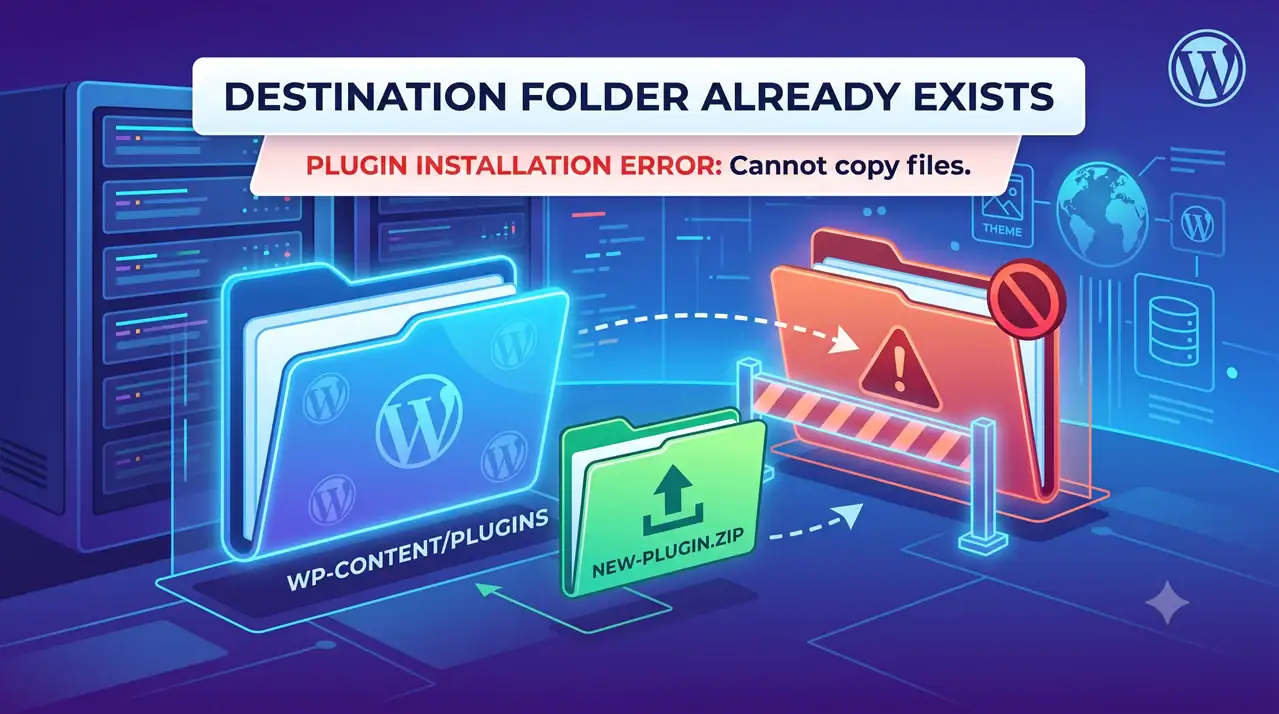
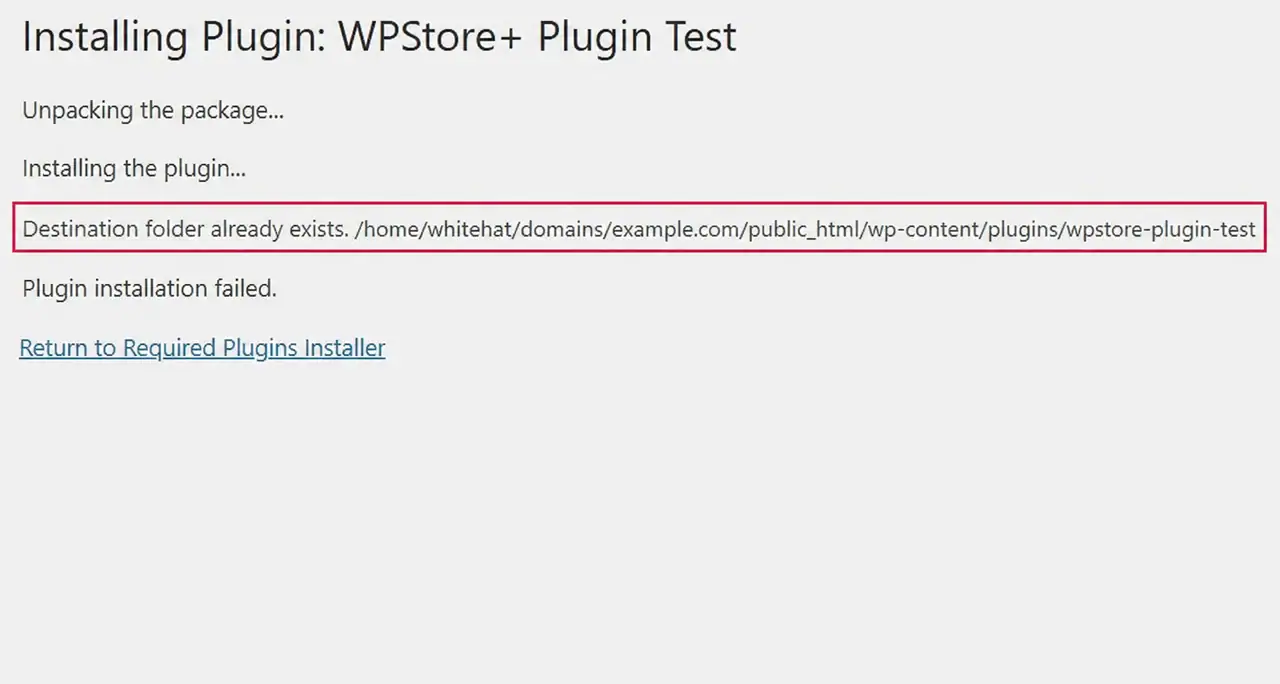
The destination folder already exists error is one of the most frequently encountered roadblocks when managing a WordPress website, particularly during the installation or updating of plugins and themes. As a website owner, you rely on a smooth workflow to keep your platform secure, functional, and strictly up to date. However, WordPress operates on a very precise file management protocol to ensure system stability. Whenever you upload a plugin or a theme via a .zip file directly in the WordPress administrative dashboard, the system attempts to automatically extract the contents into a specific directory on your server—usually the wp-content/plugins or wp-content/themes folder. If WordPress detects that a folder with the exact same name as the one it is currently trying to extract already exists within that directory, it immediately halts the installation process. It will then display the destination folder error message to prevent overriding essential data unpredictably.
This frustrating issue typically arises due to a previously failed installation, a timeout error during an automatic background update, or a poor server connection that interrupted the file extraction process mid-way. When these sudden interruptions occur, an empty or partially populated folder is left behind on your web server. Because this residual directory shares the identical name of the plugin or theme you are attempting to install, WordPress incorrectly assumes the software is already fully installed. While this error can initially seem alarming, it is simply a protective mechanism built into the WordPress core architecture and does not indicate a critical failure of your website, nor does it mean your database has been corrupted.
In this comprehensive knowledge base documentation, we will guide you through the exact steps required to safely bypass this error, clean up your server directories, and successfully complete the initial setup of your software. Whether you are attempting to install a brand-new extension or updating an existing WPStore+ product, understanding how to appropriately manage your file directories will empower you to maintain a robust, secure, and error-free WordPress environment. 🔐
Initial Setup: Installing, Fixing the Error, and Activating Your License
When you are setting up a new plugin or theme for the first time, you must follow a standard procedure of downloading, installing, and activating your license key. If the “destination folder already exists” error interrupts this workflow, you must intervene manually to clear the path. Below is the complete, step-by-step process to resolve the error and finalize your initial software setup.
Step 1: Downloading and Preparing Your Files
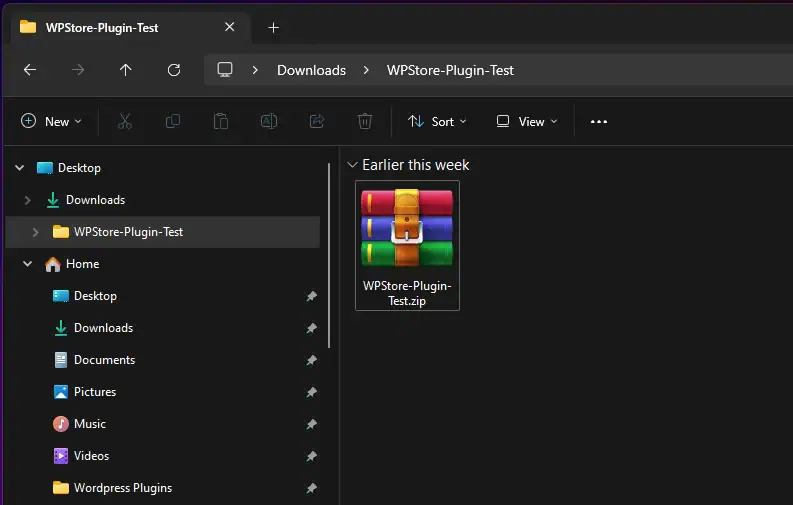
Before modifying any server files, ensure you have the correct, most recent version of the software. Navigate to your WPStore+ account dashboard and download the .zip file for your plugin or theme. Save this file to an easily accessible location on your local computer. Do not extract the .zip file yourself, as WordPress requires the compressed format for dashboard installations.
Step 2: Locating the Conflicting Folder via cPanel or FTP
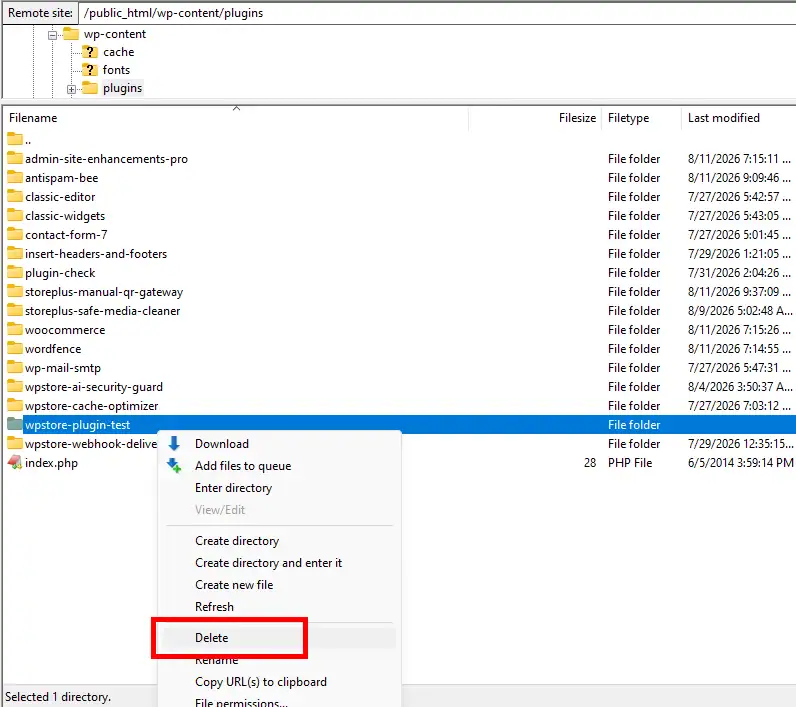
To resolve the error, you must bypass the WordPress dashboard and access your website’s file system directly. You can achieve this using an FTP client (such as FileZilla) or the File Manager application located within your web hosting control panel (cPanel).
-
Via FTP: Connect to your server using your FTP credentials. Navigate to the
public_htmldirectory (or the root folder of your WordPress installation). -
Via cPanel: Log in to your hosting account, open the File Manager, and locate your WordPress root directory. Once in the root directory, navigate to
wp-content/plugins(if you are installing a plugin) orwp-content/themes(if you are installing a theme). Search for the folder that shares the exact name of the software you are trying to install.
Step 3: Deleting the Existing Residual Folder
This is the most critical step in resolving the error. Before proceeding, we highly recommend taking a full backup of your website as a standard precaution. Right-click on the conflicting folder and select Delete. By removing this residual folder, you are clearing the destination path. Note: Deleting this folder will not erase your previous plugin settings or WooCommerce configurations, as all user data and settings are securely stored within your MySQL database, not in the plugin’s functional file directory.
Step 4: Reinstalling, Activating, and Basic Setup
With the conflicting directory successfully removed, return to your WordPress administrative dashboard.
-
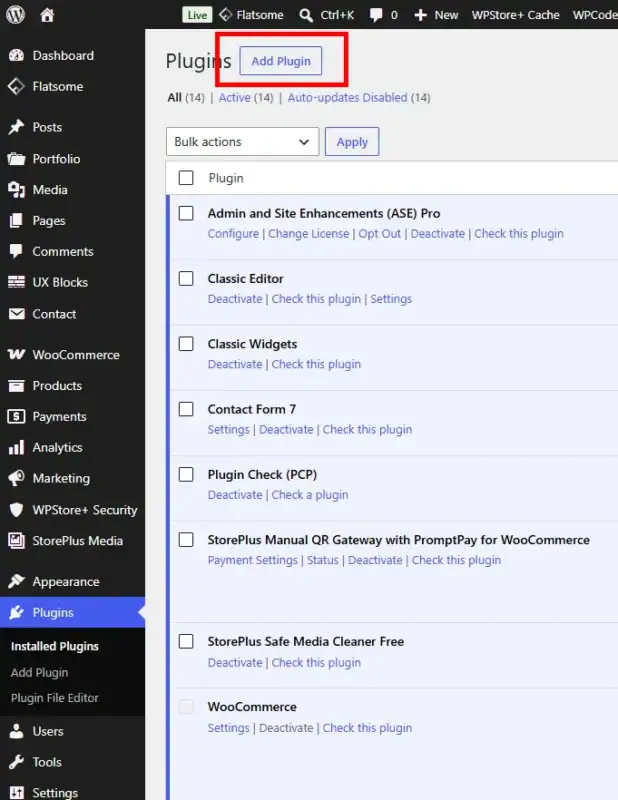
Navigate to Plugins > Add New (or Appearance > Themes).
-
Click Upload Plugin, choose the
.zipfile you downloaded in Step 1, and click Install Now. The installation will now proceed smoothly without triggering the destination folder error. -
Once installed, click Activate.
-
Finally, navigate to the plugin’s settings menu to input and activate your WPStore+ license key. Activating your license ensures you receive future automatic updates, which helps prevent this error from recurring. Proceed with configuring the basic settings according to your business requirements.
Testing the Plugin
After successfully bypassing the error and activating your license, it is essential to test the plugin to verify that the installation is completely functional.
-
Check the Dashboard: Ensure that the plugin’s settings panel loads correctly and that no PHP errors or warning notices are displayed at the top of your WordPress admin screen.
-
Test Functionality: Navigate to the specific feature the plugin provides. For example, if it is a WooCommerce extension, attempt to add a product to the cart or view the checkout page to confirm the plugin is operating as intended.
-
Verify Site Health: Go to Tools > Site Health in your WordPress dashboard. Confirm that there are no critical issues related to file permissions or background updates, ensuring your server environment remains optimal for future installations.
FAQs
Will deleting the destination folder erase my custom plugin settings? No. All custom configurations, license keys, and user data are stored safely inside your WordPress database. Deleting the plugin folder via FTP or cPanel only removes the functional core files. When you reinstall the plugin, it will automatically reconnect with your existing database settings.
Can I rename the conflicting folder instead of deleting it? Yes. If you are hesitant to permanently delete the folder, you can simply rename it (e.g., plugin-name-old). This effectively frees up the original destination folder name, allowing WordPress to complete the new installation. Once you confirm the new installation works perfectly, you can safely delete the renamed folder to save server space.
Why did the automatic update fail in the first place? Automatic updates generally fail due to temporary server instability, strict file permission settings, or a PHP execution timeout. Ensuring your web hosting plan provides adequate memory limits and stable resources will significantly reduce the chances of encountering the destination folder already exists error in the future.
Summary
The “destination folder already exists” error is a standard preventative measure utilized by WordPress to protect your file system from accidental overwrites. While it interrupts your workflow, it is entirely harmless to your website’s database and overall structure. By accessing your server via an FTP client or cPanel File Manager, locating the residual directory within your wp-content folder, and safely deleting it, you can easily clear the path for a fresh installation. Following these official procedures guarantees that you can successfully install your software, activate your WPStore+ license, and maintain a high-performing, technically sound WordPress website.
Looking for more WordPress and WooCommerce tips? Return to our main Knowledge Base to explore more step-by-step tutorials, troubleshooting guides, and best practices for your website.

