
Knowledge, WordPress Security
The Ultimate WordPress Security Checklist for 2026
Aug
Implementing a reliable WordPress Security Checklist 2026 is an absolute necessity for any website owner, administrator, or WooCommerce merchant. As digital technologies continue to evolve, so do the sophisticated methods utilized by malicious actors to compromise content management systems. In the current landscape, automated botnets, brute-force attacks, and complex vulnerabilities target unprotected platforms daily, making proactive defense strategies mandatory. This comprehensive guide serves as your foundational blueprint for safeguarding your online assets. By adhering to this structured approach, you will significantly reduce the risk of unauthorized access, data breaches, and malicious code injections that could otherwise harm your business operations.
For beginners and experienced developers alike, understanding the core principles of digital defense is paramount to maintaining business continuity and preserving customer trust. This is especially critical for e-commerce websites handling sensitive customer data and transaction records. Whether you are managing a small portfolio or a high-traffic enterprise site on WPStore+, ensuring that your platform is fortified against emerging threats should be your primary administrative focus.
This documentation will guide you through the mandatory protocols required to establish a secure foundation. We will explore the critical processes of deploying a reliable security plugin, verifying licenses, configuring advanced firewalls, and managing login limitations. Following these systematic guidelines will provide peace of mind, knowing that your digital infrastructure is resilient, fully compliant with modern security standards, and completely prepared to handle the unique cybersecurity challenges of 2026.
Essential Setup for Your WordPress Security
To properly execute this checklist, the primary step is integrating a dedicated security plugin that acts as your website’s main line of defense. The following steps outline how to initialize and configure your security environment correctly.
Step 1: Downloading and Installing the Security Plugin
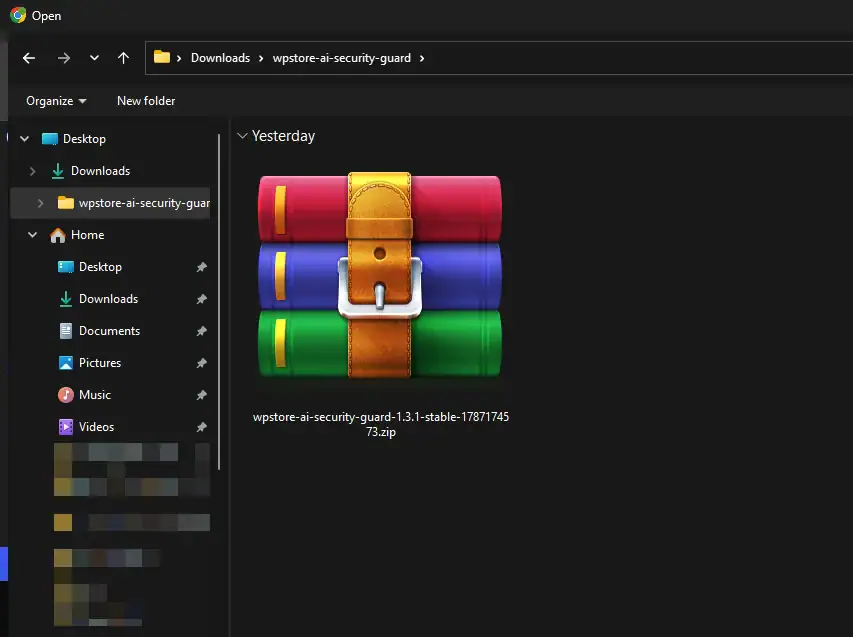
The foundation of your defense strategy begins with choosing a reputable security plugin from a trusted source, such as the WordPress repository or the WPStore+ marketplace. For this article, I will be using the WPStore+ AI Security Guard plugin as an example.
-
Navigation: Navigate to your WordPress administrative dashboard. Go to Plugins > Add New.
-
Action: If you purchased a premium solution, click Upload Plugin, choose your downloaded
.zipfile, and click Install Now. Alternatively, search for your preferred security plugin in the search bar. -
Activation: Once the installation is complete, click Activate.
-
Precaution: Ensure you only download plugins from verified developers to avoid inadvertently installing compromised software. Always create a full backup of your website before installing a major security tool.
Step 2: Activating the License and Basic Settings
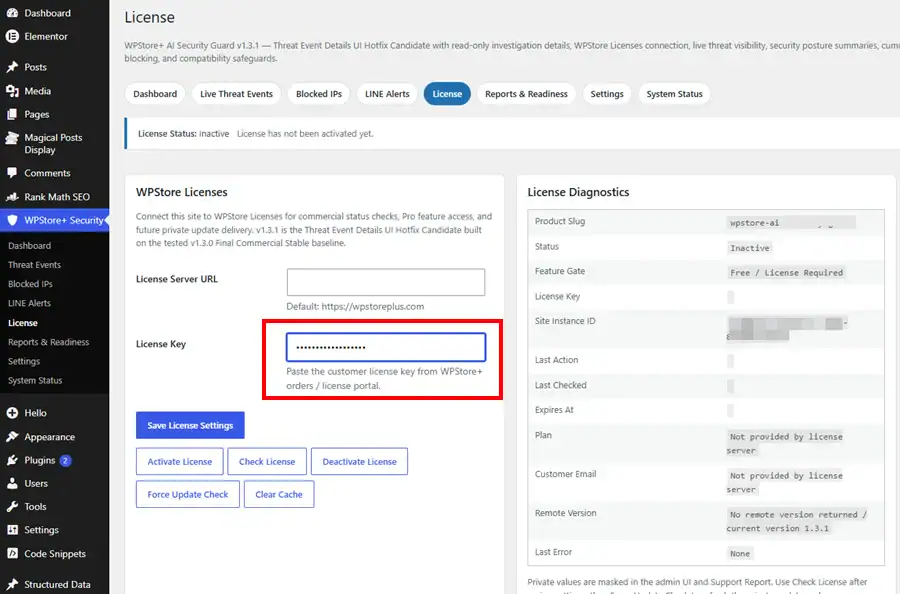
Premium security plugins require license verification to enable advanced threat defense updates and premium firewall rules. 🔐
-
Menu Location: Locate the new security plugin menu on your left-hand sidebar (often labeled as “Security” or the plugin’s specific name). Go to the Settings or License tab.
-
Verification: Enter your valid license key provided upon purchase and click Activate License. Ensure the connection to the validation server is successful.
-
Basic Configuration: Navigate to the general settings dashboard. Enable essential features such as the Web Application Firewall (WAF), brute-force login protection, and scheduled malware scanning.
-
Precaution: Review your server’s compatibility. Some advanced firewall rules may require specific server module configurations (like modifying the
.htaccessfile). The plugin will typically prompt you if manual intervention is needed.
Step 3: Hardening Access and Core File Protection
Beyond basic plugin settings, securing your login gateway and core files is a critical component of the 2026 checklist.
-
Two-Factor Authentication (2FA): Locate the login security settings within your plugin. Mandate 2FA for all administrative and editor roles. This requires users to input a time-sensitive code from their mobile device when logging in.
-
Login Limits: Set a strict limit on failed login attempts (e.g., maximum of 3 attempts before a temporary IP lockout). This neutralizes automated brute-force bots.
-
File Modifications: Disable the integrated WordPress file editor by adding a directive to your
wp-config.phpfile, or simply use the “Disable File Editor” toggle usually found in the advanced settings of your security plugin. This prevents attackers from modifying theme or plugin code directly from the dashboard if they manage to breach an account.
Testing the Security Measures
Once your security checklist is implemented, it is vital to verify that the configurations are actively protecting your site without disrupting the user experience. ✅
-
Test the Firewall and Login Limits: Open an “Incognito” or “Private” browser window. Attempt to log into your
wp-admindashboard using an incorrect password multiple times. After reaching the limit you configured (e.g., 3 attempts), verify that the system successfully blocks your IP address temporarily. -
Verify Two-Factor Authentication: Log in with a valid administrative account. The system should intercept the login process and prompt you for the 2FA code. Confirm that you cannot access the dashboard without this code.
-
Run a Manual Malware Scan: Access your security plugin’s scanning module. Initiate a full system scan. Monitor the process to ensure it correctly inspects core files, themes, and plugins. Once completed, review the diagnostic logs to ensure no false positives are blocking legitimate scripts.
-
Check Site Performance: Security plugins can occasionally consume server resources. Browse your website’s front end, particularly product pages and the checkout process if using WooCommerce, to ensure page loading speeds remain optimal and functionality is uninterrupted.
FAQs
💬 Q: Do I need a security plugin if my hosting provider already offers security features? A: Yes. While reputable hosting providers offer server-level security (like DDoS protection and basic firewalls), a dedicated WordPress security plugin provides application-level defense. It protects against WordPress-specific vulnerabilities, monitors user activity, enforces 2FA, and manages local login attempts, which standard server security often overlooks.
💬 Q: Will implementing this checklist slow down my WordPress website? A: When configured correctly, standard security measures should not noticeably degrade your website’s performance. However, features like continuous live traffic logging or aggressive high-frequency scanning can consume resources. It is recommended to schedule heavy scans during off-peak hours and disable live traffic monitoring if you have a high-traffic site.
💬 Q: How often should I update my security plugin and WordPress core? A: Updates should be applied immediately upon release. Vulnerabilities are frequently discovered, and developers release patches to secure them. Delaying updates leaves your website exposed to publicly known exploits. Enabling automatic minor updates for the WordPress core is highly recommended for 2026 security standards.
Summary
Maintaining a secure digital environment requires diligence, proper configuration, and reliable software. By strictly following this WordPress Security Checklist for 2026, you establish a formidable defense against automated attacks, unauthorized access, and data vulnerabilities. The processes of installing a verified security plugin, activating your license, configuring essential firewalls, and enabling two-factor authentication are critical operational requirements. Regular testing and prompt software updates will ensure that your administrative dashboard and customer data remain thoroughly protected. Implementing these standard procedures allows you to operate your WordPress and WooCommerce platforms safely and efficiently.
Looking for more WordPress and WooCommerce tips? Return to our main Knowledge Base to explore more step-by-step tutorials, troubleshooting guides, and best practices for your website.

