
Knowledge, WordPress Tutorials
WordPress Stuck in Maintenance Mode: How to Fix It Safely and Quickly
Jun
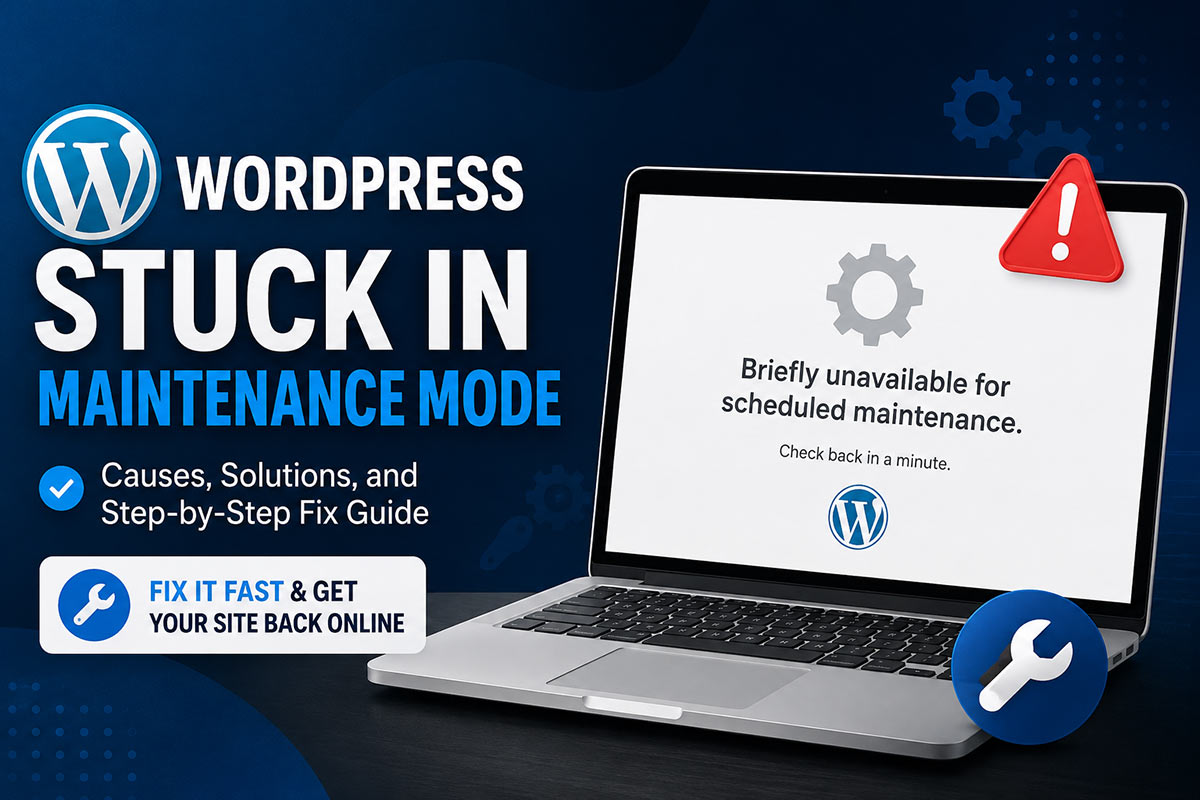
WordPress Stuck in Maintenance Mode is a common issue that may occur after a plugin, theme, or core update fails to complete successfully. 🚨 Instead of loading normally, visitors may see a maintenance message or a blank page, making the website temporarily inaccessible. Fortunately, this problem is usually straightforward to resolve with a few careful troubleshooting steps.
What Causes WordPress to Get Stuck in Maintenance Mode?
When WordPress begins an update, it automatically creates a hidden .maintenance file in the website’s root directory. Under normal circumstances, this file is removed once the update finishes successfully.
However, if the update is interrupted due to a server timeout, browser closure, network issue, or PHP error, the file may remain in place. As a result, WordPress continues to believe that maintenance is still in progress and blocks normal access.
Common reasons include:
- Interrupted plugin or theme updates
- Server resource limitations
- PHP timeout or memory exhaustion
- File permission issues
- Unexpected hosting or network interruptions
Step-by-Step Guide to Fix the Problem
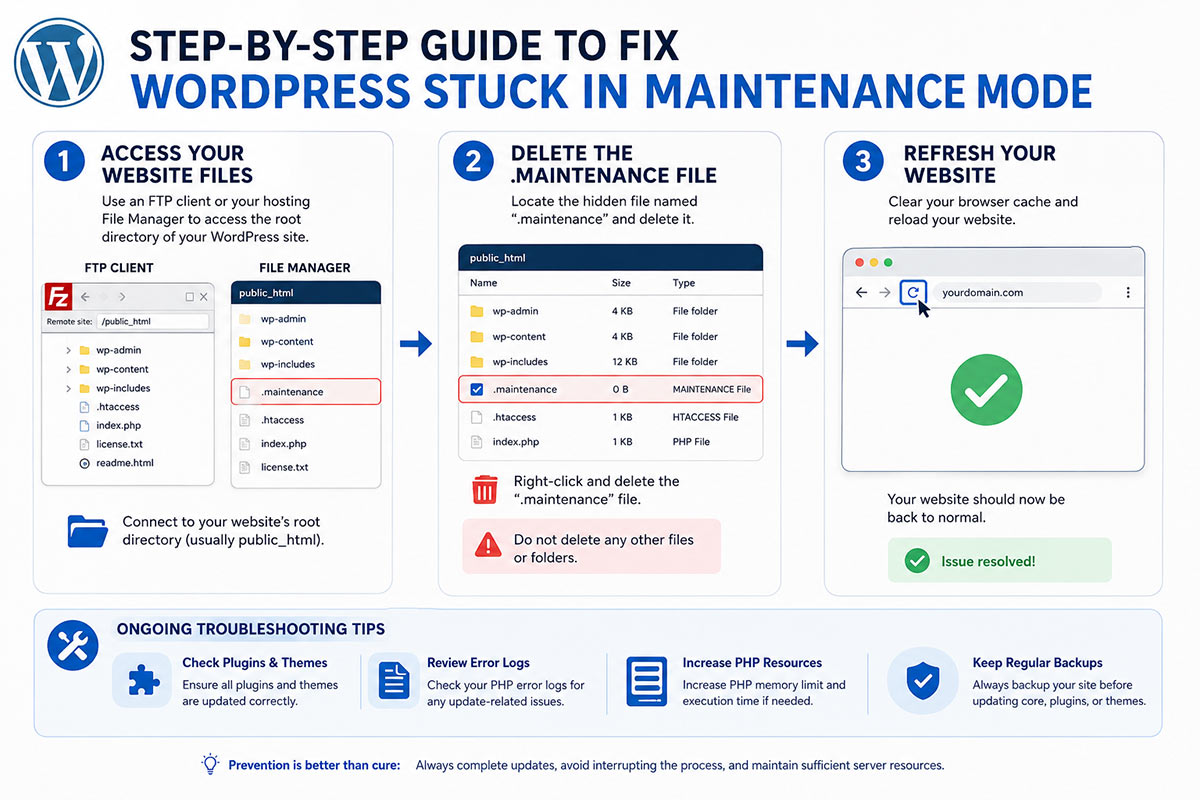
Step 1: Access Your Website Files
Use an FTP client or your hosting provider’s File Manager to access the root directory where WordPress is installed.
Step 2: Delete the .maintenance File
Locate the hidden file named .maintenance and delete it. This is often the quickest solution and immediately removes the maintenance status.
Step 3: Refresh Your Website
Clear your browser cache and reload the website. In many cases, the site will return to normal operation immediately.
Additional Troubleshooting if the Issue Persists
Check Plugin and Theme Updates
If the website still experiences problems, verify whether the interrupted update completed correctly. Reinstall or update the affected plugin or theme if necessary.
Review Error Logs
Enable WordPress debugging or inspect your server’s PHP error logs to identify hidden issues that may have interrupted the update process.
Increase PHP Resources
Low memory limits or execution time restrictions can cause updates to fail. Increasing PHP memory or execution time may help prevent future maintenance mode problems.
Frequently Asked Questions (FAQs)
Why does WordPress enter maintenance mode?
WordPress temporarily enters maintenance mode while installing updates to ensure files are modified safely and consistently.
Is it safe to delete the .maintenance file?
Yes. If an update has become stuck and the website remains in maintenance mode, deleting the .maintenance file is a standard and widely accepted troubleshooting step.
Will deleting the file damage my website?
In most situations, no. The file only signals that maintenance is in progress. However, if the original update failed, you should verify that all plugins, themes, and WordPress core files are fully updated afterward.
How can I prevent this issue in the future?
Avoid closing your browser during updates, maintain sufficient server resources, keep reliable backups, and update plugins or themes one at a time on busy production websites.
Summary
WordPress Stuck in Maintenance Mode is typically caused by an incomplete update that leaves behind the temporary .maintenance file. 📍 By removing that file, checking updates, and reviewing server resources when necessary, most website owners can restore normal functionality within minutes. Regular backups and careful update practices can significantly reduce the likelihood of encountering this issue again.
Call To Action
WordPress Stuck in Maintenance Mode can often be resolved quickly with the right approach. If your website still isn’t working after following these steps, contact the WPStore+ team for professional WordPress troubleshooting and recovery assistance.