
Knowledge, WordPress Troubleshooting
How to Fix the Connection Timed Out Error in WordPress
Sep
The fix connection timed out error in WordPress guide provides webmasters with systematic, reliable solutions to recover an inaccessible website. When a browser displays a message stating that the connection has timed out (often indicated by the code ERR_CONNECTION_TIMED_OUT), it signifies that your website attempted to load more resources or execute more processes than your hosting server could deliver within its preset execution window. For WordPress administrators, site owners, and e-commerce operators using WooCommerce, this error presents an immediate obstacle to business continuity, search engine indexing, and visitor retention.
Understanding why this server-side communication failure happens is crucial before applying modifications. In most production environments, shared or virtual servers assign strict thresholds to processing power, script execution time, and random-access memory allocations. Whenever a resource-heavy script—such as a data-heavy plugin update, an unoptimized database query, an extensive media import, or an external API handshake—exceeds these operational limits, the server terminates the request to prevent total system overload. Consequently, the user receives an alert that the host took too long to respond.
This troubleshooting guide walks you through actionable steps designed to identify the source of the latency and resolve it permanently. By following structured diagnostics, you will learn how to safely adjust your PHP configuration, deactivate conflicting plugins without losing settings, revert to stable default themes, and inspect your server environment. Each procedure is documented to maintain data integrity and ensure your website returns to peak operational performance.
Step-by-Step Troubleshooting Procedures
Resolving a connection timeout requires a structured elimination process. Work through the solutions sequentially to identify whether the issue originates from memory allocations, plugin conflicts, or server configuration files.
Step 1: Increase the WordPress PHP Memory Limit
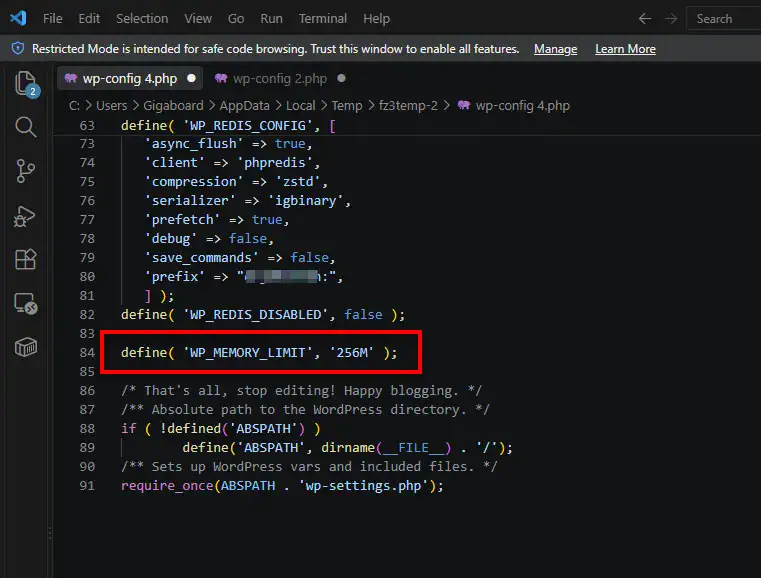
A frequent cause of connection timeouts is an exhausted PHP memory limit. When active plugins or theme functions demand more memory than allocated, scripts hang indefinitely.
-
Access your website files using an SFTP client (such as FileZilla) or via your hosting control panel’s File Manager.
-
Locate the
wp-config.phpfile in the root directory of your WordPress installation (public_htmlor standard root folder). -
Download a backup copy of
wp-config.phpto your local machine before editing. -
Open the file in a code editor and locate the following line:
Plaintext
/* That's all, stop editing! Happy publishing. */ -
Add the following definition directly above that line:
PHP
define( 'WP_MEMORY_LIMIT', '256M' ); -
Save your changes and upload the file back to your server.
📍 Important Note: If your hosting tier caps PHP memory below 256MB at the server level, this constant may not take effect. Verify with your hosting documentation if memory errors persist.
Step 2: Deactivate All Plugins via SFTP
If memory adjustment does not resolve the timeout, an active plugin script may be looping or conflicting with WordPress core services.
-
Connect to your server through your SFTP client.
-
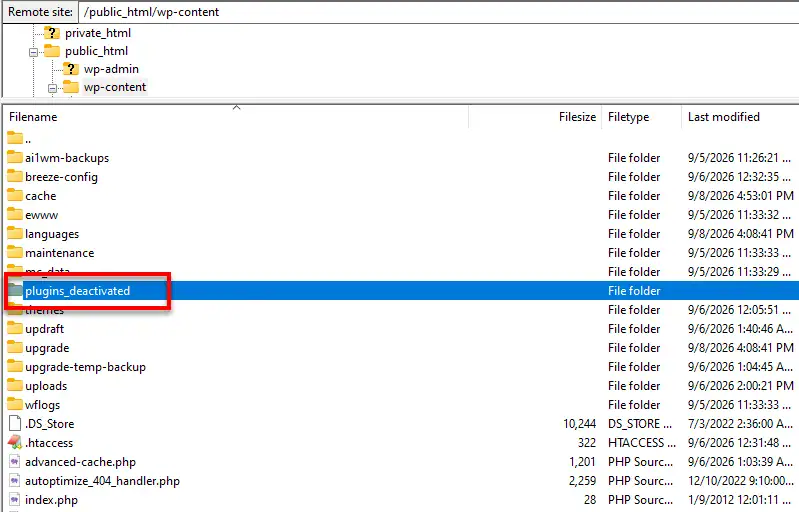
Navigate to the directory path:
/wp-content/. -
Locate the directory named
plugins. -
Rename this directory to
plugins_deactivated. This action safely disables all plugins instantly without modifying database records. -
Attempt to load your WordPress admin dashboard (
/wp-admin/). -
If the dashboard loads successfully, rename the folder back to
plugins. -
Log into your WordPress dashboard, navigate to Plugins > Installed Plugins, and reactivate each plugin one by one while refreshing your site to pinpoint the specific extension causing the timeout.
Step 3: Switch to a Default WordPress Theme
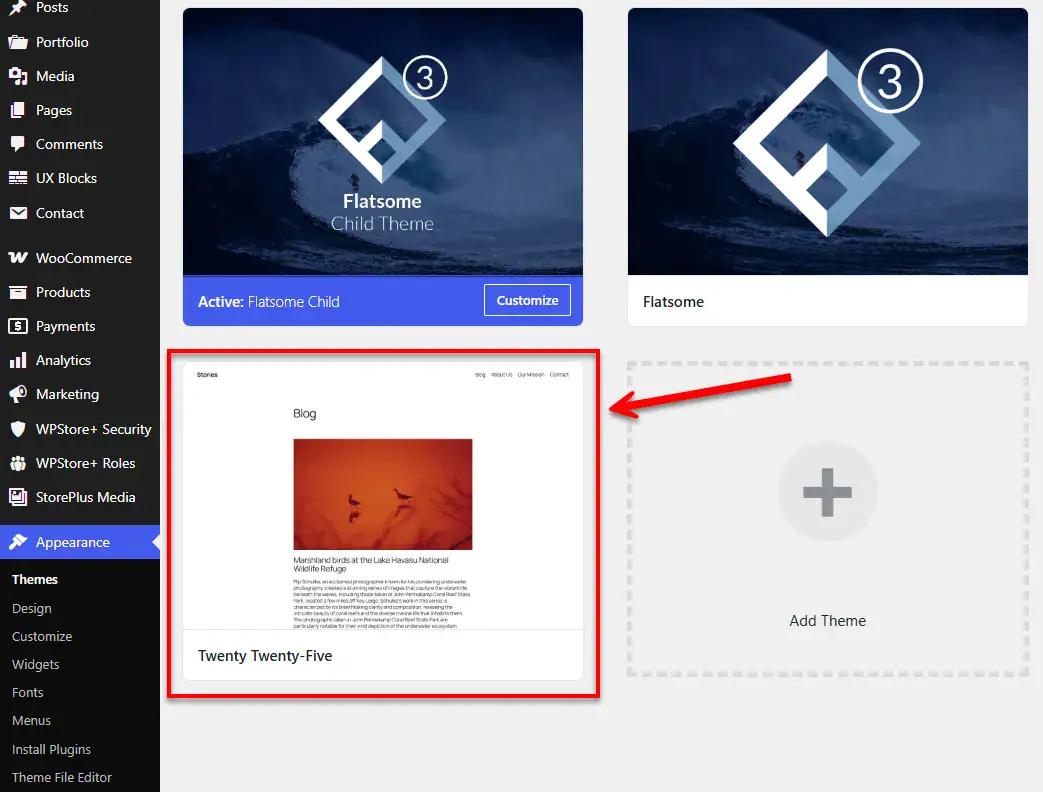
Corrupted template files or poorly optimized functions within custom themes can also stall page generation.
-
Navigate to
/wp-content/themes/via SFTP. -
Locate your active theme folder and append
-disabledto its name (e.g.,my-theme-disabled). -
WordPress will automatically fall back to an installed default theme, such as Twenty Twenty-Four.
-
Refresh your site. If the site loads normally, the problem resides in your theme’s
functions.phpfile or related templates.
Step 4: Check and Regenerate the .htaccess File
A corrupted .htaccess file can create server redirection loops that lead directly to connection timeout errors.
-
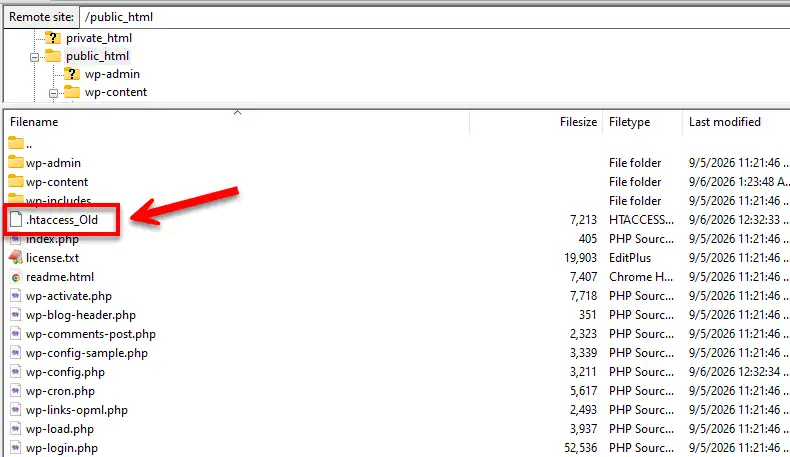
Open your root directory via SFTP and ensure that hidden files are visible.
-
Find the
.htaccessfile and rename it to.htaccess_old. -
Test website access in your browser.
-
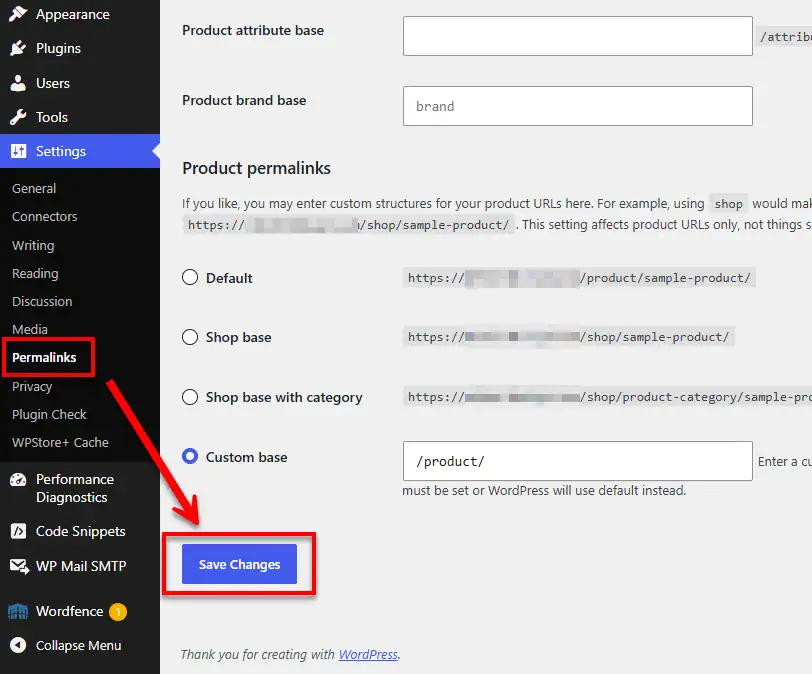
If the site functions, navigate to your WordPress dashboard: go to Settings > Permalinks, and click Save Changes to generate a clean, default
.htaccessfile automatically.
Testing the Solution
Before considering the issue fully resolved, execute standard functional verifications to ensure stability across front-end and administrative operations:
-
Clear Local and Server Caches: Purge your browser cache, content delivery network (CDN) cache (e.g., Cloudflare), and any server-side caching mechanisms (such as Redis or Memcached).
-
Simulate Authenticated Workflows: Log into your WordPress dashboard, update an existing post draft, and execute a routine action to ensure the admin-ajax interface responds without latency.
-
Inspect the WordPress Site Health Tool: Navigate to Tools > Site Health in your WordPress dashboard. Review the Status and Info tabs to confirm that your PHP version, server limits, and background cron schedules operate within acceptable parameters.
-
Review Server Error Logs: Access your hosting control panel’s log viewer to confirm that
fatal error: maximum execution time exceededor out-of-memory notifications have ceased.
Frequently Asked Questions (FAQs)
Q1: What is the difference between a 504 Gateway Timeout and a Connection Timed Out error?
A: A connection timed out error generally occurs when the client browser receives no initial handshake or response from the server within the designated window. A 504 Gateway Timeout specifically denotes that an upstream proxy or gateway server did not receive a timely response from the backend application server.
Q2: Will deactivating plugins via SFTP erase my settings?
A: No. Renaming the plugins folder simply prevents WordPress from executing the plugin files. All configuration settings, tables, and records stored within the MySQL/MariaDB database remain intact when plugins are re-enabled.
Q3: What should I do if increasing the PHP memory limit in wp-config.php does not work?
A: If adding the constant to wp-config.php has no effect, the limitation is likely enforced at the web server level via php.ini, .user.ini, or direct hosting container policies. In this scenario, contact your hosting provider’s support team to request a higher memory_limit and max_execution_time.
Q4: Can an expired SSL certificate cause a connection timed out error?
A: An expired or misconfigured SSL certificate typically generates dedicated security warnings (such as ERR_SSL_PROTOCOL_ERROR). However, severe SSL handshake failures caused by misconfigured intermediate certificates or firewall blocks can occasionally present as connection timeouts.
Summary
The connection timed out error in WordPress represents a standard resource allocation or script execution failure rather than permanent data corruption. By systematically checking PHP memory allocations, isolating faulty plugins via SFTP, testing standard default themes, and regenerating the core .htaccess configuration, administrators can isolate and remediate the underlying issue safely. Maintaining conservative plugin footprints and running verified server configurations ensures long-term operational resilience for WordPress websites.
Looking for more expert solutions and in-depth guides to keep your website running smoothly? Explore our full collection in the WordPress Knowledge Base. Whether you need step-by-step installation walkthroughs, performance optimization tips, advanced WooCommerce configurations, or proven troubleshooting methods for common server errors, our comprehensive archive has you covered. Browse through our organized categories to discover reliable, curated documentation tailored for both beginners and seasoned webmasters alike.

