
Knowledge, WordPress Security
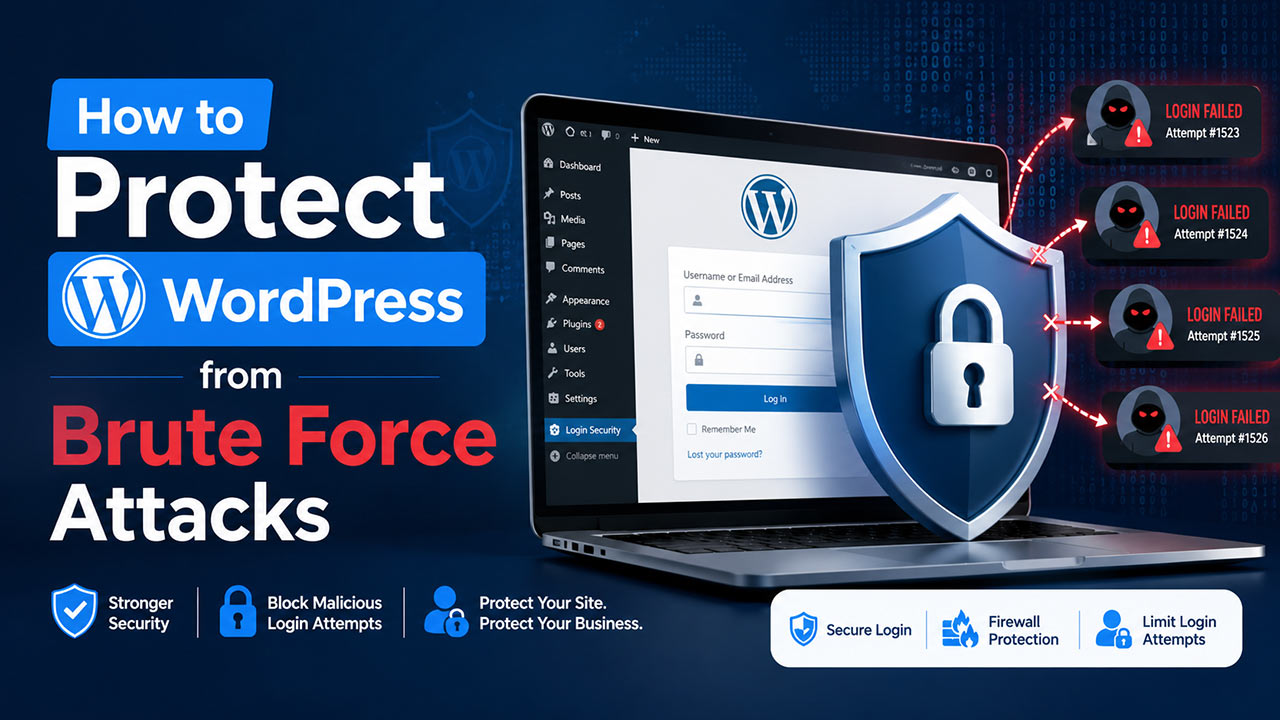
How to Protect WordPress from Brute Force Attacks
Jun
WordPress brute force protection is an important security step for every WordPress website, especially websites with login pages, WooCommerce accounts, membership areas, or administrator dashboards. A brute force attack happens when attackers repeatedly try different username and password combinations until they find a valid login.
This Knowledge Base guide explains how to protect a WordPress website from brute force attacks using practical and safe methods. It is written for website owners, beginners, and WordPress administrators who want to improve login security without making the website difficult to use.
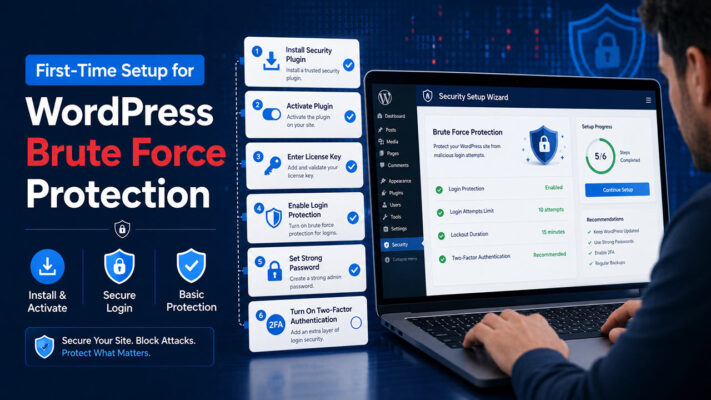
First-Time Setup for WordPress Brute Force Protection
Before changing security settings, it is recommended to create a full website backup. Security settings can affect login behavior, user access, and plugin compatibility. A backup helps you restore the website if a setting causes an unexpected issue.
Step 1: Download a Trusted Security Plugin
Start by choosing a trusted WordPress security plugin that supports login protection, firewall rules, login attempt limits, and activity monitoring. Download the plugin only from a reliable source, such as the official WordPress plugin directory, the developer’s official website, or your verified WPStore+ account area if the plugin is purchased from WPStore+.
Avoid downloading security plugins from unknown websites, nulled plugin sources, or unofficial file-sharing platforms. These files may contain malware or modified code.
Step 2: Install and Activate the Plugin
To install the plugin, go to your WordPress dashboard and open:
Plugins → Add New → Upload Plugin
Upload the plugin ZIP file, click Install Now, and then click Activate. After activation, check whether the plugin adds a new security menu in the WordPress dashboard. This menu is usually where you can configure login protection, firewall settings, and security notifications.
If the plugin does not activate correctly, check your PHP version, WordPress version, and server error log before continuing.
Step 3: Activate the License if Required
If you are using a commercial security plugin, open the plugin license page and enter your license key. A valid license may be required for updates, premium security rules, support, and advanced protection features.
After activating the license, confirm that the status shows as active. You should also check whether automatic updates are available. Keeping security plugins updated is important because login attack patterns and firewall rules can change over time.
Step 4: Configure Basic Login Protection
The first protection layer should focus on the WordPress login page. Enable a login attempt limit to block repeated failed login attempts from the same IP address.
A safe starting configuration may include:
- Limit failed login attempts per IP address
- Add a temporary lockout after repeated failures
- Increase the lockout duration for repeated offenders
- Enable email alerts for serious login activity
- Protect XML-RPC if your website does not need it
Be careful not to make the settings too strict at the beginning. Very strict rules may accidentally block real users, website owners, or administrators. Start with balanced settings, test them, and then adjust if needed.
Step 5: Strengthen User Accounts
Brute force protection is not only about blocking IP addresses. Weak usernames and passwords are also a major risk.
Avoid using common administrator usernames such as admin, administrator, or your domain name. Use strong passwords for all administrator, shop manager, editor, and customer service accounts. If possible, enable two-factor authentication for administrator users.
For WooCommerce websites, also review customer account settings. Allowing customer registration is normal, but the login and registration pages should still be protected against automated abuse.
Step 6: Review Firewall and Rate Limit Settings
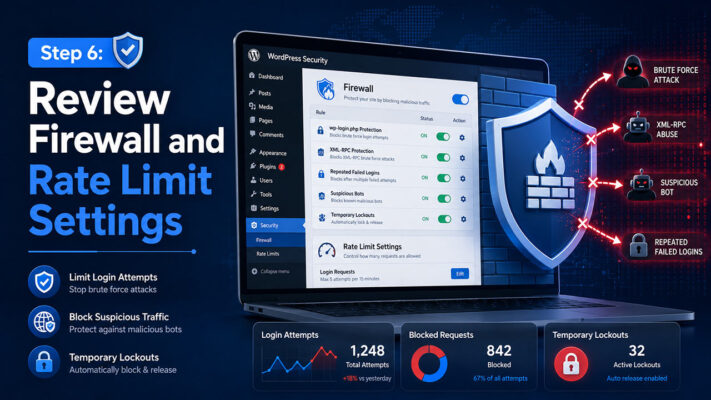
A firewall helps filter suspicious traffic before it reaches important WordPress functions. If your security plugin includes firewall or rate limit settings, enable the recommended mode first.
For websites under active attack, you may need stronger rules for:
/wp-login.php/wp-admin/admin-ajax.php/xmlrpc.php- Repeated 404 requests
- Suspicious bot or crawler behavior
Do not block important WordPress functions without testing. Some plugins, themes, page builders, WooCommerce checkout features, and admin tools may use AJAX requests or REST API calls.
Testing the Plugin
After configuring brute force protection, test the website before relying on it in production.
First, open the login page in a private browser window and confirm that normal login still works. Next, test a few failed login attempts using an incorrect password. The plugin should record the failed attempts and apply protection based on your settings.
Then check the following areas:
- WordPress dashboard access
- WooCommerce My Account login
- Checkout page behavior
- Contact forms or membership login forms
- Plugin logs or security activity reports
- Email notifications from the security plugin
If you are using caching, CDN, or Cloudflare, confirm that the plugin can still detect the correct visitor IP address. Incorrect IP detection may cause many users to appear as the same IP address, which can lead to false blocks.
FAQs
What is a brute force attack in WordPress?
A brute force attack is a repeated login attempt where attackers try many username and password combinations until they find valid credentials.
Is changing the WordPress login URL enough?
Changing the login URL may reduce automated attempts, but it should not be the only protection. Login attempt limits, strong passwords, two-factor authentication, and firewall rules are still important.
Should I disable XML-RPC?
If your website does not use XML-RPC for mobile apps, Jetpack, or external publishing tools, disabling or restricting it can reduce attack traffic. Always test after changing this setting.
Can brute force protection block real users?
Yes. Very strict settings may block real users, especially on shared networks or mobile networks. Start with balanced settings and review the logs regularly.
Do WooCommerce websites need extra protection?
Yes. WooCommerce websites usually have customer login pages, checkout pages, and account areas. These should be protected carefully without breaking the customer experience.
Summary
Protecting WordPress from brute force attacks is an essential part of website security. A good setup should include login attempt limits, strong administrator passwords, two-factor authentication, firewall rules, correct IP detection, and regular monitoring.
For best results, start with safe settings, test the login and checkout flow, review security logs, and adjust the protection level based on real website activity. This approach helps improve WordPress login security while keeping the website usable for administrators and customers.
Need help securing your WordPress website? Contact WPStore+ for professional WordPress security support, malware cleanup, and login protection guidance.