
Knowledge, WordPress Tips & Tutorials
How to Improve WordPress SEO Without Paid Plugins
Oct
Improve WordPress SEO without paid plugins by focusing on the essential optimization techniques that help search engines discover, understand, and evaluate your website content.
Search engine optimization (SEO) is an important part of managing a WordPress website. Whether you operate a personal blog, business website, online portfolio, or WooCommerce store, improving search visibility can help potential visitors discover your content through search engines such as Google and Bing.
Many WordPress website owners assume that achieving effective SEO requires expensive premium plugins or professional subscription services. While paid SEO tools can provide additional automation, reporting, and advanced functionality, they are not mandatory for building a technically sound and search-friendly website.
WordPress already includes several useful features for managing URLs, organizing content, publishing articles, and creating XML sitemaps. Additionally, free services such as Google Search Console, Google PageSpeed Insights, and Bing Webmaster Tools can help website owners monitor technical issues and evaluate search performance.
The most important factor is understanding how to apply these resources correctly.
For example, creating descriptive page titles, organizing headings, improving internal links, optimizing images, and maintaining a logical website structure can all contribute to a better experience for visitors and search engines.
However, SEO should be approached as an ongoing process rather than a one-time configuration. Changes may take time to appear in search results, and ranking improvements are never guaranteed.
This guide explains how to configure essential WordPress SEO settings, improve content quality, use free optimization tools, and test your website before implementing changes on a production environment.
The instructions are designed for beginners and website administrators who want to establish a practical SEO foundation without purchasing premium WordPress plugins.
1. Understand the Basics of WordPress SEO
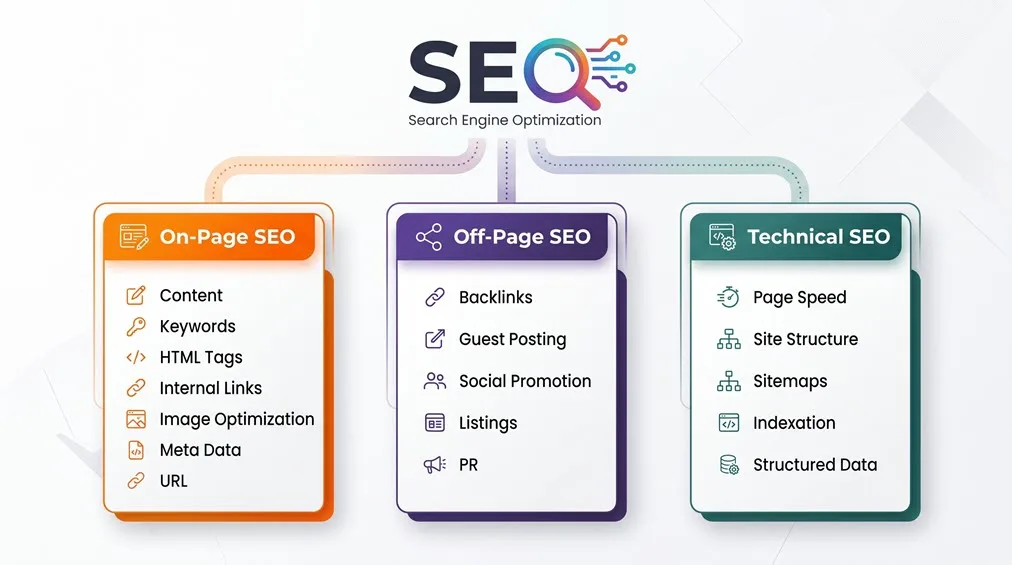
Before making changes to your website, it is useful to understand the three main areas of SEO.
On-Page SEO
On-page SEO focuses on improving individual pages and articles.
Common activities include:
- Writing clear and descriptive page titles.
- Using relevant keywords naturally.
- Organizing content with appropriate headings.
- Adding descriptive alternative text to meaningful images.
- Creating useful internal links.
- Keeping content accurate and relevant.
Technical SEO
Technical SEO helps search engines access and interpret your website.
It includes crawlability, indexing, XML sitemaps, mobile usability, HTTPS, canonical URLs, and website performance.
Off-Page SEO
Off-page SEO concerns signals and references originating outside your website.
Examples include editorial backlinks, relevant business citations, and mentions from reputable websites.
For beginners, improving on-page and technical SEO is usually the most practical starting point because many changes can be performed directly through WordPress.
2. Prepare Your WordPress Website for SEO
Before optimizing individual articles, confirm that your website is configured correctly.
Step 1: Back Up Your Website
Create a complete backup of your WordPress files and database before modifying important settings.
You can use your hosting provider’s backup system or an existing backup solution.
A backup is particularly important when changing permalink structures, theme files, server configurations, or SEO-related plugins.
If possible, test significant changes on a staging website before applying them to your live installation.
Step 2: Check Search Engine Visibility
Log in to your WordPress administration dashboard.
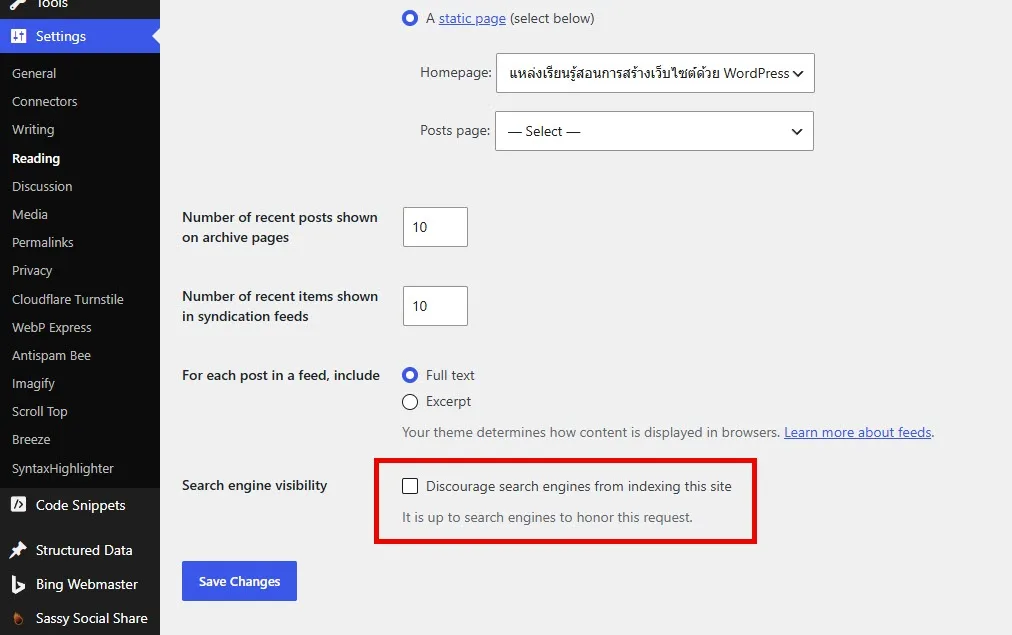
Navigate to:
Settings → Reading
Locate the option:
Search engine visibility — Discourage search engines from indexing this site
For a public website intended to appear in search results, this option should normally remain unchecked.
If the checkbox is enabled, WordPress may send signals requesting that search engines avoid indexing the website.
After making any changes, click Save Changes.
Remember that disabling this option does not guarantee indexing. Search engines make their own decisions about which pages to include.
Step 3: Configure SEO-Friendly Permalinks
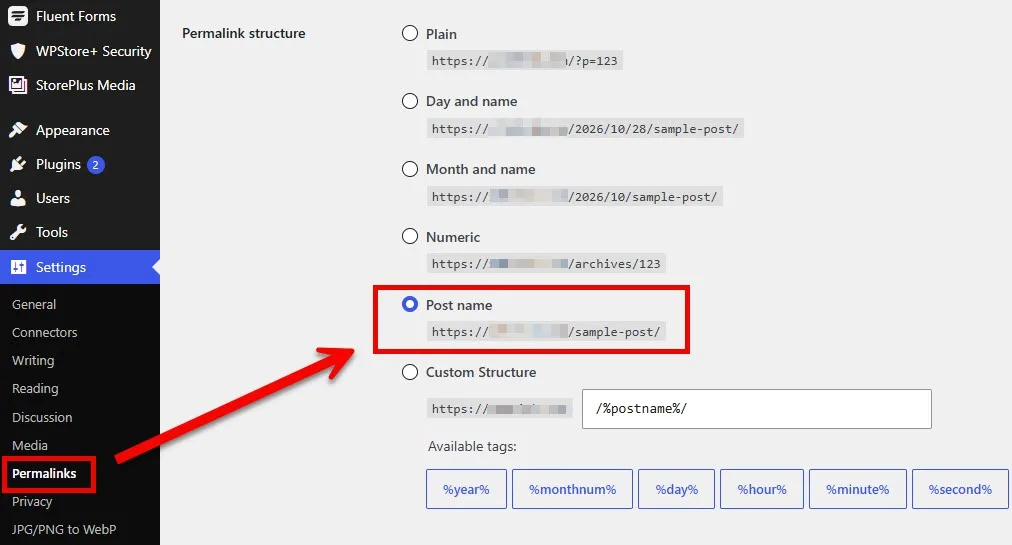
Navigate to:
Settings → Permalinks
For many new WordPress websites, the Post name structure is a straightforward choice.
Example:
This is generally easier to understand than a URL containing an unidentified post number.
Use short, descriptive URL slugs and avoid unnecessary words.
Important: Do not change the permalink structure of an established website without planning appropriate 301 redirects. Changing existing URLs can cause broken links and temporarily disrupt search visibility.

Step 4: Verify HTTPS
Open your website and confirm that its pages load through HTTPS.
Check that your SSL certificate is valid and that internal resources are not producing mixed-content warnings.
HTTPS protects information transmitted between visitors and your website. It also supports a more trustworthy browsing experience.
If your website uses a CDN or reverse proxy, verify that HTTPS works correctly between the visitor, proxy, and origin server.
3. Optimize WordPress Titles and Content
Publishing useful, well-organized content is one of the most important parts of improving WordPress SEO.
Step 1: Identify Relevant Search Keywords
Start by understanding what your intended audience is searching for.
Useful free research sources include:
- Google Search suggestions.
- Google Trends.
- Google Search Console performance reports.
- Related searches displayed in Google results.
- Common questions from customers and website visitors.
Choose one primary topic for each article and include related phrases where they naturally help explain the subject.
Avoid repeating the same keyword excessively.
Step 2: Write Clear Page Titles
Each important page should have a descriptive title reflecting its actual content.
For example:
Poor title: WordPress Optimization Tips and Other Information
Improved title: How to Improve WordPress SEO for Beginners
Place the main subject near the beginning when it reads naturally.
In WordPress, the post title normally becomes the visible heading. Depending on your theme and SEO configuration, the document’s HTML title may be generated separately.
Keep titles concise, but remember that Google may generate or modify title links displayed in search results.
Step 3: Organize Headings Correctly
Use headings to establish a logical content structure.
A recommended approach is:
- H1: Main article title.
- H2: Major sections.
- H3: Subtopics within each section.
- H4: Additional subdivisions when necessary.
Avoid selecting heading levels merely because of their visual appearance.
Instead, use heading blocks that accurately represent the relationship between sections.
A clear structure makes articles easier to scan and improves accessibility.
Step 4: Improve Content Quality
Write original content that addresses a specific user need.
A helpful WordPress tutorial should explain what a feature does, when it should be used, and how to configure it correctly.
Include practical examples, screenshots where appropriate, and explanations of common problems.
Review previously published articles periodically.
Correct outdated instructions, remove broken references, and update information when WordPress features or recommended practices change.
Do not expand articles unnecessarily to reach a particular word count. Clear, complete explanations are more valuable than repetitive paragraphs.
4. Improve Internal Links and Website Structure
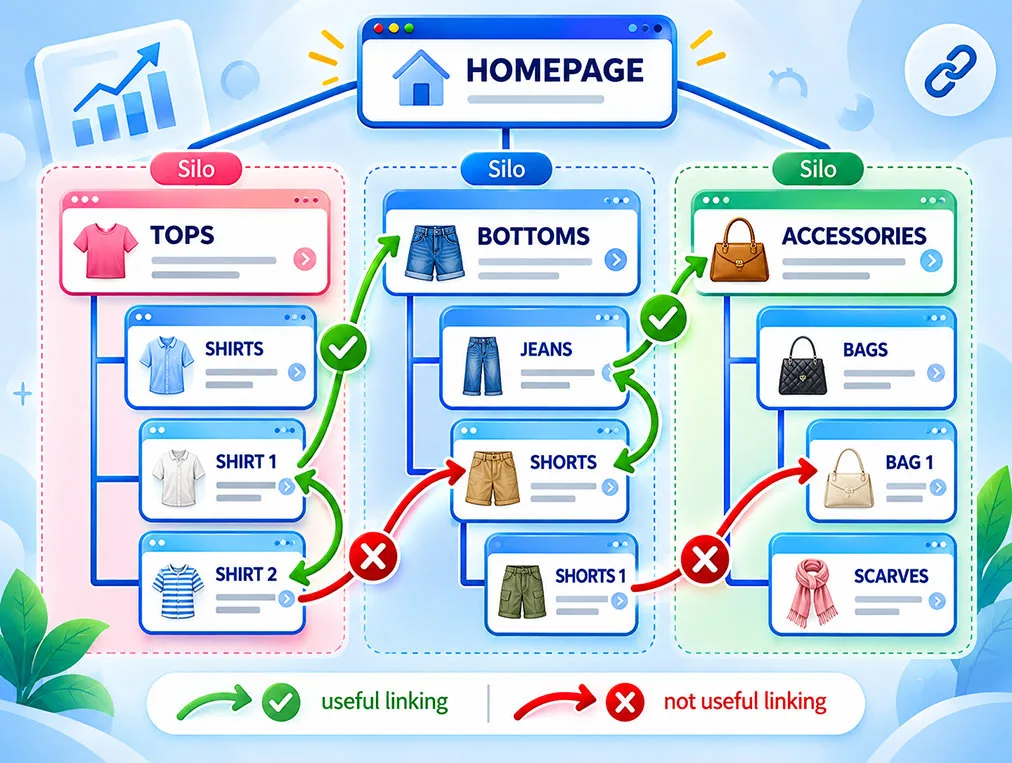
Internal links connect related pages within the same website.
They help visitors discover additional information and allow search engines to find content through existing pages.
Step 1: Add Relevant Internal Links
Open an existing article using the WordPress block editor.
Highlight text that references another useful page on your website.
Click the link option and select the appropriate destination.
For example, an article about WordPress security could link to a separate tutorial covering login protection.
Use descriptive anchor text instead of generic expressions such as “click here.”
Step 2: Organize Categories
Navigate to:
Posts → Categories
Create meaningful categories that reflect the primary subjects covered by your website.
Avoid producing large numbers of nearly identical categories or tags.
For a WordPress tutorial website, categories might include WordPress Security, WooCommerce, WordPress Troubleshooting, and Performance Optimization.
Keep important pages accessible through navigation menus and relevant internal links.
A logical hierarchy helps users locate information without navigating through unnecessary archive pages.
Managing WordPress tags is also an important part of maintaining a clear website structure. Review tag archive pages regularly, consolidate duplicate or overlapping tags, and consider whether low-value archives should remain indexable. You can manage WordPress tag indexing based on the relevance and usefulness of each archive page.
5. Optimize Images for Better Performance and Accessibility
Images can improve the clarity of WordPress tutorials, but poorly optimized files may increase page loading times.
Step 1: Reduce Image File Sizes
Before uploading images, resize them to dimensions appropriate for their intended display.
Consider efficient formats such as WebP or AVIF when compatible with your website and target browsers.
Avoid uploading unnecessarily large images that will only appear as small thumbnails.
Step 2: Add Descriptive Alternative Text
Navigate to:
Media → Library
Select an image and locate the Alternative Text field.
Write a brief description of the image’s meaningful content or purpose.
Example:
WordPress permalink settings showing the Post name option
Alternative text primarily supports accessibility and can also help search engines understand images.
Decorative images may appropriately use empty alternative text.
Avoid inserting unrelated keywords into every image description.
If your website contains a large number of images, you can also generate image ALT text with AI using WPStore+ AI Image Alt Text Generator. This optional tool helps identify missing alternative text and prepare AI-assisted suggestions for review before saving.
Step 3: Check Responsive Images
WordPress supports responsive image handling, including automatically generated image sizes under normal configurations.
Confirm that your theme displays suitable image sizes on mobile devices.
Also check whether image lazy loading is appropriate for each image. Important above-the-fold images may require different loading priorities from images located farther down the page.
6. Improve WordPress Loading Speed
Website performance affects usability and can contribute to a better page experience.
You can investigate many performance problems using free tools.
Step 1: Test with Google PageSpeed Insights
Visit:
Enter your website URL and run an analysis.
Review the mobile and desktop reports.
Pay particular attention to:
- Largest Contentful Paint (LCP).
- Interaction to Next Paint (INP).
- Cumulative Layout Shift (CLS).
- Unoptimized images.
- Render-blocking resources.
- Excessive JavaScript execution.
These metrics can help identify problems affecting loading performance and page responsiveness.
For additional performance monitoring, you can explore WordPress performance tools such as WPStore+ Core Web Vitals Monitor. This tool helps website administrators analyze LCP, INP, and CLS measurements collected from real visitors, identify performance trends, and investigate pages that may need attention.
Step 2: Reduce Unnecessary Resources
Review installed plugins and active theme features.
Remove plugins that are no longer required, after confirming that their removal will not affect essential functionality.
Avoid loading unnecessary scripts, animations, and third-party widgets.
Choose a well-maintained theme and keep WordPress components updated.
Step 3: Configure Caching Carefully
Server-level caching and free caching solutions may reduce the work required to generate frequently requested pages.
However, WooCommerce websites require additional consideration.
Cart, checkout, account, and other personalized pages should not be served from inappropriate shared caches.
Always test purchasing and account-related workflows after introducing caching changes.
7. Configure XML Sitemaps and Search Engine Indexing
An XML sitemap helps search engines discover important URLs on your website.
Step 1: Check the WordPress Sitemap
WordPress includes native XML sitemap functionality.
Try opening:
https://example.com/wp-sitemap.xml
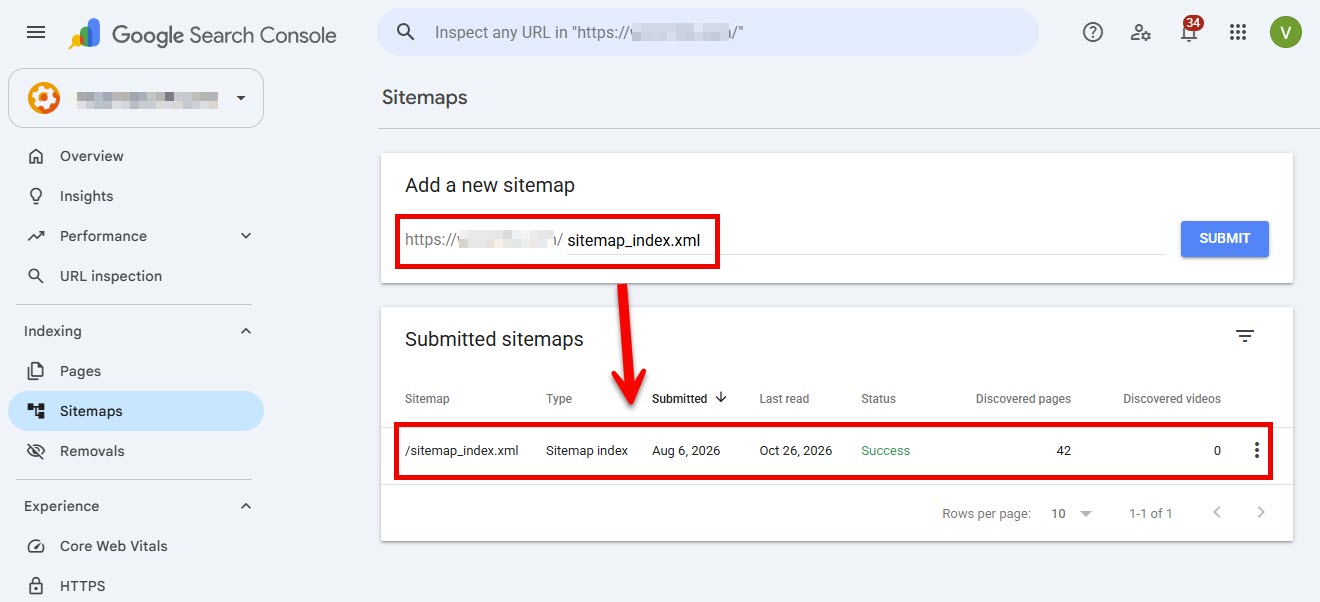
If your website uses an SEO plugin, it may provide a different sitemap address, such as sitemap_index.xml.
Confirm which sitemap is currently active rather than assuming both are available.
Step 2: Submit Your Sitemap to Google
Open Google Search Console:
Add and verify your website property.
Select the property, open Indexing → Sitemaps, and submit your active sitemap URL.
Submitting a sitemap helps Google discover URLs, but does not guarantee that every submitted page will be indexed.
Step 3: Review Indexing Reports
Use the Pages report under the Indexing section to investigate URLs that are not indexed.
Common situations include:
- Pages excluded by a
noindexdirective. - URLs blocked from crawling.
- Redirected pages.
- Duplicate pages with different canonical URLs.
- Crawled pages not currently indexed.
Do not assume every excluded URL represents an error.
Some URLs, including duplicate or intentionally restricted pages, should not appear in search results.
Review important pages individually before making changes.
For website owners who need more detailed indexing diagnostics, monitor WordPress indexing status using WPStore+ Google Index Monitor. The plugin helps track indexing changes, review URL inspection data, and identify potential indexing issues through Google Search Console integration.
8. Use Free SEO Tools Instead of Premium Subscriptions
Several free tools provide useful information for WordPress website administrators.
Google Search Console
Google Search Console provides search performance reports, indexing information, sitemap processing details, and other website diagnostics.
Monitor impressions, clicks, average position, and search queries to understand how visitors discover your website.
Bing Webmaster Tools
Bing Webmaster Tools provides additional information about crawling, indexing, and search visibility within Bing.
It can complement Google Search Console when monitoring your website’s organic search performance.
Google Trends
Google Trends helps identify changes in search interest over time.
Use it to compare topics and understand seasonal patterns, while remembering that its values represent relative interest rather than exact search volume.
Free SEO Plugins
If you prefer an interface for editing SEO titles, meta descriptions, canonical settings, or sitemaps, a free SEO plugin may simplify these tasks.
Examples include the free versions of Rank Math, Yoast SEO, and other maintained SEO solutions.
A paid subscription is not required for many foundational SEO tasks.
However, avoid enabling multiple SEO plugins that manage the same metadata simultaneously. Conflicting settings can create duplicate tags, inconsistent canonical URLs, or competing sitemap configurations.
9. Testing the Plugin
Although this guide does not require installing a paid SEO plugin, you should test both WordPress’s native features and any optional free SEO plugin before relying on the configuration.
Test 1: Verify SEO Titles and Headings
Open an article on the public website.
Confirm that the title appears correctly and that headings follow a logical hierarchy.
Inspect the page source if necessary to check the HTML title element and meta tags.
Test 2: Check Indexing Settings
Use the URL Inspection tool in Google Search Console to review an important page.
Check whether Google can access the URL and whether indexing restrictions are present.
Remember that Google’s indexed version may differ from the current live page.
Test 3: Validate Sitemap Availability
Open your sitemap in a private browser window.
Confirm that it loads successfully and contains appropriate URLs.
If you use an SEO plugin, verify that its sitemap is active and does not conflict with another sitemap generator.
Test 4: Test Mobile Performance
Run Google PageSpeed Insights against several representative pages.
Check an article, the homepage, and a product page if your website uses WooCommerce.
Pay attention to both field data, when available, and laboratory diagnostics.
Test 5: Verify Essential Website Functions
After modifying SEO-related settings, confirm that navigation links, images, forms, and other essential features continue working.
For WooCommerce websites, perform additional tests covering product pages, cart functionality, checkout, and customer account access.
✅ Recommended practice: Record your baseline search and performance results before making major changes. Compare subsequent reports over several weeks rather than expecting immediate improvements.
10. FAQs
Can I improve WordPress SEO without installing a premium plugin?
Yes. WordPress includes useful SEO-related capabilities, and free tools can help with content optimization, sitemap discovery, performance testing, and indexing diagnostics. Premium plugins are optional rather than essential.
Do I need an SEO plugin for every WordPress website?
Not necessarily. Simple websites can address many SEO fundamentals using native WordPress features and an appropriately configured theme. A free SEO plugin may offer more convenient control over metadata and technical settings.
How long does WordPress SEO take to show results?
There is no fixed timeline. Search engines must discover, crawl, and evaluate changes. Results depend on factors such as website history, competition, content quality, and technical accessibility. Some changes may be reflected quickly, while meaningful performance trends may require longer observation.
Does changing a WordPress permalink improve rankings?
A descriptive URL can improve clarity, but changing an established URL solely to add keywords does not guarantee better rankings. Existing links and redirects should be considered before changing permalink structures.
Is Google Search Console free?
Yes. Google Search Console is a free service for monitoring website visibility and diagnosing problems related to Google Search.
Can free SEO plugins replace premium SEO tools?
Free plugins can handle many essential tasks. Premium tools may provide additional automation, keyword research, analytics, or specialized functionality. The appropriate choice depends on your website’s requirements.
Can I use these techniques with WooCommerce?
Yes. Most techniques apply to WooCommerce websites. Additionally, optimize product descriptions, category structure, product images, and internal links. Test caching and technical changes carefully to protect purchasing workflows.
11. Summary
Improving WordPress SEO does not require purchasing premium plugins.
Website owners can establish a strong foundation by configuring appropriate WordPress settings, producing helpful content, optimizing images, organizing internal links, maintaining website performance, and monitoring indexing through free search engine tools.
The most effective approach is to prioritize changes that improve both technical accessibility and the visitor experience.
Start with the fundamentals, test changes carefully, and review search performance regularly.
SEO is an ongoing process, and sustainable improvements depend on consistent maintenance rather than individual tools or guaranteed ranking techniques.
Call to Action
Explore More WordPress Optimization Guides at WPStore+
Looking for practical ways to improve your WordPress website? Explore the WPStore+ Knowledge Base for additional tutorials covering SEO, website security, performance optimization, and plugin configuration.
Looking for additional tools to manage and improve your WordPress website? Discover additional WordPress solutions at WPStore+, including plugins for SEO monitoring, website performance, security, automation, and WooCommerce management.