
Knowledge, WordPress Tips & Tutorials
How to Manage WordPress Tag Indexing for Better SEO
Oct
WordPress tag indexing is an important part of technical SEO that helps website owners control which tag archive pages are eligible to appear in search engine results.
WordPress tags provide a convenient way to organize related posts and help visitors discover content about specific topics. However, when a website contains hundreds or thousands of tags, managing these archives becomes increasingly important.
Every WordPress tag generally creates a corresponding archive page. For example, assigning the tag “WordPress Security” to several articles may create an archive at /tag/wordpress-security/.
These archive pages can help visitors explore related content. Some may also provide useful entry points from search results when they contain relevant information and a meaningful collection of articles.
However, not every tag archive deserves to be indexed.
Tags containing only one article, overlapping collections, outdated topics, or automatically generated variations may provide limited additional value compared with existing articles or categories.
Allowing search engines to discover large numbers of low-value archives can make website management more complicated and increase unnecessary crawling activity.
Fortunately, WordPress administrators can review tag structures, organize archives, and manage indexing preferences without purchasing premium SEO tools.
The goal is not to remove every tag or prevent all tag archives from appearing in search results.
Instead, website owners should identify which archives genuinely help visitors and which pages are better excluded from search indexing.
In this guide, you will learn how WordPress tags work, when to use index or noindex, how to manage archive settings using free tools, and how to verify your configuration through Google Search Console.
The instructions are suitable for WordPress beginners, content publishers, website administrators, and businesses managing growing collections of articles.
1. Understanding WordPress Tags and Tag Archives
What Are WordPress Tags?
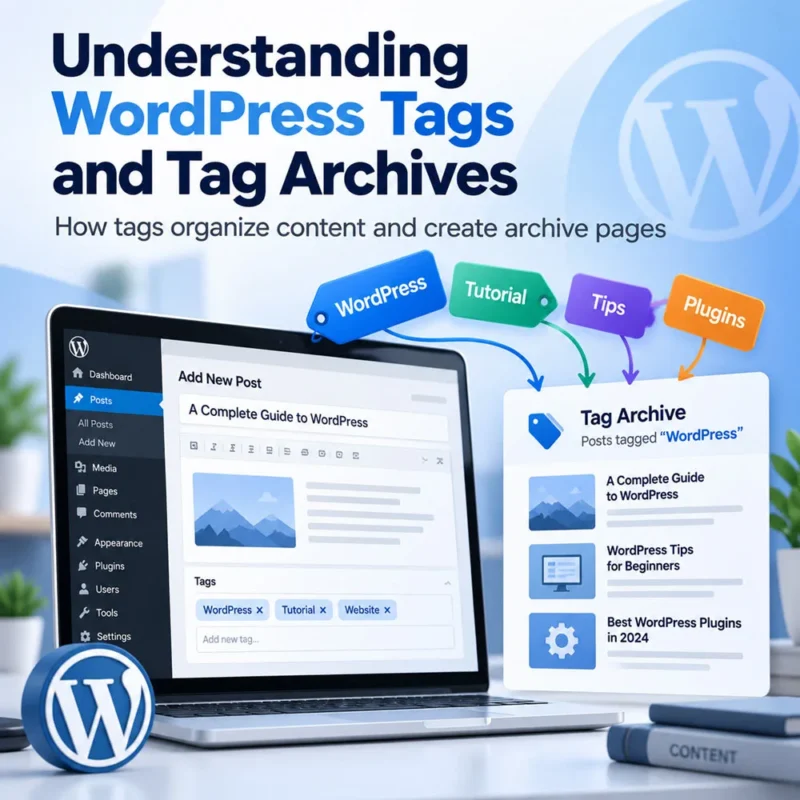
WordPress tags are a built-in taxonomy used to organize posts according to specific topics or characteristics.
Unlike categories, tags do not follow a hierarchical parent-and-child structure.
For example, a WordPress tutorial website might publish articles under the category “WordPress Security” while using tags such as:
- WordPress Login Security
- Two-Factor Authentication
- WordPress Firewall
- Malware Removal
- Security Monitoring
Tags allow related articles to be grouped together without creating additional categories.
When visitors select a tag, WordPress normally displays an archive containing posts associated with that tag.
How WordPress Tag Archives Work
Consider the following example:
This archive might contain tutorials covering login protection, security plugins, firewall configuration, and malware prevention.
Depending on the active theme, the page may display article titles, excerpts, featured images, pagination, and a tag description.
Search engines may discover the archive through internal links or XML sitemaps.
Whether the archive becomes indexed depends on factors including crawlability, indexing directives, canonicalization, and Google’s assessment of the page.
Are WordPress Tags Good for SEO?
Tags can support SEO indirectly by improving content organization and providing relevant navigation paths.
However, simply creating more tags does not automatically improve search rankings.
A well-maintained tag archive may be useful when it groups several related articles around a topic that visitors actively search for.
An archive with little content or substantial overlap with another archive may offer limited value.
The objective is to create meaningful collections rather than maximize the number of tags.
2. Understand Index and Noindex for WordPress Tags
Before changing archive settings, it is important to understand the difference between index and noindex.
What Does Index Mean?
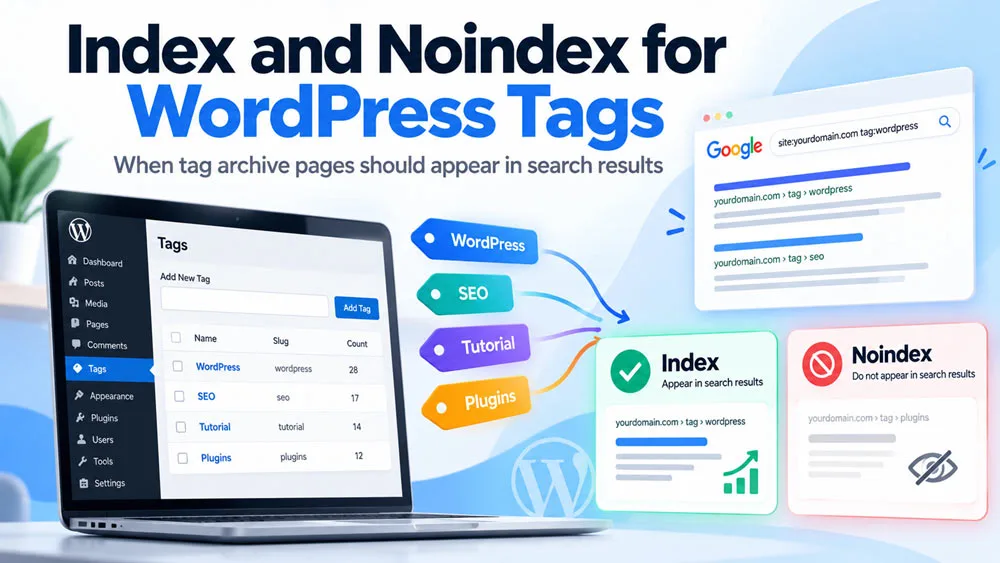
An indexable page is eligible to be included in search engine results, assuming no other technical restrictions prevent indexing.
For example, a tag archive without a noindex directive may be considered for indexing.
However, allowing indexing does not guarantee that Google or another search engine will include the page in its index.
Search engines determine which pages to index based on multiple signals.
What Does Noindex Mean?
The noindex directive requests that supporting search engines exclude a page from their search indexes.
A common implementation is:
<meta name="robots" content="noindex, follow">
Here, noindex instructs search engines not to index the page, while follow permits link following.
Google generally follows links by default, and explicitly including follow is usually unnecessary.
Importantly, a noindexed page may still be accessible to website visitors and search engine crawlers.
When Should Tag Archives Be Indexed?
Consider allowing indexing when a tag archive:
- Represents a clearly defined subject.
- Groups several genuinely related articles.
- Provides useful navigation for visitors.
- Has a descriptive title and meaningful introduction.
- Serves a distinct purpose compared with existing categories.
- Receives relevant search traffic or has demonstrated search potential.
There is no universal minimum number of posts required for indexing.
An archive should be evaluated based on its usefulness rather than an arbitrary numerical threshold.
When Should Tag Archives Be Noindexed?
Consider noindex for archives that:
- Contain little useful content.
- Duplicate the purpose of existing categories.
- Group unrelated articles.
- Use inconsistent or unclear tag names.
- Represent outdated topics with limited continuing value.
- Exist mainly because of excessive or automated tag creation.
Noindex is a useful management option, but it should not be applied indiscriminately to every archive.
3. Review Your Existing WordPress Tags
Before applying indexing rules, audit the tags already present on your website.
Step 1: Open the WordPress Tags Dashboard
Log in to WordPress.
Navigate to:
Posts → Tags
WordPress displays a table containing your existing tags.
Depending on your configuration, the table includes:
- Tag name
- Description
- Slug
- Count
The Count column shows how many posts are associated with each tag.
Step 2: Identify Low-Value Tags
Look for tags that appear unnecessary or overlap with other tags.
Examples include:
- Multiple tags describing nearly identical subjects.
- Tags containing only one post without a compelling reason to exist.
- Tags created from spelling variations.
- Outdated tags no longer used in new content.
- Ambiguous tags that provide little navigational value.
A tag with one post is not automatically harmful, but it may not need a separate indexable archive.
Step 3: Review Existing Tag Archive Pages
Open several tag archives directly from your website.
Evaluate whether each archive offers a useful collection of content.
Ask the following questions:
- Does the archive represent a clear topic?
- Are the associated articles relevant?
- Would a visitor benefit from browsing this page?
- Does another category or tag already serve the same purpose?
- Is the archive useful as an independent search landing page?
Use these findings to decide whether each archive should remain indexable, become noindexed, be consolidated, or be removed.
4. Configure WordPress Tag Indexing
WordPress includes native tag management tools, but it does not provide a universal built-in interface for controlling the index/noindex status of individual tag archives.
For most beginners, a maintained free SEO plugin is the simplest way to manage indexing directives.
Step 1: Back Up Your Website
Before changing indexing settings, create a backup of your WordPress database and files.
Record your current SEO settings and identify important tag archives that already receive organic traffic.
Avoid changing hundreds of existing URLs simultaneously without reviewing their performance.
Step 2: Check Your SEO Plugin
Navigate to:
Plugins → Installed Plugins
Determine whether your website already uses an SEO plugin.
Common examples include Rank Math and Yoast SEO.
Avoid activating multiple plugins that independently generate robots meta tags, canonical metadata, or XML sitemaps.
Conflicting configurations can create unexpected indexing behavior.
Step 3: Configure Tag Archives with Rank Math
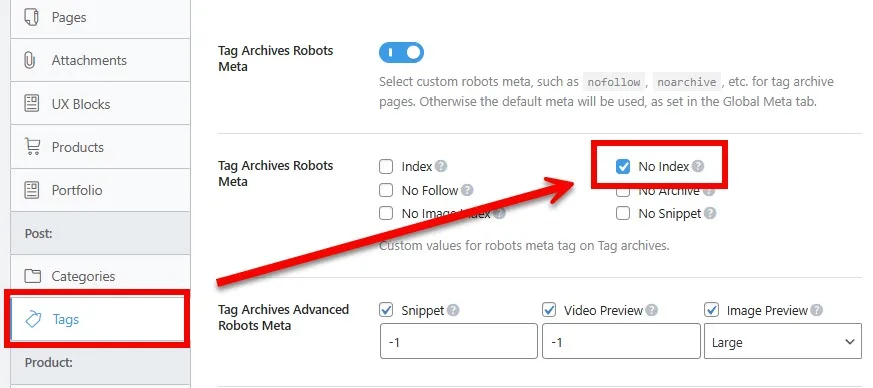
If your website uses Rank Math, navigate to:
Rank Math SEO → Titles & Meta → Tags
Look for the robots meta configuration for tag archives.
Depending on the installed version and available settings, you may configure default archive indexing rules and override individual tag settings.
For a selective strategy, consider setting an appropriate default and reviewing important tags individually.
Check that the final HTML output matches the intended configuration.
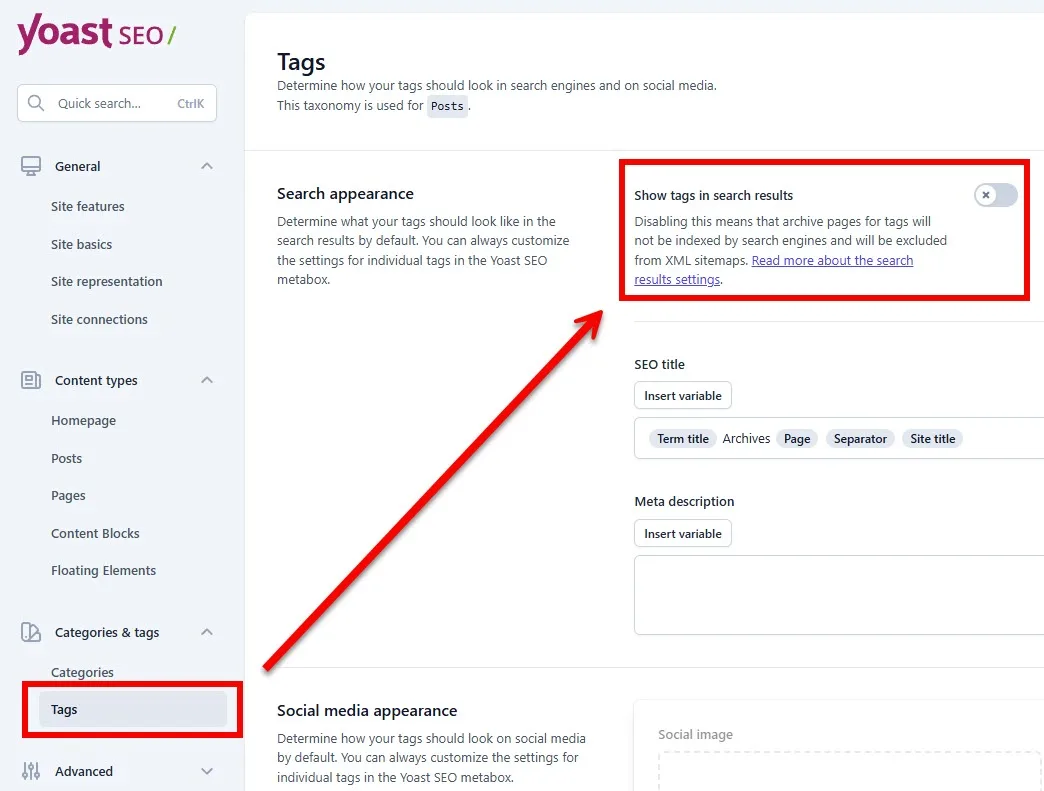
Step 4: Configure Tag Archives with Yoast SEO
If your website uses Yoast SEO, open its search appearance or taxonomy settings.
The precise menu labels may vary by version.
Locate the settings that control whether tag archives are allowed to appear in search results.
If individual tag overrides are available in your installation, review them separately.
For websites using global noindex settings, confirm that valuable tag archives are not unintentionally excluded.
Step 5: Understand Native WordPress Limitations
Without an SEO plugin or custom development, WordPress does not offer an equivalent per-tag indexing control in its standard administration interface.
Developers can implement indexing rules through WordPress hooks such as wp_robots, but custom code should be tested carefully.
Do not edit WordPress core files to add indexing directives.
A site-specific plugin or properly maintained custom extension is a safer approach for advanced implementations.
5. Build a Tag Indexing Whitelist
A whitelist is a selected group of tag archives that should remain eligible for indexing.
This approach may be useful for websites containing large numbers of tags.
Step 1: Select Important Tags
Review your existing archives and identify those that provide meaningful value.
For example:
| Tag Archive | Suggested Decision | Reason |
|---|---|---|
| WordPress Security | Index | Distinct topic with useful related articles |
| WooCommerce Checkout | Index | Focused collection addressing a specific need |
| WordPress Performance | Index | Relevant tutorials grouped around one subject |
| General Tips | Review | Broad topic that may overlap with other archives |
| Random Keywords | Noindex | Unclear topic with limited navigational value |
These examples are illustrative rather than universal rules.
Step 2: Apply Default Rules Carefully
A whitelist-based system may use noindex as the default for most tags and allow selected archives to remain indexable.
However, this strategy is not appropriate for every website.
If your existing tag archives already receive substantial organic traffic, a sitewide switch to noindex could remove valuable pages from search results.
Always review performance data before applying broad changes.
Step 3: Maintain the Whitelist
Review the whitelist when publishing new content or reorganizing existing topics.
New tags should not automatically become indexable merely because they have been created.
Evaluate their purpose, associated articles, and potential overlap with existing archives.
Keep a record of changes so that indexing decisions can be reviewed later.
6. Improve Important Tag Archive Pages
Selecting an archive for indexing is only part of the process.
The page should also provide useful information.
Add Descriptive Tag Names
Use clear names that accurately represent the collection.
For example, “WordPress Login Security” is more descriptive than “Security Stuff.”
Avoid creating multiple tags with slightly different names but identical purposes.
Write Helpful Tag Descriptions
Navigate to:
Posts → Tags → Edit
Add a description explaining what visitors can expect from the archive.
For example:
“Explore practical WordPress login security tutorials covering authentication, access protection, firewall configuration, and account management.”
Your theme must support displaying tag descriptions for visitors to see this text.
A description stored only in the WordPress database does not automatically become visible page content.
Improve Internal Linking
Link to useful tag archives from relevant articles when those links help readers discover related information.
Use descriptive anchor text.
Avoid excessive tag clouds or automatically linking every possible keyword.
The priority should be useful navigation, not the maximum number of archive links.
Review Archive Pagination
If an archive contains many posts, WordPress may divide it into multiple pages.
Confirm that pagination links work correctly and allow visitors to navigate through older content.
Do not automatically canonicalize every paginated archive to its first page. Paginated URLs often contain distinct lists of posts and should be evaluated according to the website’s indexing strategy.
7. Manage XML Sitemaps and Canonical URLs
Indexing settings should be consistent with your sitemap and canonical configurations.
Check Your XML Sitemap
WordPress provides native XML sitemap functionality, although SEO plugins may replace or modify it.
Common sitemap addresses include:
https://example.com/wp-sitemap.xml
or
https://example.com/sitemap_index.xml
Open the active sitemap and check whether tag archive URLs are included.
As a general practice, XML sitemaps intended for search engines should prioritize canonical, indexable URLs.
Noindexed tag archives usually do not need to appear in these sitemaps.
Understand Canonical URLs
Canonical tags help search engines identify a preferred URL when multiple pages contain duplicate or very similar content.
They are not interchangeable with noindex directives.
For example, an important tag archive may use a self-referencing canonical URL if that is the appropriate canonical version.
A tag archive should not automatically canonicalize to a category page or homepage simply because it contains overlapping article excerpts.
Canonical decisions should reflect genuinely duplicate or substantially similar pages.
Avoid Blocking Noindexed Tags with Robots.txt
Do not assume that adding a robots.txt disallow rule is equivalent to noindex.
If Googlebot cannot crawl a URL, it may be unable to discover the noindex directive placed on that page.
For archives that must be removed from search results through noindex, allow crawlers to access the page long enough to process the directive.
8. Testing the Plugin and Tag Indexing Configuration
After changing tag settings, test the website before considering the configuration complete.
Test 1: Verify an Indexable Tag
Open a tag archive that should remain indexable.
Inspect the HTML source and locate the robots meta tag.
Confirm that the page does not contain an unintended noindex directive.
Also check HTTP response headers for conflicting X-Robots-Tag rules.
An indexable configuration means the page is eligible for consideration, not guaranteed inclusion in search results.
Test 2: Verify a Noindexed Tag
Open a tag archive configured as noindex.
Inspect its page source.
Look for a directive such as:
<meta name="robots" content="noindex, follow">
Confirm that the correct directive appears only where intended.
Test 3: Check Google Search Console
Open:
Select your website property and use the URL Inspection tool.
Inspect both an indexable and a noindexed tag URL.
Review the crawl and indexing information.
Use the live URL test when appropriate to verify the current page configuration.
Remember that Google’s previously indexed information may not immediately reflect recent changes.
Test 4: Verify XML Sitemap Entries
Review your active sitemap.
Confirm that important indexable tag archives appear when your sitemap configuration is designed to include them.
Check that noindexed archives are excluded where supported.
Test 5: Verify Normal Website Navigation
Visit several articles containing tags.
Confirm that tag links work and visitors can still browse related content.
Applying noindex should not automatically remove tags from the user interface or make their archives inaccessible.
Test 6: Monitor Search Performance
Use Google Search Console to compare performance before and after important changes.
Monitor clicks, impressions, indexing reports, and relevant search queries.
Avoid interpreting short-term fluctuations as proof that an indexing change succeeded or failed.
Search engine crawling and indexing updates can take time.
✅ Recommended practice: Test a small group of tags first, verify the results, and expand the configuration only after confirming that it behaves as expected.
9. FAQs
Should I Noindex All WordPress Tags?
Not necessarily. Some tag archives provide useful topic-based navigation and may deserve indexing. Others provide limited value and may be better noindexed. Evaluate archives individually or apply a carefully reviewed selection strategy.
Can WordPress Tags Cause Duplicate Content Problems?
Tag archives may display article excerpts or content also available through categories and other archives. This overlap does not automatically result in a search engine penalty, but excessive duplication can make it harder to distinguish useful landing pages.
Does Noindex Delete a WordPress Tag?
No. Noindex controls eligibility for search indexing. The tag and its associated archive can remain accessible to visitors.
Will Noindex Reduce Server CPU Usage?
Not necessarily. Search engines may still crawl noindexed pages to discover their directives. Noindex is an indexing control, not a security or traffic-blocking mechanism.
How Many Tags Should a WordPress Post Have?
There is no official SEO requirement for a specific number of tags. Use only tags that help organize the content and support meaningful navigation.
Should Tag Archives Be Included in XML Sitemaps?
Important canonical and indexable archives may be included. Noindexed archives are generally better excluded from search engine sitemaps.
Can I Change Tag Indexing Without a Paid Plugin?
Yes. Free SEO plugins can provide indexing controls, while developers can create custom solutions using WordPress APIs. The available functionality varies by plugin and version.
How Long Does Google Take to Remove Noindexed Tags?
There is no guaranteed timeline. Google must recrawl the affected URLs and process the indexing directive. The time required depends on crawling frequency and other factors.
10. Summary
Managing WordPress tag indexing helps website owners maintain a clearer content structure and control which tag archives are eligible to appear in search results.
The most practical approach is to review existing tags, identify useful archives, apply index or noindex settings selectively, and maintain consistency across metadata and XML sitemaps.
Important tag archives should provide meaningful collections of related content, while low-value archives can remain accessible to visitors without appearing in search results.
Regular testing through Google Search Console is essential, particularly when modifying indexing settings across a large website.
A carefully maintained tag strategy supports website usability and technical SEO without requiring premium optimization tools.
Call to Action
Improve Your WordPress SEO with Practical Knowledge
Explore additional tutorials in the WPStore+ Knowledge Base to learn more about WordPress indexing, technical SEO, website performance, and content optimization.
Visit WPStore+ for WordPress learning resources and useful website management solutions.