
Knowledge, WordPress Troubleshooting
How to Fix a WordPress Website Not Secure Warning
Nov
A secure website is essential for protecting visitor information, maintaining customer confidence, and providing a reliable browsing experience.
However, WordPress website owners sometimes discover that their websites display a “Not Secure” warning or an error such as “Your connection is not private” when visitors attempt to open a page.
These warnings can appear unexpectedly, even on websites that previously worked without problems.
In many cases, the issue is related to an expired SSL certificate, incorrect HTTPS configuration, mixed content, or a certificate that does not match the website’s domain.
Fortunately, most of these problems can be identified through a systematic troubleshooting process.
This guide explains why WordPress security warnings appear, how to identify their causes, and what you can do to restore a properly configured HTTPS connection.
What Does “Not Secure” Mean on a Website?
When a browser identifies a connection as insecure, it generally means that the connection is not protected by HTTPS or that a problem prevents the browser from establishing a trusted encrypted connection.
To understand why this happens, it helps to understand the difference between HTTP and HTTPS.
HTTP vs. HTTPS
HTTP (Hypertext Transfer Protocol) is used to exchange information between a web browser and a web server.
Traditional HTTP connections do not encrypt information in transit. This means that data transmitted over the connection may be exposed to interception or modification.
HTTPS (Hypertext Transfer Protocol Secure) uses TLS encryption to protect communication between the browser and the server.
When HTTPS is correctly configured, it helps provide:
- Encryption: Protects transmitted information against passive interception.
- Integrity: Helps prevent unauthorized modification of data during transmission.
- Authentication: Allows the browser to verify that the certificate is valid for the intended website.
HTTPS is particularly important for websites that process account credentials, contact forms, customer information, and online payments.
What Is an SSL Certificate?
An SSL certificate, more accurately called a TLS certificate in modern systems, is a digital certificate used to authenticate a website’s identity during the HTTPS connection process.
Although the term “SSL certificate” remains common, modern secure connections generally use TLS rather than the obsolete SSL protocols.
A properly configured certificate allows browsers to establish an encrypted connection with the website.
However, HTTPS does not guarantee that a website is free from malware, phishing, or other security vulnerabilities.
It protects the connection, not every aspect of the website itself.
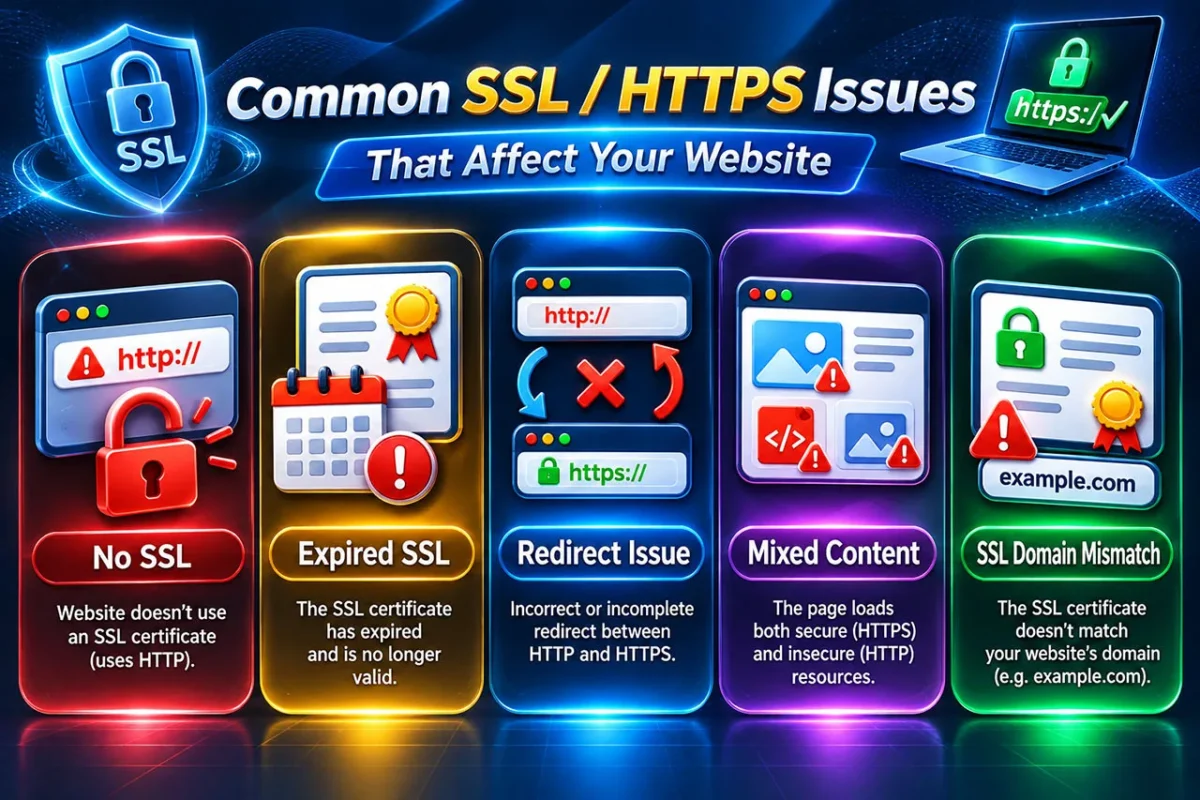
Common Reasons WordPress Displays a Not Secure Warning
Several configuration problems can cause browser security warnings.
Understanding the difference between them is important because each requires a different solution.
1. The Website Does Not Have a Valid SSL Certificate
One common cause is that the website has not been configured to support HTTPS.
This may occur on older websites, recently migrated WordPress installations, or hosting environments where SSL certificates are not automatically provisioned.
A website that only supports HTTP cannot establish the encrypted connection expected by modern browsers.
How to check:
- Open your website in a browser.
- Enter its address using
https://. - Check whether the page loads successfully.
- Inspect any certificate or connection error displayed by the browser.
If the website cannot establish a secure connection, check whether an SSL certificate is installed and assigned to the correct domain.
Recommended solution:
Install a trusted TLS certificate through your hosting provider or server control panel.
Many hosting platforms support free certificates through Let’s Encrypt or other automated certificate authorities.
After installation, verify that HTTPS works before changing WordPress URLs or configuring redirects.
2. The SSL Certificate Has Expired
TLS certificates have limited validity periods and must be renewed before they expire.
When a certificate expires, browsers can no longer treat it as valid, even if the website previously operated normally.
This problem is especially common when automatic renewal fails or the hosting environment is not configured to renew certificates.
How to check:
Open the certificate information in your browser or use an SSL inspection service to review the certificate’s expiration date.
Recommended solution:
- Renew or replace the expired certificate.
- Confirm that the web server is using the renewed certificate.
- Check certificate renewal logs for errors.
- Enable automated renewal where supported.
- Monitor future expiration dates.
Remember that successful certificate renewal does not always mean the web server has started serving the new certificate. Verify the live connection afterward.
3. WordPress Is Still Using HTTP URLs
Installing a valid SSL certificate does not automatically update every WordPress setting.
Your website may continue generating HTTP links if its configured addresses still use the old protocol.
This can affect page navigation, images, scripts, and other resources.
How to check WordPress URLs:
- Sign in to your WordPress dashboard.
- Navigate to Settings → General.
- Locate the WordPress Address (URL).
- Locate the Site Address (URL).
- Verify that both use
https://where appropriate.
Example:
Important: Do not change these settings until HTTPS is working correctly. Incorrect URL changes may prevent you from accessing the WordPress administration area.
Some WordPress installations define their URLs through wp-config.php, so the fields in the dashboard may not be editable.
If the website uses a reverse proxy or CDN, verify that WordPress correctly detects HTTPS requests.
4. Incorrect HTTP to HTTPS Redirects
A website can support HTTPS while still allowing visitors to access pages through HTTP.
To provide a consistent secure experience, websites should normally redirect HTTP requests to their HTTPS equivalents.
A permanent redirect, commonly HTTP status code 301, is frequently used for this purpose.
For example:
http://example.com/page/
should redirect to:
Common redirect problems include:
- HTTP pages do not redirect to HTTPS.
- Redirects point to the wrong domain.
- Redirect loops prevent the website from loading.
- Multiple redirect rules conflict with each other.
- The CDN and origin server disagree about the connection protocol.
Recommended solution:
Configure HTTPS redirects at the appropriate server, hosting, or CDN layer.
Apache, Nginx, OpenLiteSpeed, and Cloudflare may handle redirects differently.
Before editing .htaccess or server configuration files, back up the existing configuration and confirm which system is responsible for HTTPS redirection.
Avoid creating duplicate redirect rules across multiple layers without understanding how they interact.
5. Mixed Content Errors
Mixed content occurs when an HTTPS webpage attempts to load resources through insecure HTTP connections.
For example, the main WordPress page may load securely:
But an image could still reference:
http://example.com/wp-content/uploads/image.jpg
This creates a mixed content situation.
Modern browsers may automatically upgrade certain requests to HTTPS or block insecure resources entirely.
Depending on the resource type, the result may include missing images, broken layouts, or JavaScript functionality that does not work as expected.
Common sources of mixed content in WordPress include:
- Images inserted into older posts.
- Theme stylesheets and JavaScript files.
- Hardcoded URLs in custom themes.
- Page builder content.
- Third-party widgets.
- Plugin-generated resources.
- External fonts and embedded content.
How to Find Mixed Content with Chrome DevTools
Google Chrome includes developer tools that can help identify insecure resource requests.
Follow these steps:
- Open the affected webpage in Chrome.
- Press
F12to open Developer Tools. - Select the Console tab.
- Reload the page.
- Look for warnings or errors mentioning “Mixed Content”.
- Identify the HTTP resource URLs reported by the browser.
You can also inspect the Security panel to review connection security and identify insecure origins.
How to Fix Mixed Content
Start by determining where the insecure URLs originate.
For WordPress database content, a database-aware search-and-replace operation may help update old HTTP references to HTTPS.
If WP-CLI is available, the following example can be adapted to your installation:
wp search-replace 'http://example.com' 'https://example.com' --all-tables-with-prefix --skip-columns=guid --dry-run
The --dry-run option previews changes without modifying the database.
Before performing a live replacement:
- Create a complete database backup.
- Confirm that the HTTPS version of the destination works.
- Review the dry-run results.
- Avoid modifying unrelated external URLs.
- Check for hardcoded URLs in themes or plugins.
If the insecure resources come from an external service, verify whether that service supports HTTPS.
Do not assume that changing every http:// string will resolve all mixed content issues.
6. Certificate Domain Mismatch
A certificate must be valid for the hostname that the visitor is accessing.
For example, a certificate issued only for:
www.example.com
may not cover:
example.com
unless the certificate explicitly includes both hostnames.
This can cause browsers to display certificate errors for one version of the website while the other version works correctly.
Recommended solution:
Check the certificate’s Subject Alternative Name (SAN) entries.
Make sure all necessary hostnames are covered, including the preferred domain and any required subdomains.
Also verify that the web server presents the correct certificate for each hostname.
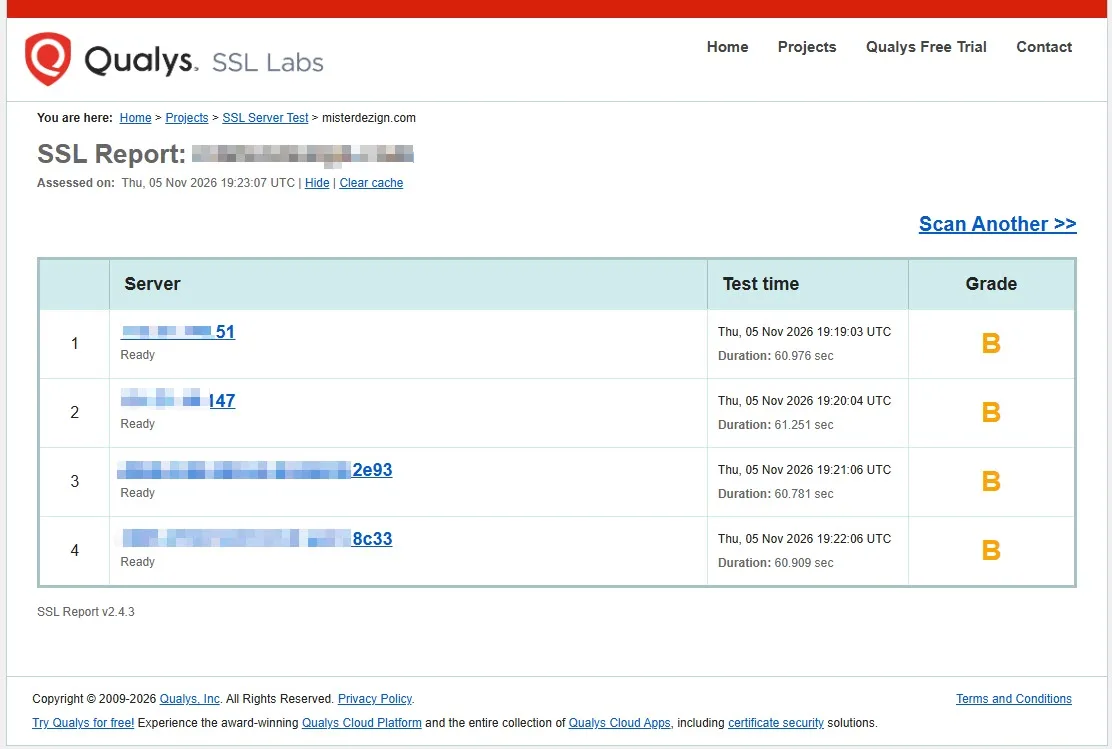
How to Check Your Website’s SSL Configuration
Before making changes, perform a basic assessment of your website’s HTTPS configuration.
Step 1: Test the Website in a Browser
Visit your website using its HTTPS address.
Check whether the browser displays a certificate error, insecure connection warning, or another connection-related issue.
Modern browsers may display security information through a site controls icon rather than the traditional padlock symbol.
Click the relevant browser control to inspect the connection details.
Step 2: Use an SSL Testing Tool
You can use a public SSL analysis service such as:
Qualys SSL Labs SSL Server Test
This tool can help identify:
- Certificate validity problems.
- Incorrect certificate chains.
- Hostname coverage.
- Supported TLS versions.
- Server configuration weaknesses.
For public websites, SSL testing tools provide useful information about the externally accessible TLS configuration.
Step 3: Check All Important Domain Variations
Test the following addresses:
http://example.comhttps://example.comhttp://www.example.comhttps://www.example.com
Confirm that the required hostnames are covered by valid certificates and that HTTP requests redirect appropriately.
The final destination should use your preferred canonical HTTPS hostname.
Step 4: Inspect the Browser Console
Open Chrome DevTools and review the Console and Security panels.
Check for mixed content, blocked resources, and certificate-related errors.
Inspect multiple page types rather than only the homepage.
A website may load securely on its homepage while individual articles, product pages, or checkout pages contain insecure resources.
Step 5: Clear Relevant Caches
After correcting SSL or HTTPS configuration problems, clear the relevant caching layers.
These may include:
- WordPress caching plugins.
- Server-side page caches.
- CDN caches.
- Browser caches where appropriate.
Then reload the affected pages and verify the results.
Caching problems can sometimes make an already corrected issue appear to remain unresolved.
How to Fix SSL Problems on WordPress Behind Cloudflare
WordPress websites using Cloudflare require special attention because HTTPS connections may involve two separate stages.
The first connection runs between the visitor and Cloudflare.
The second connection runs between Cloudflare and the origin server.
A secure connection at the Cloudflare edge does not automatically guarantee that the origin server is correctly configured.
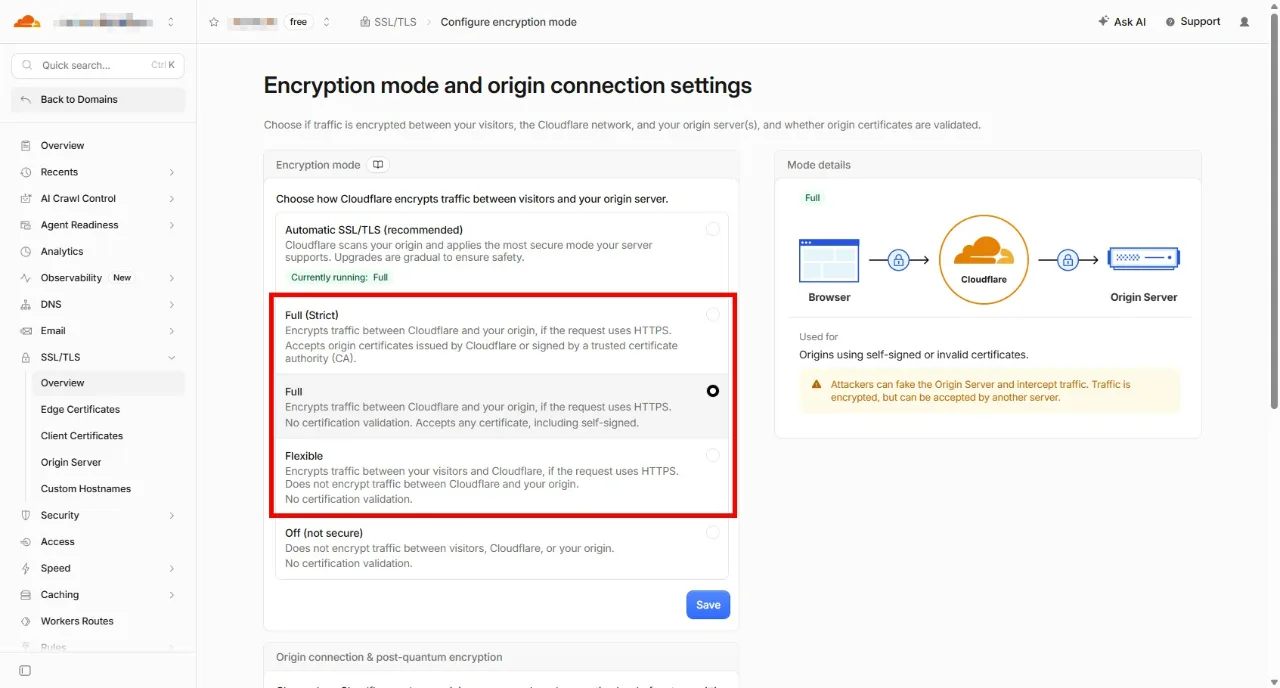
Understand Cloudflare SSL/TLS Modes
Cloudflare provides different SSL/TLS encryption modes.
Flexible
Cloudflare uses HTTPS between the visitor and Cloudflare, but HTTP between Cloudflare and the origin server.
This does not provide end-to-end encryption and can contribute to redirect loops in certain configurations.
Full
Cloudflare uses HTTPS for both connections, but does not require a publicly trusted or otherwise validated origin certificate.
Full (strict)
Cloudflare requires a valid, unexpired origin certificate that matches the requested hostname and is issued by a trusted certificate authority or Cloudflare Origin CA.
For properly configured production WordPress websites, Full (strict) is generally the preferred option.
Before enabling it, verify that the origin server has an appropriate certificate installed.
Troubleshoot Cloudflare SSL Errors
If your website displays Cloudflare-related SSL errors, check the certificate installed on the origin server and the selected SSL/TLS mode.
Also verify:
- The origin server supports compatible TLS versions.
- The hostname is covered by the certificate.
- HTTPS is correctly configured at the origin.
- Firewall rules are not interfering with necessary connections.
- Redirect rules do not conflict between Cloudflare and WordPress.
Avoid switching to Flexible mode simply to bypass a certificate problem.
It is better to correct the origin configuration and maintain proper encryption between Cloudflare and the server.
Why HTTPS Matters for WooCommerce Websites
HTTPS is especially important for websites running WooCommerce.
Online stores frequently handle sensitive interactions, including account authentication, customer addresses, and checkout processes.
Although payment gateways may securely process payment information through their own systems, the surrounding storefront must still protect customer communication.
A poorly configured HTTPS environment can create problems such as:
- Browser warnings during checkout.
- Insecure account login pages.
- Mixed content on payment-related pages.
- Unexpected redirects between HTTP and HTTPS.
- Session or authentication issues caused by incorrect proxy configuration.
Recommended WooCommerce Checks
After correcting an HTTPS issue, test the following pages:
- Shop and product pages.
- Cart page.
- Checkout page.
- My Account page.
- Customer login and registration.
- Password reset process.
Also verify that payment gateway redirects and callback endpoints continue to function correctly.
For live stores, perform testing carefully to avoid creating unwanted transactions or disrupting customer orders.
Can a Not Secure Warning Affect WordPress SEO?
HTTPS is an established Google Search ranking signal, although it is not a substitute for high-quality content, useful information, or good website performance.
Correct HTTPS configuration also supports technical SEO by helping maintain consistent canonical URLs and avoiding unnecessary HTTP and HTTPS duplication.
However, installing an SSL certificate does not guarantee a ranking improvement.
The main benefits of a properly configured HTTPS website include a more trustworthy browsing experience, encrypted communication, and a stronger technical foundation.
When migrating a WordPress website from HTTP to HTTPS, review the following:
- Permanent redirects from HTTP to HTTPS.
- Canonical URL configuration.
- XML sitemap URLs.
- Internal links.
- Structured data references.
- Google Search Console properties and indexing status.
Monitor your website after migration to ensure that important pages remain accessible and indexable.
WordPress HTTPS Security Checklist
Use the following checklist to review your website’s configuration.
- A valid TLS certificate is installed.
- The certificate covers all required hostnames.
- Automatic certificate renewal is working.
- HTTPS loads successfully without browser warnings.
- HTTP requests redirect to HTTPS.
- WordPress URLs use HTTPS.
- No unresolved mixed content issues remain.
- CDN and origin server TLS settings are compatible.
- WordPress login and account pages work correctly.
- WooCommerce checkout functions normally.
- Canonical URLs and XML sitemaps use HTTPS.
- Changes have been verified after clearing relevant caches.
Regularly reviewing these settings can help prevent unexpected security warnings and service interruptions.
Frequently Asked Questions
Why does my WordPress website say Not Secure even after installing SSL?
Your website may still use HTTP URLs, have an incorrect HTTPS redirect, or load resources through insecure connections.
Check WordPress URL settings, inspect the browser Console for mixed content, and verify that your certificate covers the correct domain.
Is a free SSL certificate safe for WordPress?
Yes. A properly issued and configured free certificate, such as one provided through Let’s Encrypt, can provide strong TLS encryption.
The effectiveness of the encrypted connection does not depend on whether the certificate was purchased.
Can I fix WordPress mixed content without a plugin?
Yes. Mixed content can be corrected by updating insecure resource URLs, fixing theme or plugin configuration, or performing a database-aware search-and-replace operation.
Always back up your website before modifying database content.
Why does my website work with HTTPS but not with www?
The certificate may not include the www hostname, or the server may not be configured correctly for that hostname.
Verify certificate coverage, DNS records, and server configuration.
Does Cloudflare automatically fix every SSL problem?
No. Cloudflare can provide HTTPS for visitor connections, but it does not automatically resolve every origin certificate, redirect, or mixed content problem.
The Cloudflare SSL/TLS mode must be compatible with the origin server’s configuration.
Will installing SSL improve my Google rankings?
HTTPS is a ranking signal, but installing a certificate alone does not guarantee higher search rankings.
Content quality, relevance, accessibility, performance, and other SEO factors remain important.
How often should I check my SSL certificate?
Certificate validity and renewal should be monitored continuously where possible.
Automated renewal reduces manual work, but periodic verification helps identify failed renewal attempts before they interrupt service.
Final Thoughts
A WordPress Website Not Secure warning should not be ignored, particularly on websites that accept customer information or provide online purchasing functionality.
The most common causes include missing or expired SSL certificates, incorrect HTTPS settings, mixed content, and certificate hostname mismatches.
By following a structured troubleshooting process, WordPress website owners can identify these issues without making unnecessary changes to unrelated parts of their websites.
Start by verifying the certificate, review WordPress and server settings, inspect mixed content warnings, and check any CDN configuration.
Once the issue is resolved, test important pages and monitor the website to ensure that HTTPS continues to operate correctly.
Website security is an ongoing responsibility. A valid HTTPS connection is an important foundation, but it should be supported by regular software updates, secure server configuration, reliable backups, and appropriate security monitoring.
For additional WordPress maintenance, security, and troubleshooting resources, explore the WPStore+ website and its growing collection of WordPress solutions.