
Knowledge, WordPress Tips & Tutorials
How to Minify CSS and JavaScript in WordPress
Oct
Minify CSS and JavaScript in WordPress to significantly streamline frontend performance, reduce overall payload sizes, and improve Core Web Vitals across every page of your site. Modern WordPress themes and plugins depend heavily on custom stylesheets and script libraries to deliver dynamic design, interactive features, and advanced layout controls. However, every uncompressed asset introduces unnecessary characters, whitespace, code comments, and multi-line breaks that bloat transfer files and delay browser rendering. When browsers download multiple unoptimized static assets sequentially, the critical rendering path slows down, increasing Largest Contentful Paint (LCP) and First Contentful Paint (FCP) thresholds.
Minification strips away extraneous code structure without altering the execution logic, visual output, or underlying instructions of stylesheets and scripts. By converting verbose code into compact, machine-readable blocks, browsers parse and execute resources much faster. In addition, combined with asset delivery practices such as Gzip or Brotli compression and browser caching, minifying CSS and JS files can substantially decrease network requests and overall bandwidth usage on your web server.
This comprehensive technical guide walks you through the step-by-step process of preparing your WordPress environment, installing and configuring dedicated minification tools, troubleshooting common script breaking points, and verifying code execution using browser developer utilities. Whether you manage a lean business blog, a portfolio site, or a complex WooCommerce storefront with extensive custom styling, implementing safe asset minification establishes a solid foundation for optimal load times and consistent user engagement.
Getting Started: Preparing and Implementing Asset Minification
Configuring static file optimization requires a structured implementation plan. Because minification and script reordering can alter how browser parsers interpret dependencies, you must verify your environment and follow established best practices before modifying active assets on a production website.
1. Create a Full Site Backup
Before adjusting caching, aggregation, or minification parameters, generate a comprehensive backup of your WordPress installation, including both the MySQL database and the wp-content directory.
- Action: Use your hosting panel backup utility (cPanel, Plesk, or managed hosting snapshot) or a reliable backup plugin to capture a full restore point.
- Precaution: Store the backup archive on an off-site cloud storage location to ensure immediate recovery if an aggressive JavaScript merge disrupts admin access or frontend rendering.
2. Audit Existing Plugins and Themes
Multiple performance plugins running simultaneously often introduce duplicate minification passes that corrupt script syntax.
- Action: Navigate to Plugins > Installed Plugins and review your active extensions.
- Check: Ensure that your active theme (such as Astra, GeneratePress, or Flatsome) does not already execute internal asset minification. Disable any overlapping third-party script compressors before installing a new solution.
3. Select and Install a Minification Tool
While minification can be executed manually or via build tools like Gulp and Webpack, most WordPress administrators rely on production-tested optimization plugins such as Autoptimize, WP Rocket, or LiteSpeed Cache.
- Action: Go to Plugins > Add New, search for your chosen optimization utility, click Install Now, and choose Activate.
- License Verification: If using a commercial performance suite, navigate to the plugin settings panel, input your valid license key, and confirm that automated definition updates are enabled.
Step-by-Step Configuration Guide
Once your environment is verified, configure your optimization rules sequentially. Always configure stylesheets first before applying script minification.
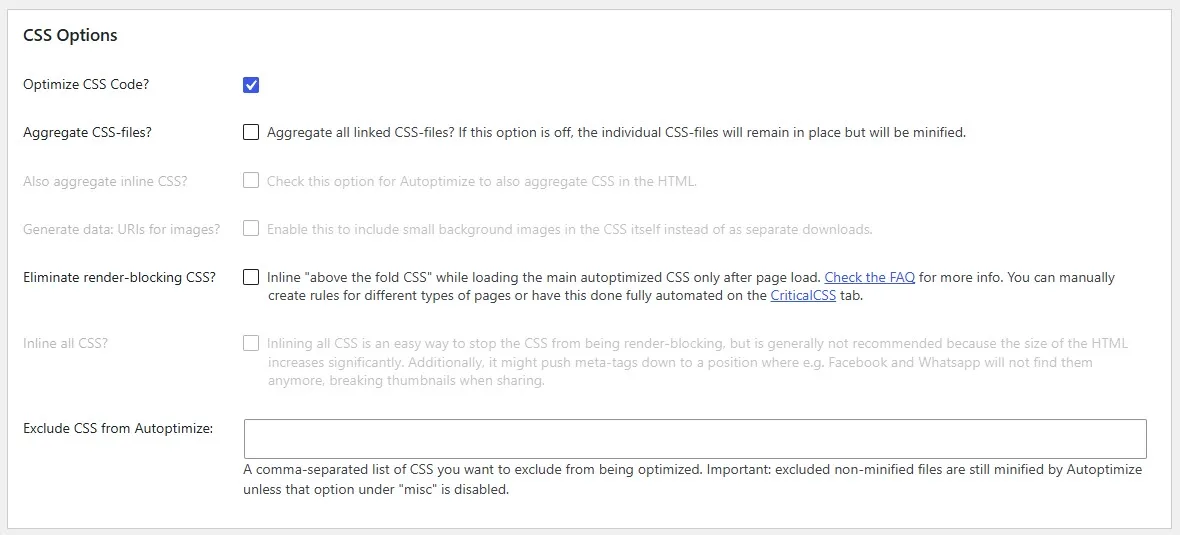
Step 1: Minify and Combine CSS Files
- Navigate to your optimization plugin settings dashboard (e.g., Settings > Autoptimize or Settings > WP Rocket > File Optimization).
- Locate the CSS Options or CSS Files configuration card.
- Check the option labeled Optimize CSS Code or Minify CSS Files.
- Review the option to Aggregate CSS Files (Combine CSS).
- Best Practice for HTTP/2 and HTTP/3: In modern hosting environments, combining all stylesheets into a single massive file is often counterproductive. Minifying individual files without aggressive concatenation usually delivers superior parallel loading efficiency.
- Save your changes and clear the site cache immediately.
Step 2: Minify and Optimize JavaScript Files
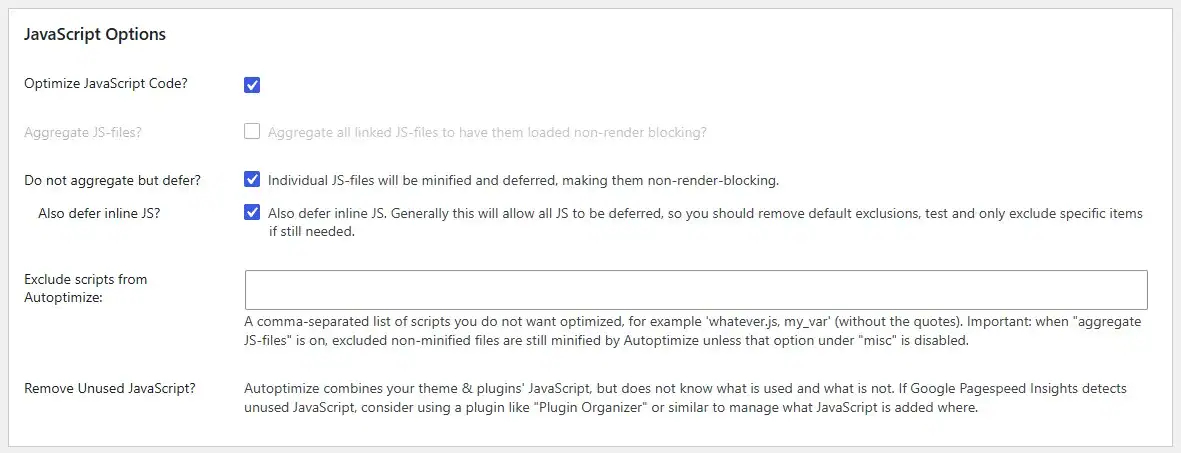
- In the same performance settings screen, scroll down to the JavaScript Options section.
- Select Optimize JavaScript Code or Minify JavaScript Files.
- Locate advanced script handling controls:
- Defer JavaScript: Postpones script execution until after the HTML structure is completely parsed.
- Delay JavaScript Execution: Halts the loading of non-critical third-party scripts (analytics, chat widgets) until explicit user interaction (scroll, click, or keypress) occurs.
- Set up safe exclusions:
- By default, core dependencies like
jquery.jsorjquery-coreshould remain excluded from combination or aggressive deferral unless thoroughly tested.
- By default, core dependencies like
- Save your changes and initiate a full cache purge.
Step 3: Implement Critical Path and Inline CSS Rules
- To eliminate render-blocking stylesheets above the fold, look for the Critical CSS or Optimize CSS Delivery option.
- Generate the critical styling rules directly through the plugin API or a dedicated generator service.
- Configure the remaining bulk stylesheets to load asynchronously via a
preloadtag.
Testing the Plugin and Verifying Minification
Never assume that minification completed successfully without rigorous functional and structural testing. Inspecting page output and script lifecycles guarantees that your site remains visually intact and fully interactive.
Step 1: Inspect Frontend Layouts in Private Browsing
Open a private or incognito browser window and clear your local browser cache to bypass any logged-in administrator privileges or localized cached assets.
- Visual Inspection: Verify responsive layouts, sticky navigation bars, mobile off-canvas menus, accordions, and header sliders.
- Interactive Testing: If running WooCommerce, add a product to the cart, test variable product swatch selectors, and confirm the checkout form processes fields cleanly.
Step 2: Check Page Source for Minified Paths
Right-click on your homepage and select View Page Source (or press Ctrl + U / Cmd + Option + U).
- Search for
.min.cssor plugin-specific cached asset directories (such aswp-content/cache/orwp-content/autoptimize/). - Open one of the generated stylesheet or script links in a new tab. The resulting source code should display as continuous, compressed blocks with no line indentations or commentary banners.
Step 3: Audit Console Errors via Developer Tools
Open the browser developer panel by pressing F12 or right-clicking and selecting Inspect.
- Navigate to the Console tab.
- Reload the page and check for red error flags, specifically
Uncaught SyntaxErrororTypeError: $(...).pluginName is not a function. - If syntax errors appear, a specific script was either concatenated out of sequence or broken during whitespace stripping. Add the offending script URL to your plugin’s exclusion list immediately.
Frequently Asked Questions (FAQs)
What is the difference between minification and compression?
Minification removes unnecessary formatting, whitespace, comments, and shortened variable names directly from the source code file. Compression (such as Gzip or Brotli) uses binary algorithms on the server level to shrink the overall transfer size of files during HTTP transit. Both techniques should be used together for maximum efficiency.
Will minifying CSS and JS break my WordPress theme?
Standard minification rarely causes issues on well-coded themes. However, combining multiple JavaScript files into a single bundle or deferring scripts out of order can disrupt variable declarations or jQuery dependencies. Always test interactive features after enabling script optimization.
Should I combine CSS and JavaScript files in HTTP/2 environments?
In most modern hosting setups utilizing HTTP/2 or HTTP/3, combining files (concatenation) is no longer mandatory and can degrade performance. HTTP/2 supports multiplexing, allowing multiple small minified assets to download simultaneously over a single TCP connection.
How do I exclude a specific script from minification?
Most optimization plugins include an Exclude scripts from minification text area. Enter the filename, partial path, or script handle (for example, wp-includes/js/dist/vendor/wp-polyfill or cart.js) into the exclusion box to preserve original execution.
Does minification reduce server response time (TTFB)?
No. Minification affects client-side rendering speed and total payload download size. Server response time (Time to First Byte or TTFB) is governed by hosting hardware, PHP processing efficiency, database optimization, and object caching.
Summary
Minifying CSS and JavaScript assets is a vital component of professional WordPress maintenance and speed optimization. By eliminating unnecessary code bloat, streamlining resource requests, and resolving render-blocking scripts, you significantly reduce overall page weight and accelerate delivery across desktop and mobile devices.
To maintain site stability, always approach optimization systematically: secure clean backups, optimize stylesheets before scripts, avoid over-aggregating files on HTTP/2 networks, and thoroughly validate interactive functions using browser developer tools. Regular performance audits ensure that newly added plugins or updated themes remain fully optimized without compromising frontend usability.
Looking to take your WordPress site even further? Explore our complete collection of technical guides and speed optimization tutorials in the Knowledge Base to keep your site running at peak performance. While you are here, do not forget to check out our Shop for premium plugins, themes, and curated digital solutions designed to elevate your online store. Dive in today and find the exact tools you need to build, optimize, and scale your business effortlessly!