
First-Time Setup Guide for WPStore+ Plugins
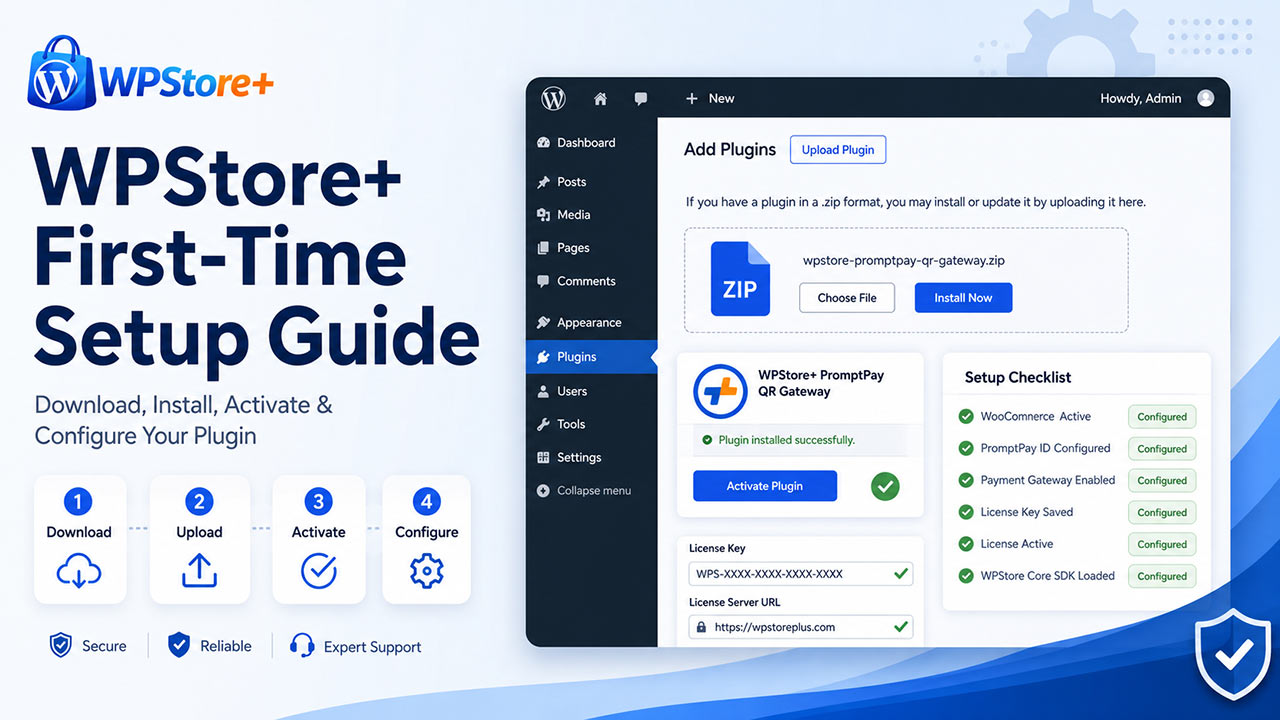
This guide will help you download, install, activate, and configure your WPStore+ plugin for the first time.
It is written for WordPress website owners, WooCommerce store owners, and beginners who may not have installed a premium plugin manually before.
In this example, we use WPStore+ PromptPay QR Gateway for WooCommerce as the sample plugin. However, the basic setup process is similar for most WPStore+ plugins.
Before You Start
Before installing your WPStore+ plugin, please make sure that:
- You can log in to your WordPress admin dashboard.
- Your website has administrator access.
- WordPress and WooCommerce are installed and working correctly.
- You have completed your WPStore+ order.
- Your order status is marked as Completed.
- You have access to your WPStore+ account, download file, and license key.
For WooCommerce payment plugins, WooCommerce must be installed and activated before using the plugin.
Step 1: Log In to Your WPStore+ Account
First, log in to your WPStore+ account using the account that was used to purchase the plugin.
After logging in, open the account menu and go to the Downloads section.
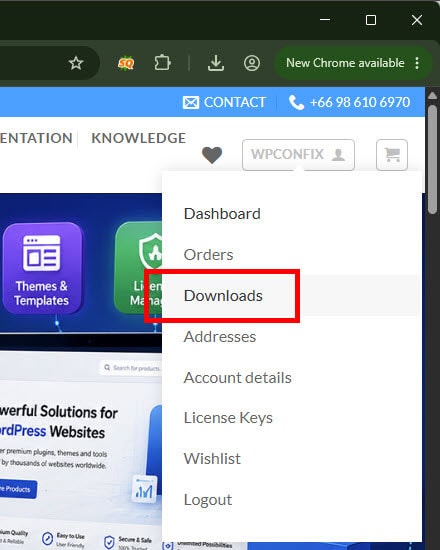
The Downloads section allows you to access available plugin files from your WPStore+ account.
Step 2: Open Your Completed Order
You can also access your plugin download from the Orders section in your WPStore+ account.
Go to My Account > Orders, then click the View button next to your completed order.
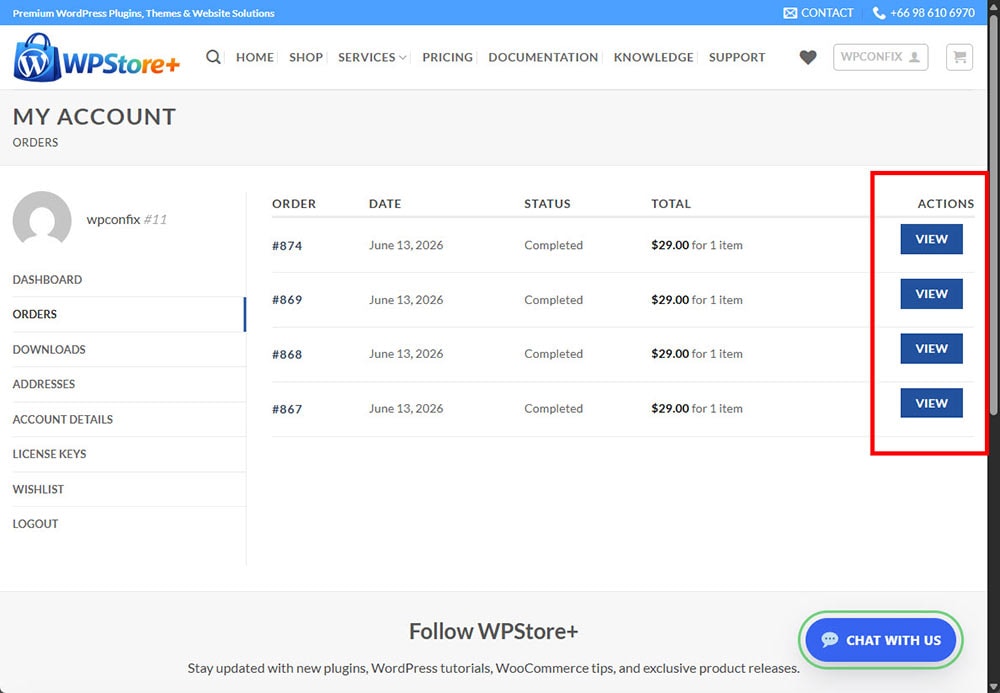
Make sure the order status is Completed. If the order is still processing, the download file may not be available yet.
Step 3: Download the Plugin ZIP File
Inside the order details page, you will see the plugin download button.
Click the download button to download the plugin ZIP file to your computer.
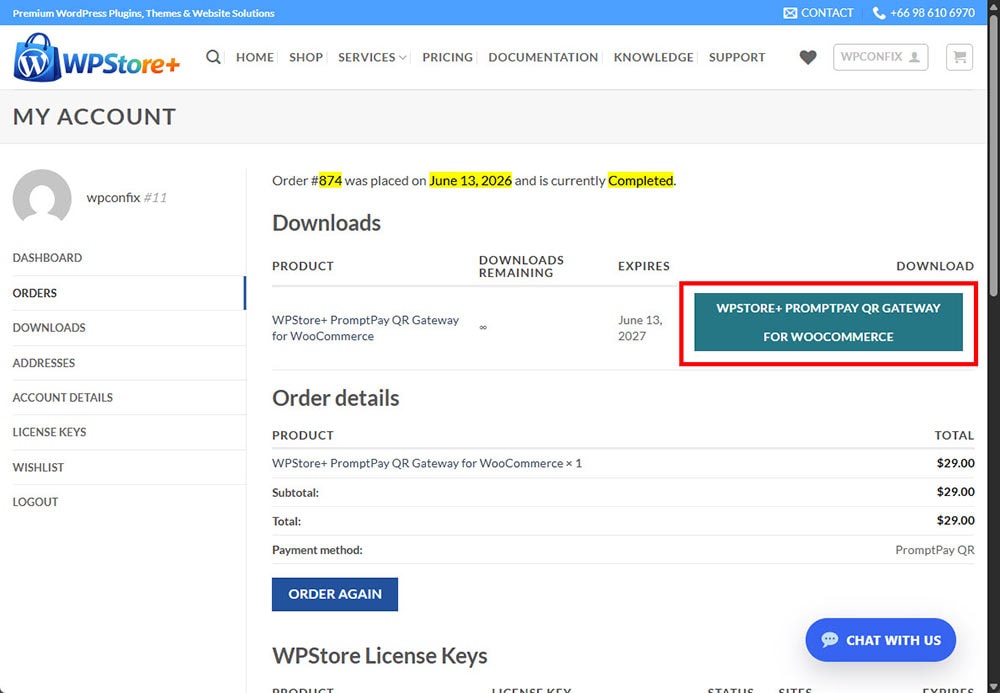
The downloaded file should usually end with .zip.
For example:
wpstore-promptpay-qr-gateway-v4.2.2.zip
Do not unzip the file. WordPress requires the plugin to be uploaded as a ZIP file.
Step 4: Confirm the Download File
After clicking the download button, check your browser download panel or your computer’s Downloads folder.
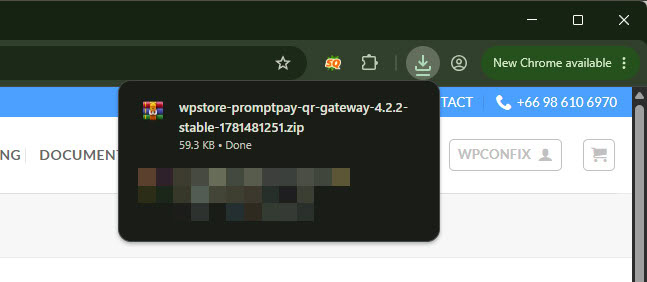
Make sure the plugin ZIP file has finished downloading completely before uploading it to WordPress.
If the file download fails or looks incomplete, download it again from your WPStore+ account.
Step 5: Open the WordPress Plugin Upload Page
Log in to your WordPress admin dashboard.
Then go to:
Plugins > Add Plugin
Click the Upload Plugin button at the top of the page.
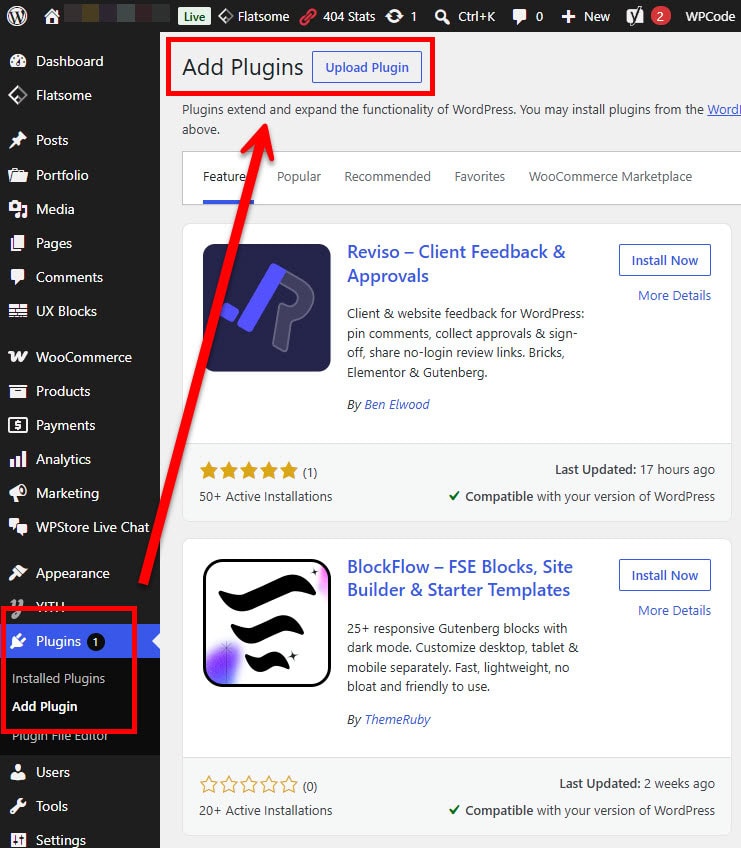
This page allows you to upload premium plugins manually using a ZIP file.
Step 6: Upload and Install the Plugin
Click Choose File, then select the WPStore+ plugin ZIP file from your computer.
After selecting the file, click Install Now.
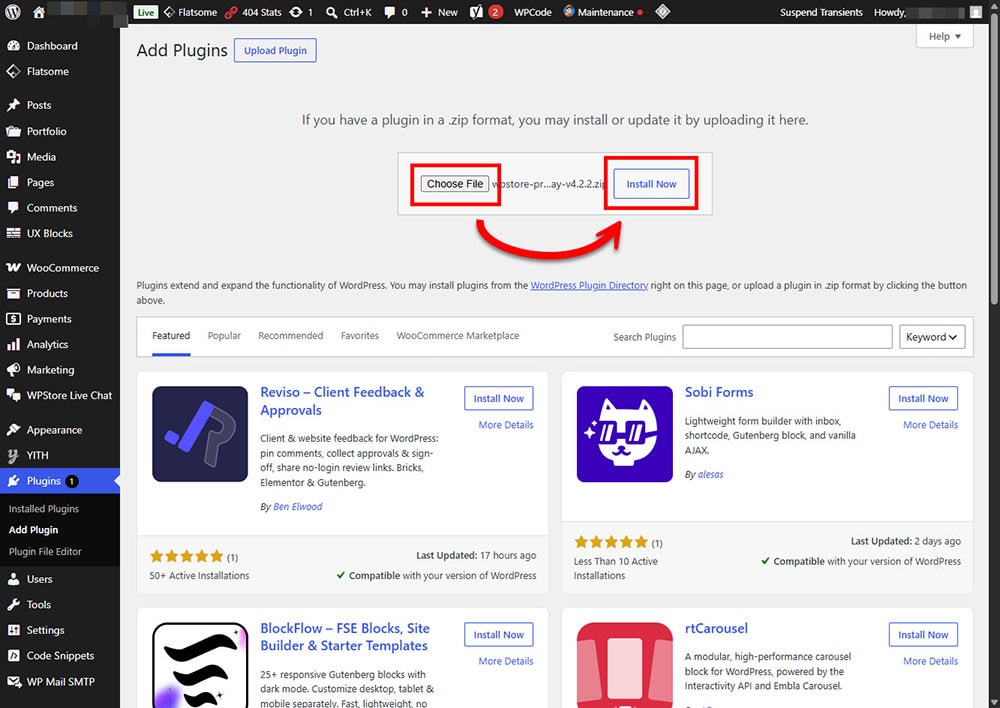
WordPress will upload the ZIP file, unpack it, and install the plugin automatically.
Please wait until the installation process is complete. Do not close the browser tab during installation.
Step 7: Activate the Plugin
After the plugin has been installed successfully, WordPress will show an Activate Plugin button.
Click Activate Plugin to enable the plugin on your website.
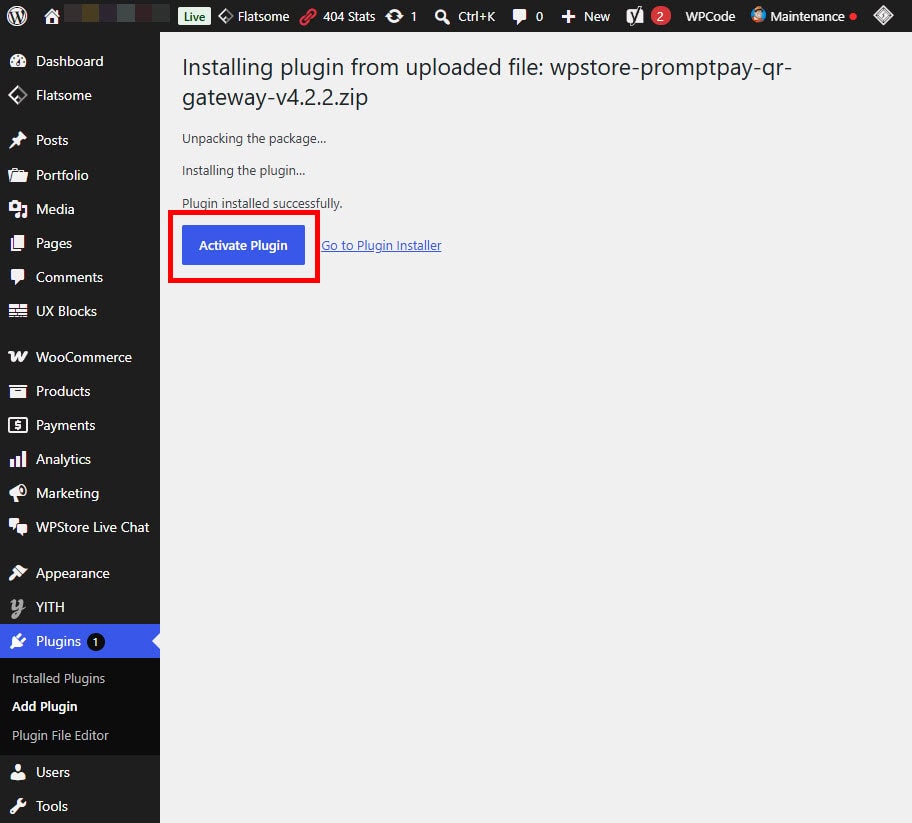
The plugin must be activated before you can access its settings, license page, or features.
Step 8: Confirm That the Plugin Is Active
After activation, go to:
Plugins > Installed Plugins
Find your WPStore+ plugin in the plugin list.
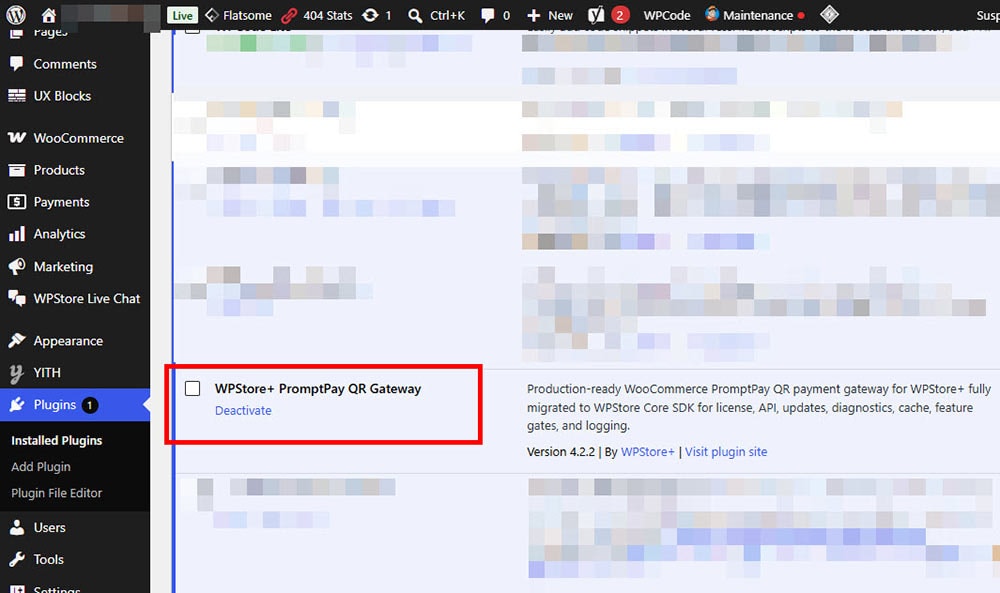
If the plugin shows a Deactivate link, it means the plugin is currently active.
If you see an Activate link instead, click it to activate the plugin.
Step 9: Open the Plugin License Page
Most WPStore+ commercial plugins require a license key for updates, support, and commercial feature access.
For WPStore+ PromptPay QR Gateway, go to:
WooCommerce > PromptPay License
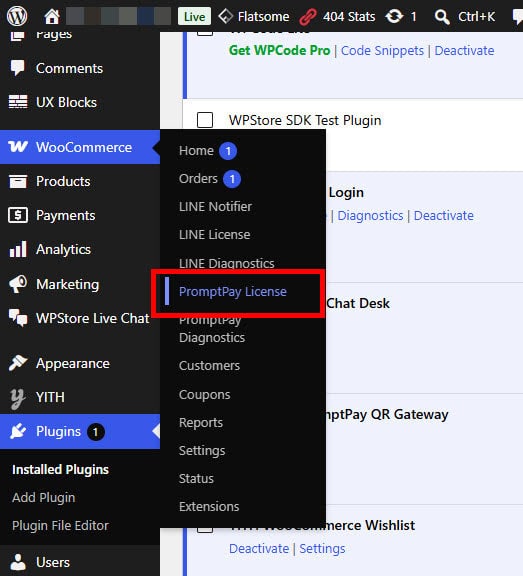
Other WPStore+ plugins may have a different license menu, depending on the plugin type.
For example, some plugins may show their license page under:
- WooCommerce
- Settings
- WPStore+
- The plugin’s own admin menu
Step 10: Enter Your License Key
On the license page, enter your WPStore+ license key.
Also confirm that the License Server URL is:
https://wpstoreplus.com
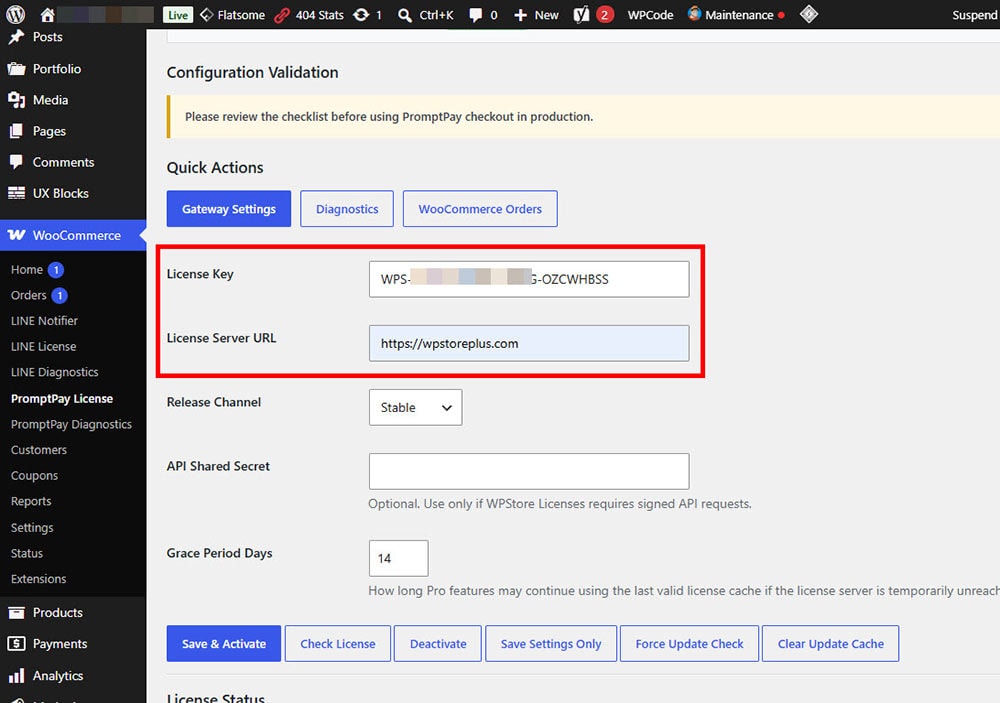
After entering the license key, click Save & Activate.
If the license is valid, the plugin will show an active license status.
A valid license is required for:
- Plugin updates
- License verification
- Commercial feature access
- Support eligibility
- Security and compatibility updates
Step 11: Review the Setup Checklist
After activating your license, review the setup checklist on the plugin license page.
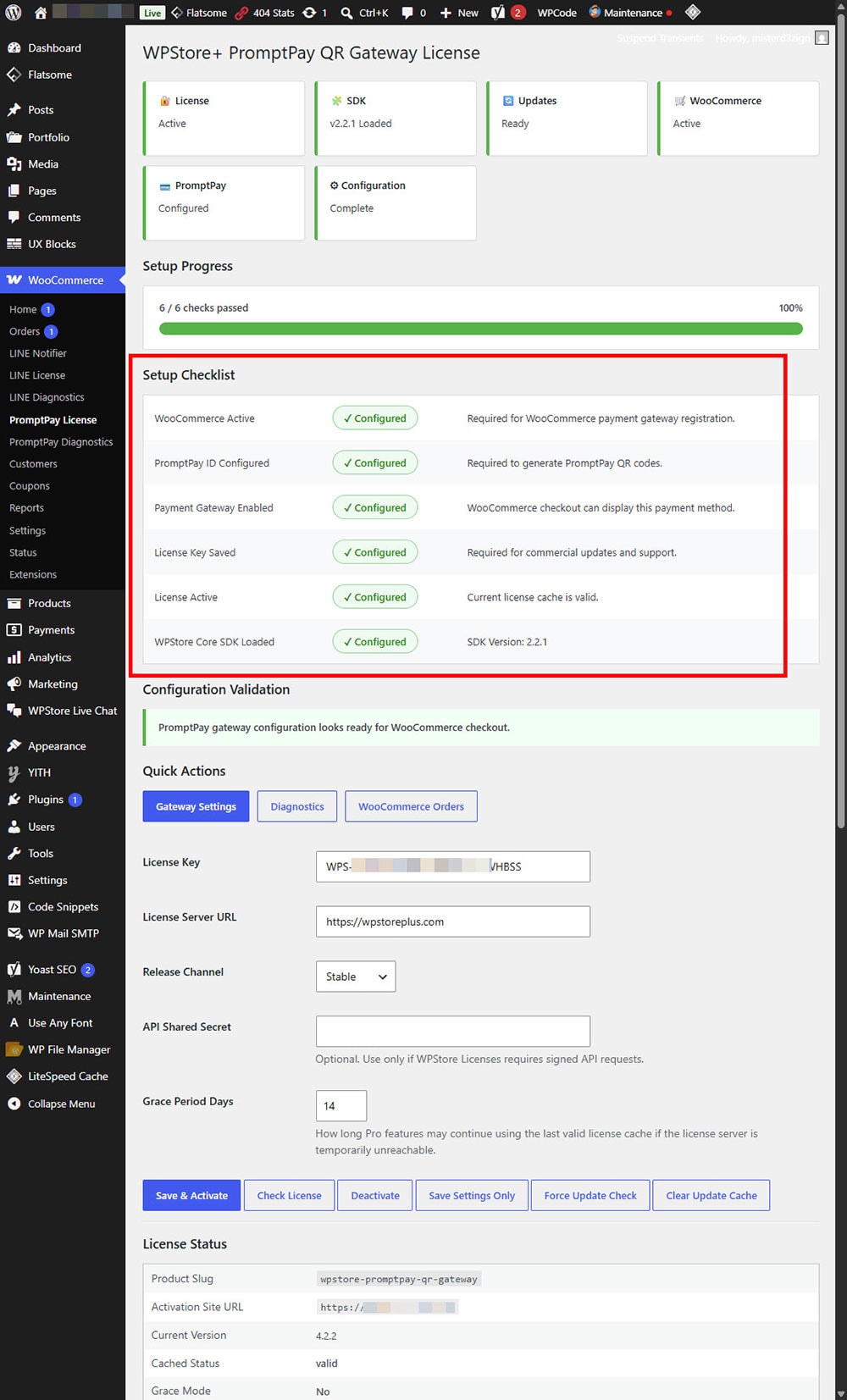
The checklist helps confirm whether the required setup items are complete.
For WPStore+ PromptPay QR Gateway, the checklist may include:
- WooCommerce Active
- PromptPay ID Configured
- Payment Gateway Enabled
- License Key Saved
- License Active
- WPStore Core SDK Loaded
If all items are marked as configured, your plugin setup is almost complete.
Step 12: Configure the Plugin Settings
After installation and license activation, open the plugin settings page.
For payment gateway plugins, you may need to configure details such as:
- PromptPay ID
- Payment title
- Payment description
- QR code settings
- Slip upload settings
- Order status settings
- Currency or exchange rate settings
For other WPStore+ plugins, the available settings may be different.
Always save your settings after making changes.
Step 13: Test the Main Plugin Feature
Before using the plugin on a live website, we recommend testing the main feature first.
For a WooCommerce payment gateway, you should:
- Open your online store as a customer.
- Add a product to the cart.
- Go to checkout.
- Select the WPStore+ payment method.
- Place a test order.
- Confirm that the payment method appears correctly.
- Check that the order is created successfully.
This helps confirm that the plugin is working correctly before real customers use it.
Step 14: Check for Plugin Updates
WPStore+ plugins include an update system for licensed customers.
To check for updates, go to the plugin license page and click:
Force Update Check
You can also check updates from:
Dashboard > Updates
or
Plugins > Installed Plugins
Keeping your plugin updated helps improve compatibility, security, and performance.
Step 15: Basic Troubleshooting
If something does not work as expected, please review the following checklist.
The plugin file will not upload
Please make sure that:
- The file is a
.zipfile. - The file was downloaded completely.
- You did not unzip the plugin file.
- Your WordPress upload limit is large enough.
- You are logged in as an administrator.
The plugin is installed but not working
Please check that:
- The plugin is activated.
- WooCommerce is active, if required.
- The license key has been entered correctly.
- The license status is active.
- Required settings have been saved.
- No security plugin is blocking requests.
The license does not activate
Please check that:
- The license key was copied correctly.
- There are no extra spaces before or after the license key.
- The License Server URL is correct.
- Your website can connect to
https://wpstoreplus.com. - Your license has not expired.
- Your license site limit has not been reached.
The payment method does not appear at checkout
For WooCommerce payment plugins, please check that:
- WooCommerce is installed and active.
- The payment gateway is enabled.
- The plugin license is active.
- Required gateway settings are configured.
- The checkout page is working correctly.
- Your store currency and payment settings are correct.
Step 16: Recommended Security Notes
For security reasons, please follow these recommendations:
- Download plugins only from your official WPStore+ account.
- Do not install plugin files from unknown sources.
- Keep WordPress, WooCommerce, themes, and plugins updated.
- Use strong administrator passwords.
- Use two-factor authentication when possible.
- Keep regular website backups.
- Avoid sharing your license key publicly.
Your license key is connected to your purchase and should be kept private.
Need Help?
If you are not sure how to install or configure your WPStore+ plugin, our support team can help.
Please contact WPStore+ Support and include:
- Your plugin name
- Your order number
- Your website URL
- A screenshot of the problem
- A short description of what you were trying to do
This information helps us understand the issue faster and provide better support.
Call To Action
Need help with your first-time setup?
Contact WPStore+ Support and our team will guide you through the installation, license activation, and basic configuration process.
